Python Custom Shell
Run a ZIP-based Python project inside an existing virtual environment and return its output.
Overview
The Python Custom Shell block uploads a ZIP file, extracts it into the current project storage, and runs its main.py file using the virtual environment you selected in the block UI.
This block does not create virtual environments. It only runs code inside an existing one.
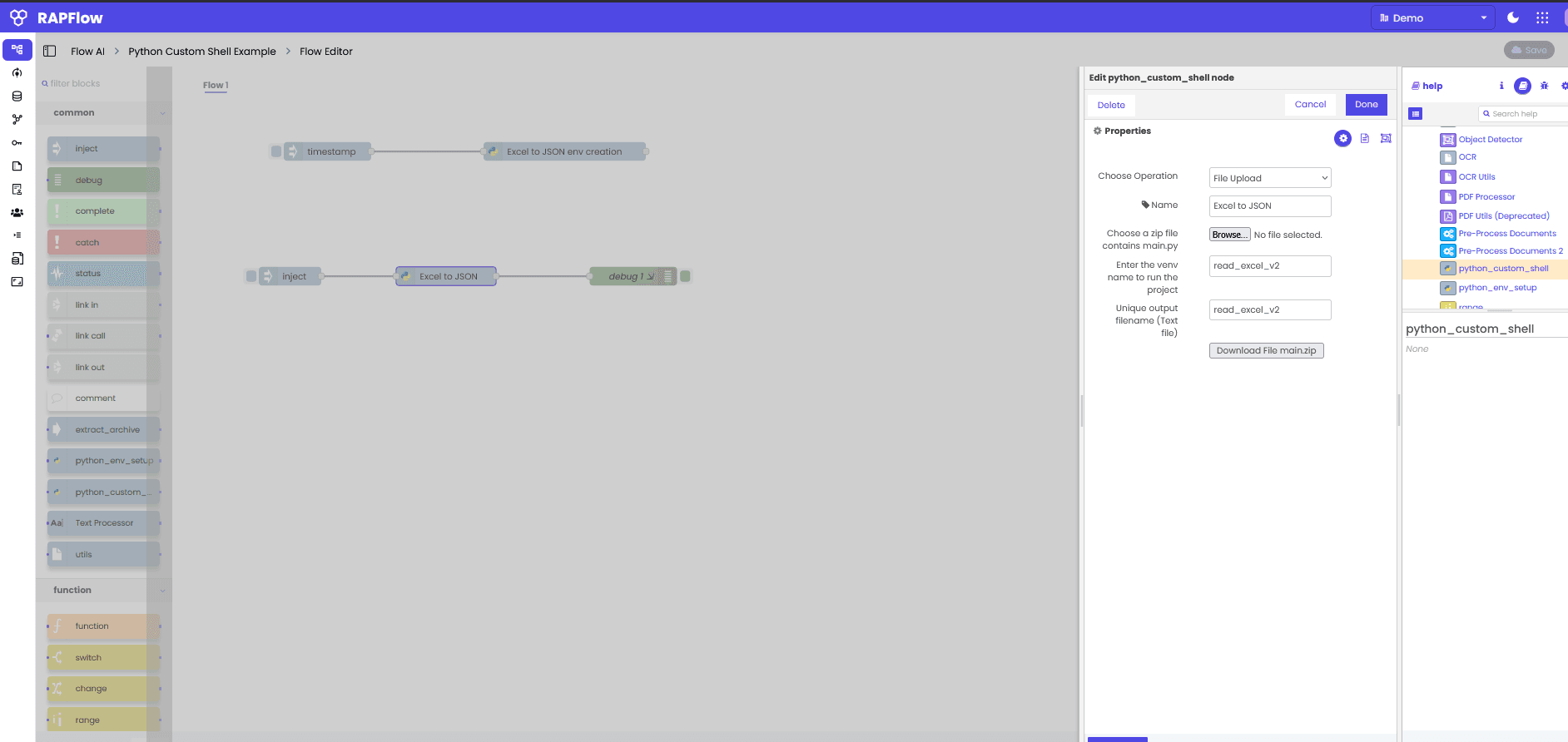
Block configuration
Configure these values in the block editor:
venv_name: name of the virtual environment to usepython_file: ZIP file uploadpython_file_name: saved automatically from the uploaded ZIPpython_file_value: ZIP content encoded as base64project_name: filled from the current project contextoutput_filename: optional file path to read after execution
ZIP requirements
- The uploaded file must be a ZIP archive.
- The extracted project must contain
main.pyat the archive root. - The block executes only
main.py.
Input
The block passes the current msg.payload to Python as the first command-line argument.
- The argument is JSON-encoded text.
- Your script is responsible for parsing it from
sys.argv[1].
Example input (msg.payload)
{
  "excel_path": "reports/april.xlsx"
}
Example main.py
import json
import sys

payload = json.loads(json.loads(sys.argv[1]))
print(json.dumps({
    "received_path": payload["excel_path"]
}))
Output
On success, the block sends the execution result directly as msg.payload.
- If the file configured in
output_filenameexists after execution, the block reads that file and uses its contents as the output. - Otherwise, the block uses the script's standard output.
- The output is returned as text.
Example output (msg.payload)
"{\"received_path\": \"reports/april.xlsx\"}"How execution works
- The block stores the uploaded ZIP inside the project storage area.
- It extracts the ZIP into a generated folder.
- It runs
<venv>/bin/python3 <extracted-folder>/main.py <json-encoded-payload>. - It returns either the configured output file contents or the process stdout.
Limitations
- The selected virtual environment must already exist.
- The archive must contain
main.py. - The block returns text output; it does not automatically parse JSON for you.
- Some output filenames are blocked for safety, including
.env,package.json,README.md,node_modules, and similar reserved names.
Common mistakes
- Uploading a ZIP that does not contain
main.py. - Using a
venv_namethat does not exist in the current project. - Assuming the block supports inline Python or script-path execution modes.
- Expecting
msg.payloadto become a parsed object automatically when your script prints JSON text. - Using a restricted
output_filename.
title: Python Custom Shell description: Execute custom Python scripts with virtual environment support and file uploads.
Overview
The python_custom_shell block is designed to run custom Python code in isolated environments. It can handle file uploads, manage virtual environments, and execute Python scripts with proper isolation and error handling.
Important: Virtual environments cannot be created in the Python Custom Shell block itself. You must use the python_env_setup block to create virtual environments first.
Configuration Options
Operation Types
Choose the type of operation to perform:
- File Upload: Upload and execute a Python project from a ZIP file
- Inline Code: Execute Python code directly in the block
- Script Execution: Run existing Python scripts
File Upload Configuration
When using "File Upload" operation:
- Name: Descriptive name for the operation
- Choose a zip file contains main.py: Upload a ZIP file containing your Python project
- Enter the venv name to run the project: Specify the virtual environment name (must be created using
python_env_setupblock) - Unique output filename: Set a unique filename for output files
Code Structure Requirements:
- Required File: Your Python code must be packaged in a ZIP file containing
main.py - Single Print Statement: The entire Python file should contain only one print statement
- Output Mapping: Whatever is printed becomes the
msg.payloadfor the next block
Virtual Environment Management
- VENV Name: The name of the virtual environment to use (must be created using
python_env_setupblock) - Environment Isolation: Each execution runs in the specified virtual environment
- Shared Environment: Virtual environment can be used across all flows in the same project
How It Works
The python_custom_shell block:
- Uses Existing Environment: Uses the virtual environment created by
python_env_setupblock - Executes Script: Runs the main.py file from uploaded ZIP
- Captures Output: Collects the single print statement output
- Returns Results: Sends the printed output as
msg.payloadto the next block
Basic Execution Flow
Input Message -> Use VENV -> Execute main.py -> Capture Print Output -> Return as msg.payloadImportant Notes:
- Virtual environment must be created using
python_env_setupblock first - Only the
main.pyfile in the ZIP will be executed - The entire Python file should contain only one print statement
- Whatever is printed becomes the
msg.payloadfor the next block
Use Cases
Data Processing
Process data with custom Python logic:
input data -> python_custom_shell -> processed data -> outputFile Operations
Handle complex file operations:
file input -> python_custom_shell (file processing) -> processed files -> storageAPI Integration
Integrate with external APIs:
trigger -> python_custom_shell (API calls) -> response data -> processingData Transformation
Transform data using Python libraries:
raw data -> python_custom_shell (pandas/numpy) -> transformed data -> outputExample Python Code
Excel Processing Example
Process Excel files with pandas:
# main.py in uploaded ZIP
import os, json
import sys
import pandas as pd

def run_excel(excel_name):
    excel_path = os.path.join("/app/storage", excel_name)
    df = pd.read_excel(excel_path)
    # Convert as JSON
    json_data = df.to_json(orient='records')
    return json_data

try:
    result_dict = json.loads(sys.argv[1])
except:
    pass

import os
result = run_excel(os.path.join("/app/storage", result_dict["excel_path"]))
print({"json_data": result})
Advanced Features
Environment Management
The block uses pre-created Python virtual environments:
- Environment Reuse: Uses virtual environments created by
python_env_setupblock - Isolation: Each execution runs in the specified virtual environment
- Shared Access: Virtual environments can be shared across multiple flows in the same project
Error Handling
Comprehensive error handling:
- Execution Errors: Captures Python exceptions
- Environment Errors: Handles virtual environment issues
- File Errors: Manages file upload and access errors
Output Management
Flexible output handling:
- Standard Output: Captures print statements (only one print statement allowed)
- Error Output: Captures stderr
- Return Codes: Provides execution status
- File Outputs: Handles generated files
- Buffer Output: If no unique output filename is given, result returned as buffer requiring Function block conversion
Tips
- Create Environment First: Always use
python_env_setupblock to create virtual environment before using this block - Single Print Statement: Ensure your Python file contains only one print statement
- Structured Output: Use the print statement to output structured data (JSON, dictionaries)
- File Access: Access files using
/app/storagepath for platform storage - Error Handling: Implement proper error handling in your Python code
- Testing: Test your Python code locally before uploading
Common Issues
Environment Not Found
Error: /bin/sh: 1: /app/storage/.../venvs/read_excel/bin/python3: not foundSolution: Ensure the virtual environment is properly set up using python_env_setup block first.
Missing Dependencies
Error: ModuleNotFoundError: No module named 'pandas'Solution: Ensure the virtual environment was created with all required packages using the python_env_setup block.
File Access Issues
Error: FileNotFoundError: [Errno 2] No such file or directorySolution: Ensure file paths are correct and files are accessible in the execution environment.
Related Blocks
- Python Env Setup — virtual environments for Python nodes
- Function — simple JavaScript-based data manipulation
- HTTP In / HTTP Response — expose HTTP APIs alongside scripted logic