Building Flows in the Flow Editor
Learn how to create and manage workflows using AIStudio's visual Flow Editor
Flow Editor Overview
- Palette (Left): Available blocks organized by category
- Workspace (Center): Main canvas for building flows
- Sidebar (Right): Block configuration, help, and debug messages
- Toolbar (Top): Save, deploy, and manage flows
Core Concepts
Blocks (Nodes)
A Block is the basic building unit of a flow. Blocks are triggered by receiving a message from the previous block or by external events (HTTP requests, timers). Each block can have one input port and multiple output ports.
Messages
Messages are JavaScript objects passed between blocks, conventionally containing a payload property.
{
    "payload": "The main data content",
    "topic": "Optional message topic",
    "_msgid": "unique-message-identifier"
}
WARNING >
msg.payloadis overridden by each block. To persist data throughout the flow, use:
msg['custom_key']- custom properties are not overridden
Setting input for the next block:
msg.payload = {
    input_text: 'text to process',
    model: 'gpt-4',
    temperature: 0.7,
};
Function Block Output
// ✅ Modify existing message
msg.payload = 'new payload';
return msg;

// ✅ Preserve all properties while updating
return { ...msg, payload: 'new payload' };

// ⚠️ Loses other message properties
return { payload: 'new payload' };
Flows
A Flow is a tab in the editor containing one or more connected block sets.
Wires
Wires connect blocks by dragging from output ports (right) to input ports (left).
Message Sequences
A message sequence is an ordered series of related messages. The Split block creates sequences from arrays; each message contains msg.parts with:
msg.parts.id- sequence identifiermsg.parts.index- position in sequencemsg.parts.count- total messages
Core blocks for sequences: Split, Join, Sort, Batch
Debugging
Use Debug blocks to inspect message structure in the Debug sidebar.
Switch Block (Conditional Routing)
Route messages to different outputs based on conditions:
- Select property to check (
msg.payload,msg.topic, etc.) - Define condition (equals, contains, regex)
- Set matching value
Outputs: Numbered outputs for matched conditions, Otherwise for unmatched, All for logging.
Configuration Nodes
Config Nodes hold reusable configuration (database connections, API credentials) shared across blocks. View them in the Configuration nodes sidebar.
Building Flows
1. Start a New Flow
- Navigate to your project
- Click "Open Flow Editor"
2. Add and Connect Blocks
- Drag blocks from the palette to canvas
- Connect by dragging from output port to input port
- Configure in the properties panel
3. Test Your Flow
- Save your changes
- Trigger using inject or http in blocks
- Debug with debug blocks
- Iterate as needed
Best Practices
| Area | Guidelines |
|---|---|
| Start Simple | Test each component before adding complexity |
| Organization | Group related blocks, use comments, clear naming |
| Error Handling | Use catch blocks, implement fallbacks, add logging |
| Performance | Minimize transformations, use batch processing |
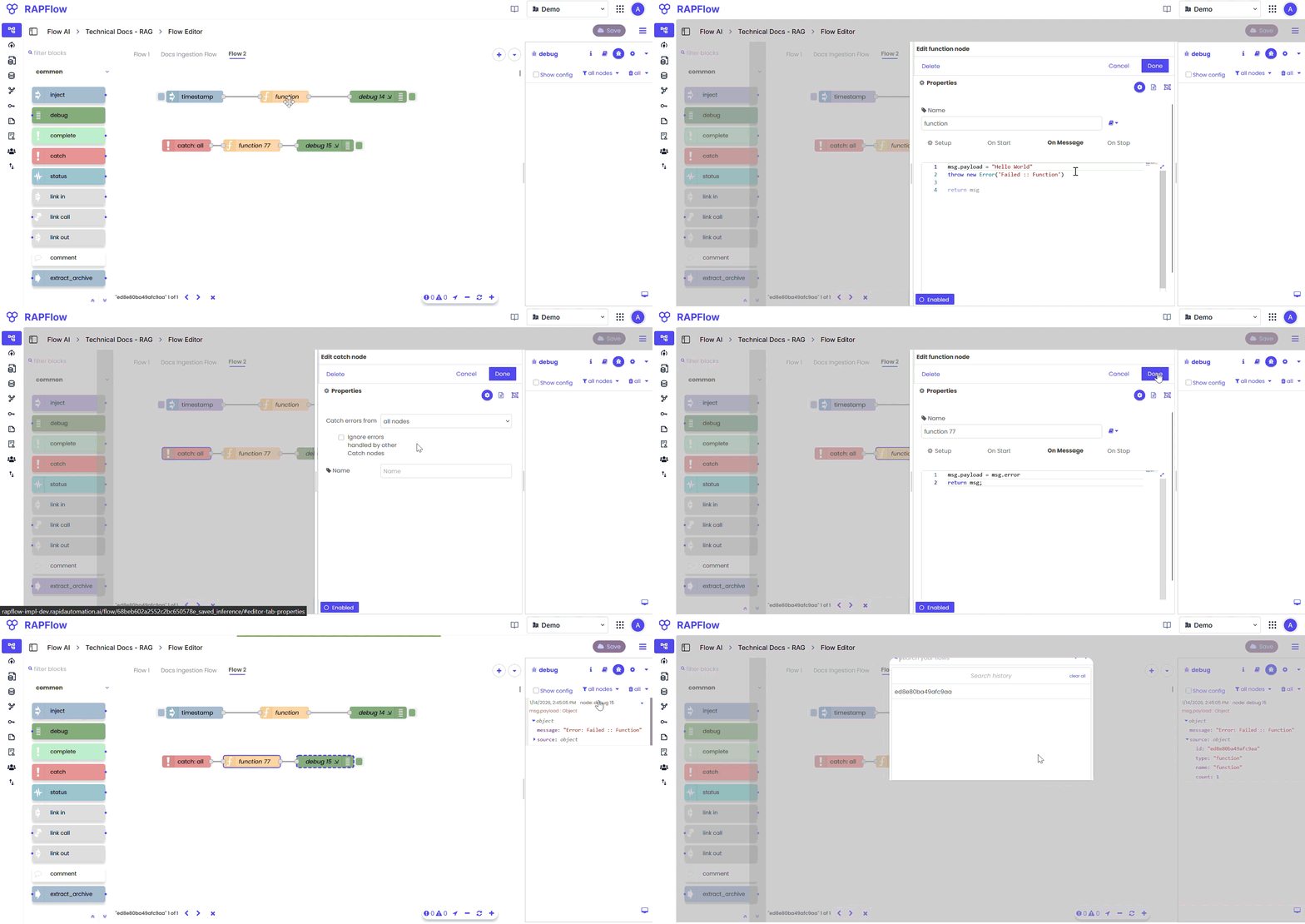
HTTP Error Handling
Connect catch blocks to HTTP In blocks to return errors as flow responses.
Common Flow Patterns
Document Processing:  Input → OCR → Text Processing → Classification → Output
Data Validation:      Input → Validation → Transform → Store → Notify
AI Analysis:          Document → Extract → Analyze → Score → Decision
HTTP Endpoints
Creating Endpoints
http in → [processing blocks] → http responseDeployment
- Save in Flow Editor
- Navigate to Flow AI section
- Deploy your flow project
- Copy the consumer API endpoint
Request Handling
- Body →
msg.payload - Headers →
msg.headers - Query params →
msg.query - Flow Timeout: 8 minutes (returns
"flow timeout max duration exceeded") - Block Timeout: 4 minutes (not applicable for basic or common blocks like function, debug, inject)
Both flow and block timeouts are configurable during deployment of the AIStudio instance.
File Uploads
| Type | Access |
|---|---|
| Single file | msg.payload.filename (string) |
| Multiple files | msg.payload.filename (array) |
Use multipart/form-data with file as the field name.
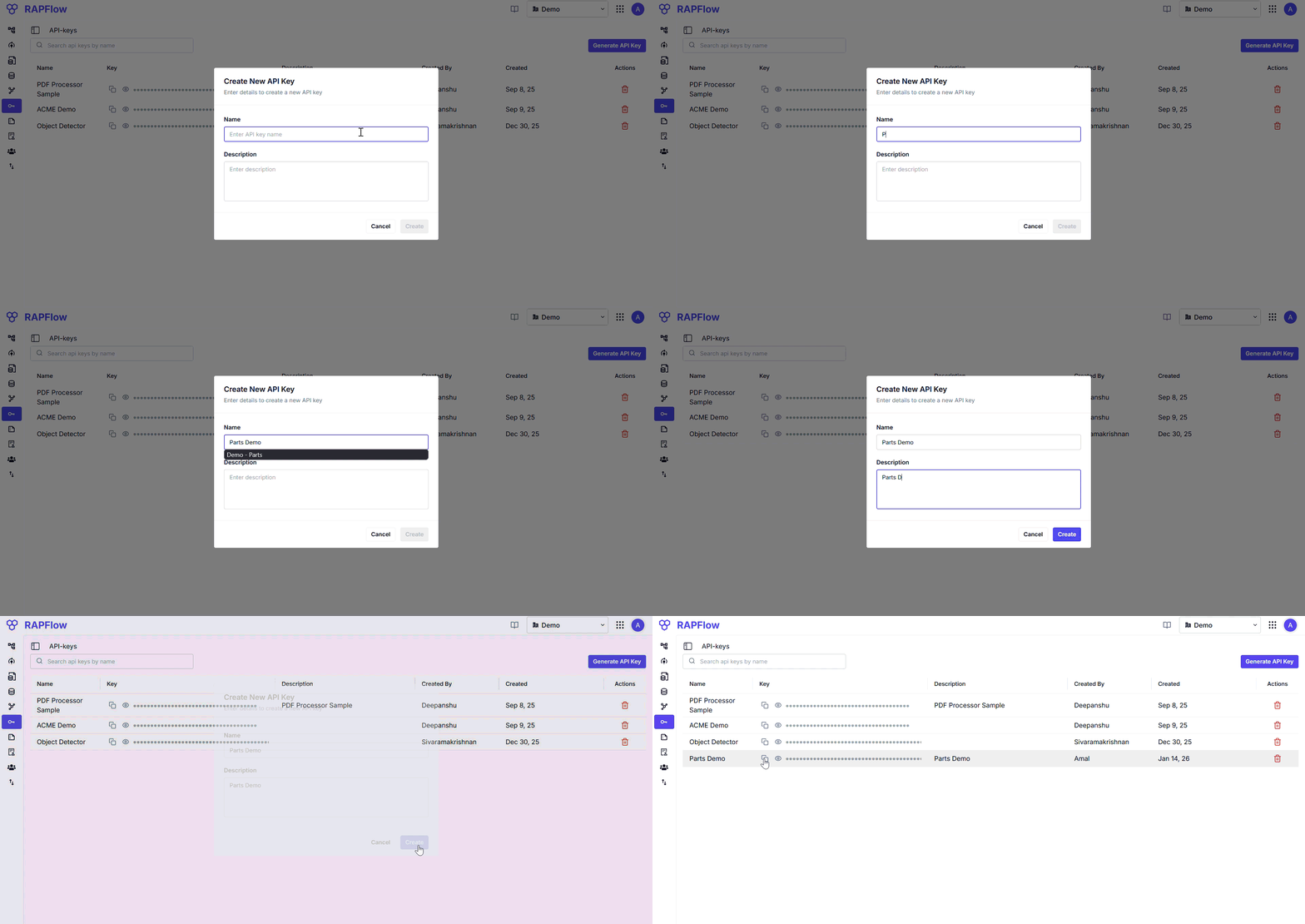
API Keys
- Go to API Keys in sidebar
- Click Generate API Key
- Add name, description, select organization
- Click Create
API Examples
import requests
import time

url = "https://workshop.rapidautomation.ai/console-api/v1/queue/flow/submit/<org>/<flow-id>"
headers = {'x-api-key': '<your-api-key>'}

response = requests.post(url, headers=headers)
result = response.json()

if 'resultUrl' in result:
    while True:
        poll_result = requests.get(result['resultUrl'], headers=headers).json()
        if poll_result.get('status') in ['completed', 'failed']:
            print(poll_result)
            break
        time.sleep(2)
Next Steps
- Blocks Reference - all available components
- Use Cases - real-world examples
- FAQ - troubleshooting