Document Question Answering
Extracts answers to specific questions from document images. It can identify and return answers with or without their location coordinates (bounding boxes) in the document.
Quick Start
To get started:
- Choose a model option from the dropdown (output shape depends on the option)
- Choose a trained model from the Model to use dropdown
- Send document image via
msg.payload.image_path - Send questions via
msg.payload.questions(array of strings) - Optionally provide OCR data via
msg.payload.words_and_bboxes - Receive answers in
msg.payload
Configuration
Model to use (required)
Select a pre-trained model from the dropdown menu. Models must be trained beforehand using the document question answering trainer block.
Number of Answers (optional)
Number of answers to return per question. Default: 1
Example: 1, 3, 5
Threshold (optional, for some algorithms)
Confidence threshold (0 to 1) for filtering answers. Default: 0.5
Note: Lower values return more answers with potentially lower confidence
Common Input Format (All Algorithms)
msg.payload.image_path (string)
Relative path of the document image file on shared storage.
Example: "documents/invoice.png"
Supported formats: .png, .jpg, .jpeg (case insensitive)
msg.payload.questions (array)
Array of questions to ask about the document.
Example: ["What is the invoice number?", "What is the total amount?"]
msg.payload.words_and_bboxes (array, optional for some algorithms)
Optional OCR data containing words and bounding boxes. Can improve accuracy.
Format: [[[x1, y1, x2, y2], "word"], ...]
Example: [[[29, 23, 150, 45], "Invoice"], [[29, 50, 200, 70], "INV-001"]]
Low Infra - Returns BBox of Answers
Use this mode when you need the answer and its bounding box (for highlighting, validation, or UI overlays).
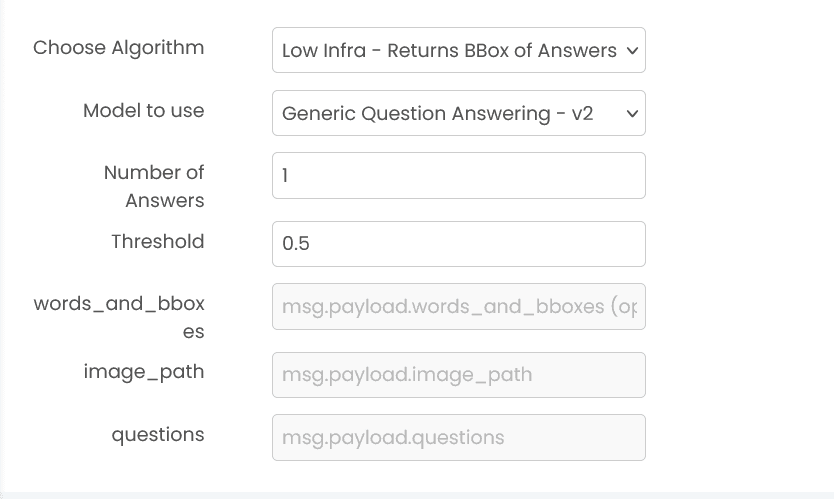
Output shape (high level):
msg.payload={ "output": { "question": [ { "answer": "...", "score": 0.92, "bbox": [x1, y1, x2, y2] } ] } }
Low Infra - Does not Return BBox of Answers
Use this mode when you only need answer text and confidence.
Output shape (high level):
msg.payload={ "output": { "question": [ { "answer": "...", "score": 0.92 } ] } }- Some models may also include
cordinateswhen available.
Moderate Infra - OCR Free
Use this mode when OCR data is not available. The block will work directly from the image.
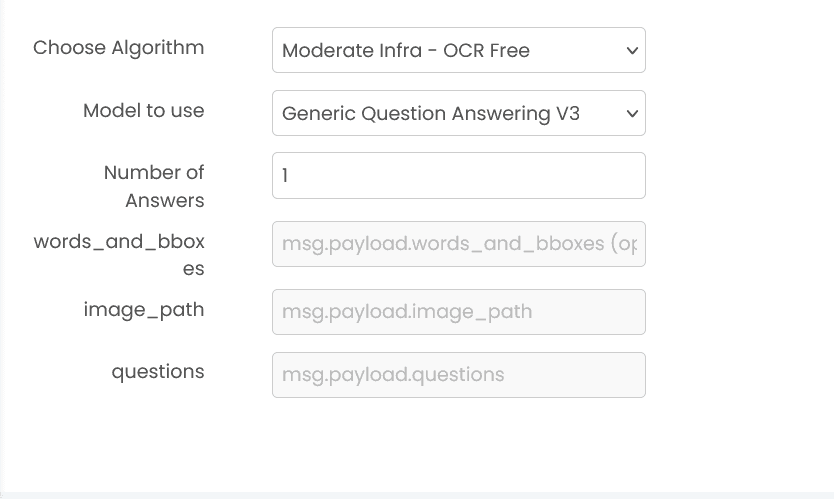
Output shape (high level):
msg.payload={"output": {"question": ["answer"]}}
Example
Input (msg.payload)
{
  "image_path": "documents/invoice.png",
  "questions": ["What is the invoice number?", "What is the total amount?"],
  "words_and_bboxes": [
    [[29, 23, 150, 45], "Invoice"],
    [[29, 50, 200, 70], "INV-001"]
  ]
}
Output (msg.payload)
{
  "output": {
    "What is the invoice number?": [
      { "answer": "INV-001", "score": 0.94, "bbox": [470, 100, 650, 150] }
    ],
    "What is the total amount?": [
      { "answer": "$500.00", "score": 0.91, "bbox": [220, 200, 350, 250] }
    ]
  }
}
Errors
When the block fails, it raises an error. Use a Catch block in your flow to handle failures and inspect the error payload.
Common mistakes
- Empty questions array:
msg.payload.questionsmust contain at least one question. - Missing image path:
msg.payload.image_pathis required and must point to a file on shared storage. - Wrong OCR structure: If provided,
msg.payload.words_and_bboxesmust follow[[[x1, y1, x2, y2], "word"], ...]. - Threshold out of range: If you set a threshold, keep it between 0 and 1.
Best Practices
- Use clear, well-scanned document images for better answer extraction
- Formulate specific and precise questions (e.g., "What is the invoice number?" instead of "invoice?")
- Provide OCR data (words_and_bboxes) when available to improve accuracy
- Use OCR-free mode when OCR data is unavailable or preprocessing is difficult
- Start with a higher threshold (0.7-0.8) for critical applications, lower (0.3-0.5) for better coverage
- Use answer-with-coordinates mode when you need to highlight or verify answer locations visually
- Test with multiple questions in one call to reduce processing time
- Always validate answers in production applications, especially for critical data extraction
Document Classifier
Classifies document images into predefined document types (e.g., invoice, receipt, contract). It can work with or without OCR data to identify the document category.
Document Understander
Extracts specific fields and their values from document images. It identifies and labels entities like invoice numbers, amounts, dates, and other structured fields based on the trained model.