Frequently Asked Questions
Common questions and answers about AIStudio on the RAPFlow platform
Flow Editor Issues
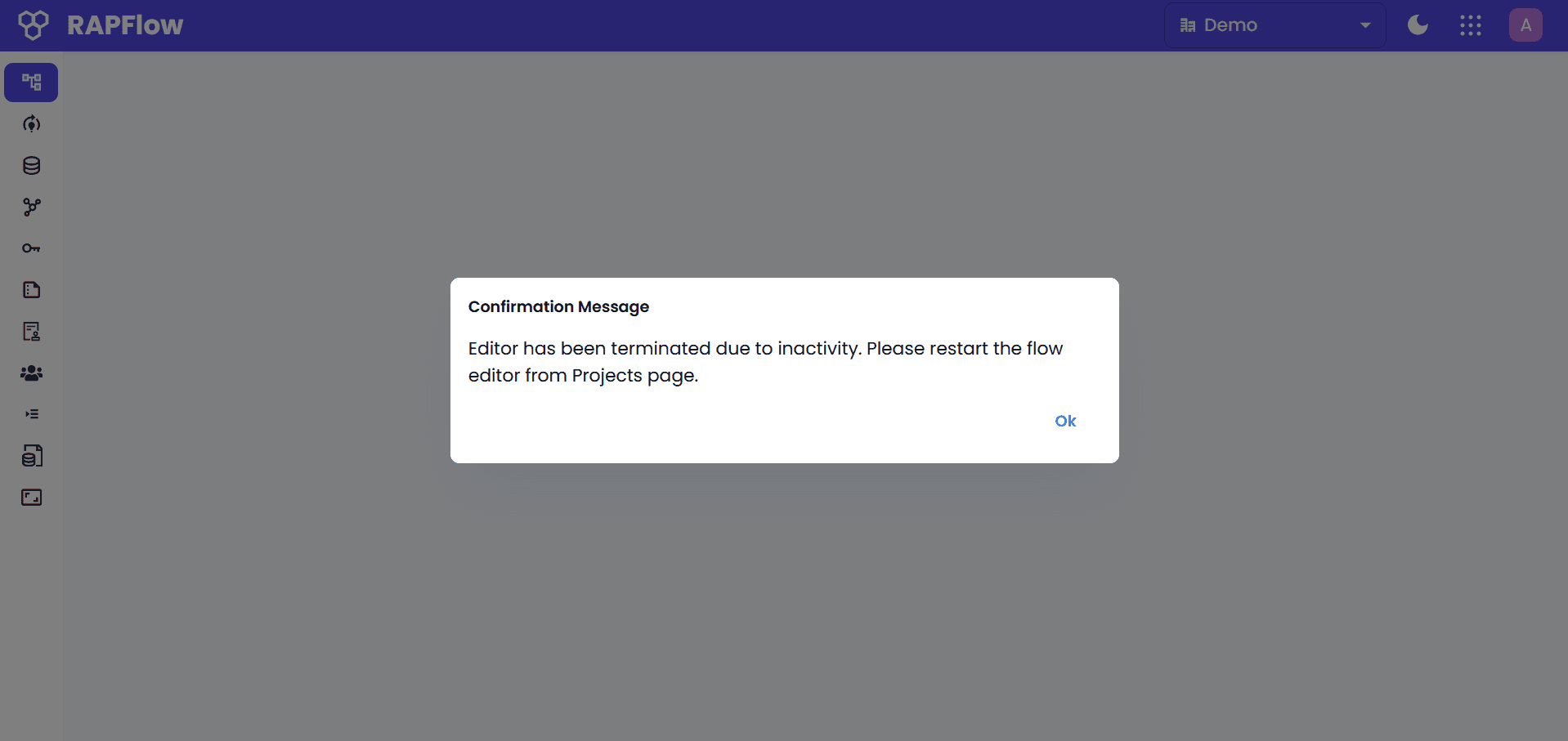
"Editor terminated due to inactivity"
The editor auto-terminates after inactivity to save resources.
To restart:
- Click OK on the message to return to Flow AI.
- Click the menu icon (⋮) on your project card.
- Select Restart Flow Editor.
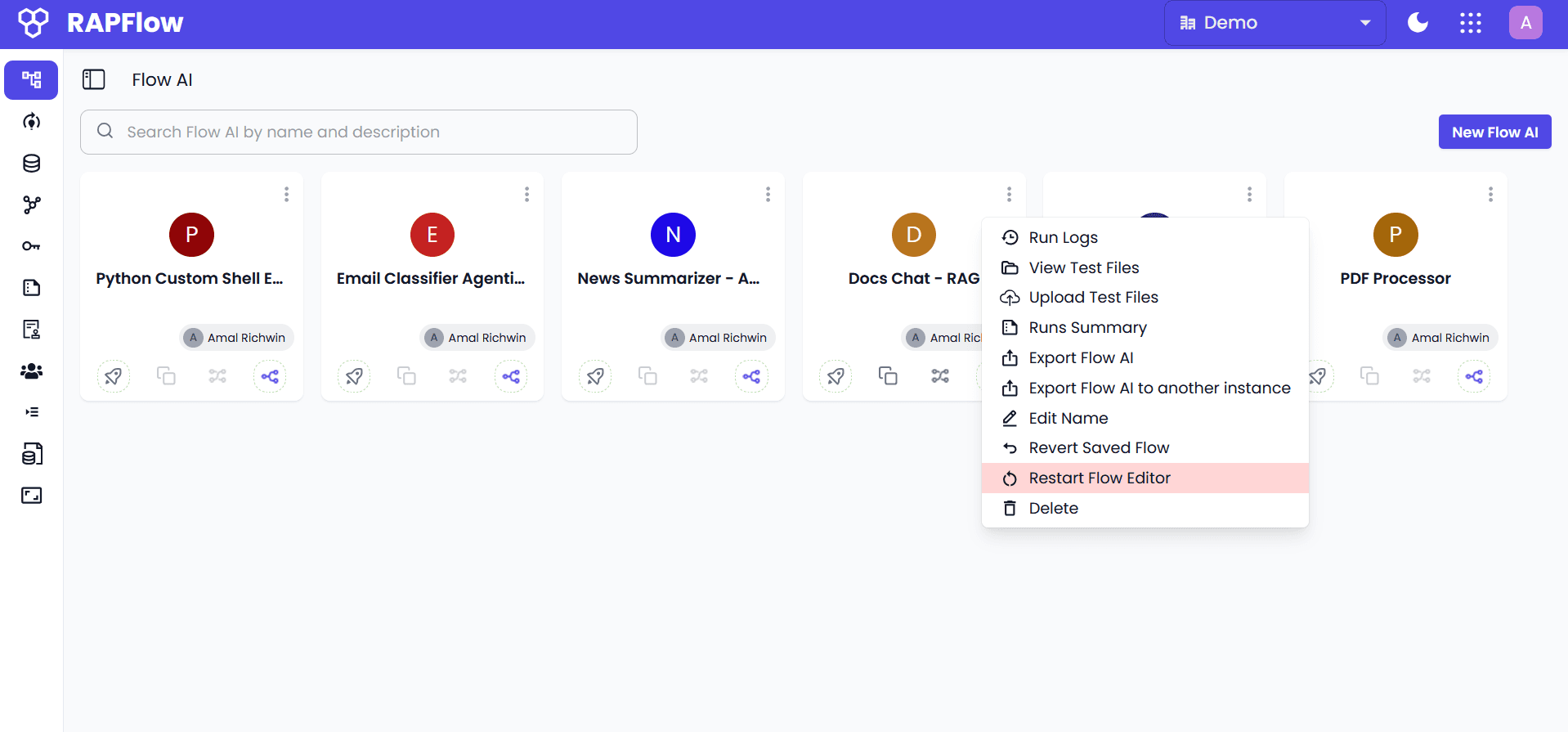
Your work is auto-saved.
Getting Started
Creating a Flow
- Open Flow Editor from your project.
- Drag & Drop blocks from the palette.
- Connect output ports to input ports.
- Configure blocks in the sidebar.
- Save & Deploy.
See Building Flows.
Available Blocks
- Document: OCR, PDF, extraction.
- AI/ML: LLM, classification, detection.
- Data: Transform, validate, filter.
- Integration: HTTP, database, files.
- Control: Switch, delay, batch.
See Blocks Reference.
Flow Building
Error Handling
- Catch blocks: Handle specific errors.
- Switch blocks: Route on success/failure.
- Debug blocks: Monitor flow.
Reusability
Flows can be exported/imported (JSON), shared between projects, or saved as templates.
API Integration
Calling Flows via API
- Generate API Key (API Keys section).
- Deploy Flow.
- Copy Endpoint.
- Send HTTP POST with
x-api-keyheader.
See Building Flows for code examples.
Polling for Results
- Initial request returns
resultUrl. - Poll
resultUrluntil status iscompletedorfailed. - Retrieve results.
Troubleshooting
Flow Not Executing
- Verify connections.
- Check block configuration.
- Use debug blocks.
- Review execution logs.