Getting Started
Manage, deploy, and consume your flows through APIs
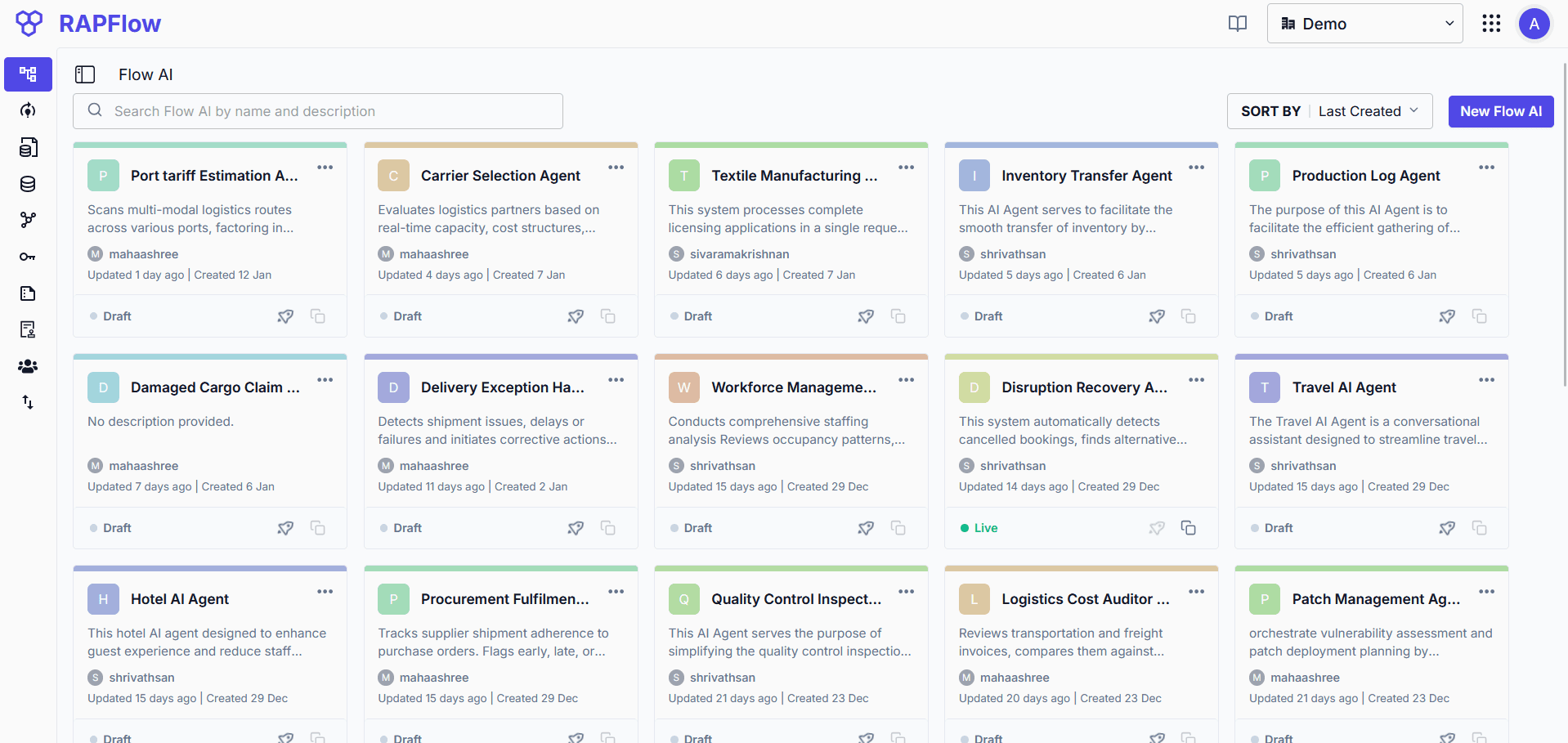
Flow AI is the central hub where all your built flows are organized and managed. Each Flow AI project can contain multiple flows, enabling you to create comprehensive ai solutions.
Understanding the Dashboard
Each Flow AI card displays:
- Name & Description: The flow's title and purpose
- Author: The user who created or last modified the flow
- Timestamps: Created and last updated dates
- Status: Either Draft (in development) or Live (deployed and active)
Actions
Deploying a Flow
To expose your flow through an API, click the rocket icon on the card. This deploys the flow, making it accessible via HTTP endpoints.
Accessing Consumer APIs
Click the copy button to open the Consumer APIs dialog:
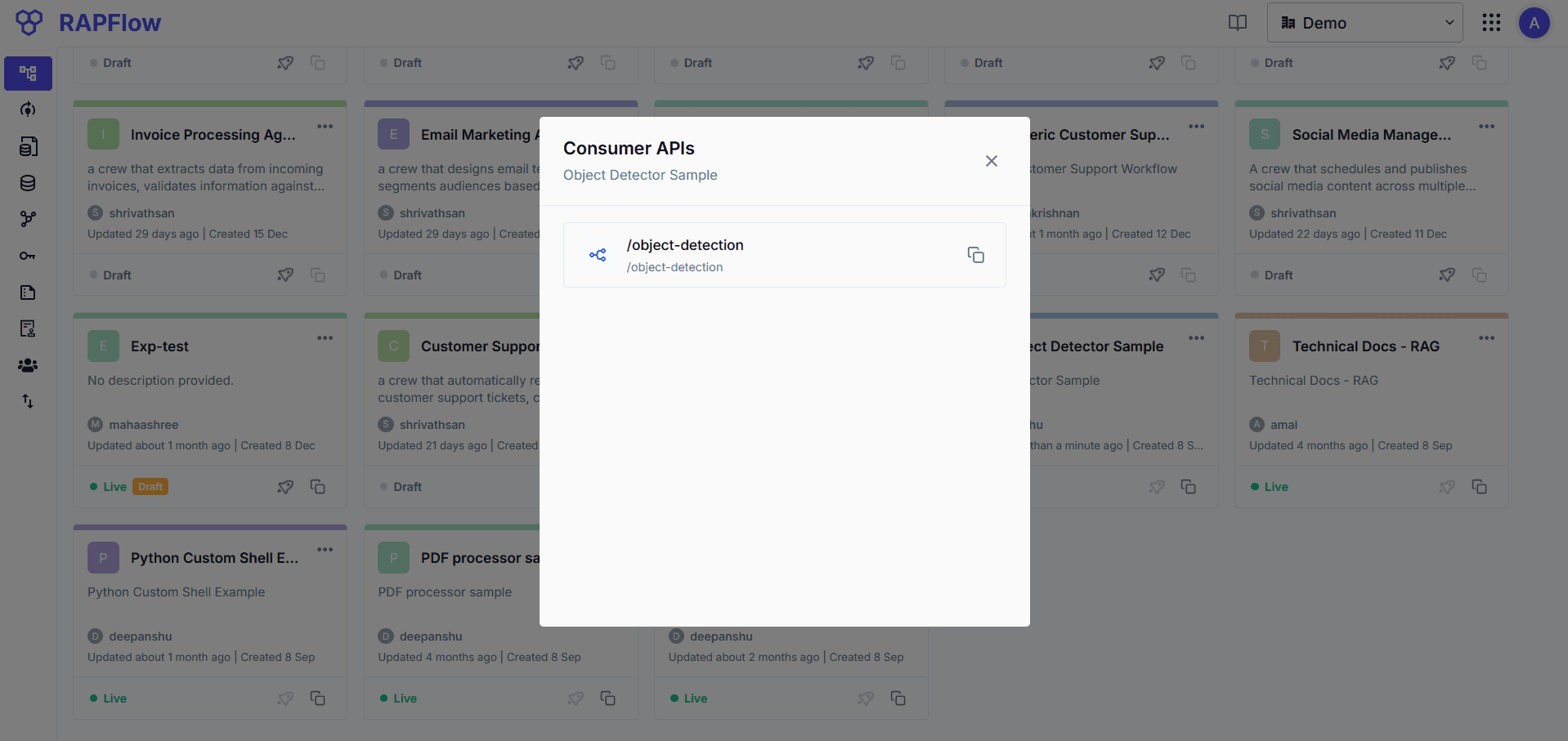
This dialog lists all declared API endpoints in your flow. Copy the endpoint URL and use your API key to call the flow programmatically.
Opening the Flow Editor
Click anywhere on the card to open the visual Flow Editor where you can build and modify your flows.
Additional Options
Click the three-dot menu to access more options:
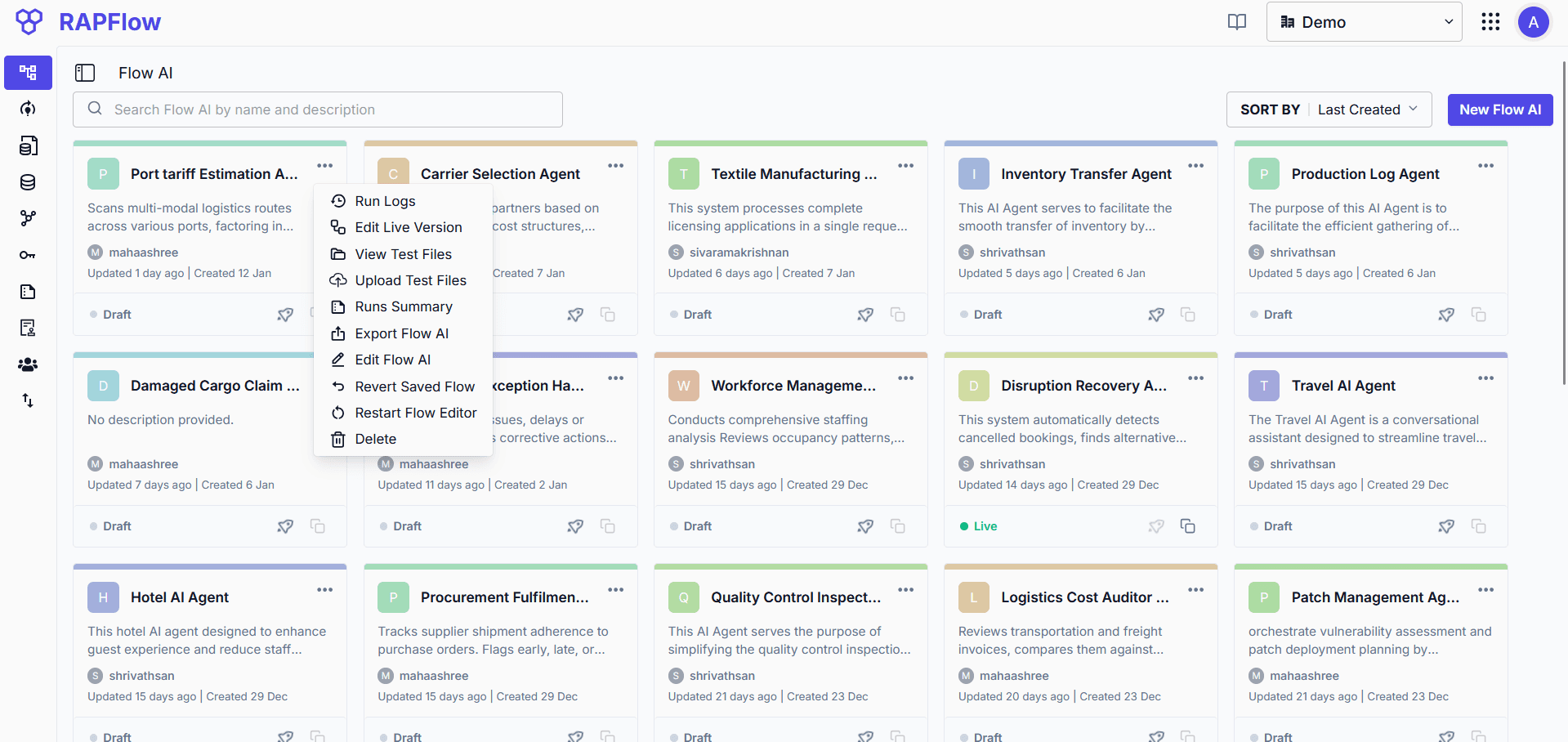
| Option | Description |
|---|---|
| Run Logs | View execution logs for the flow |
| Edit Live Version | Modify the currently deployed version |
| View Test Files | Access uploaded test files |
| Upload Test Files | Add files for testing your flow |
| Runs Summary | View aggregated run statistics |
| Export Flow AI | Export the flow configuration |
| Edit Flow AI | Modify flow settings and metadata |
| Revert Saved Flow | Restore a previous version |
| Restart Flow Editor | Reset the editor session |
| Delete | Remove the Flow AI project |
Creating a New Flow AI
Click the New Flow AI button in the top-right corner to create a new flow project. You can search existing flows using the search bar and sort by creation date.