Table Structure Recognition
Detects and extracts table structures from document images. It identifies table cells, rows, columns, and can output the table data in HTML or JSON format.
Quick Start
To get started:
- Select a trained model from the Model to use dropdown
- Choose Output Type: HTML or JSON
- Configure header settings (Has Header and Header Type)
- Send table image path via
msg.payload.image_path - Provide detected table boxes via
msg.payload.tables - Provide OCR words via
msg.payload.ocr - Receive extracted table structure in
msg.payload
Configuration
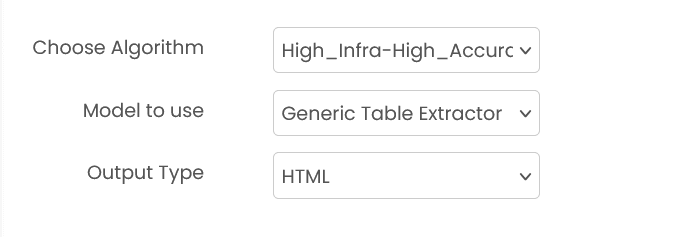
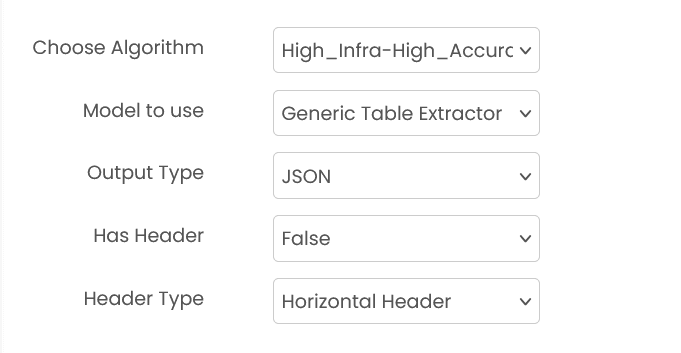
Model to use (required)
Select a pre-trained model from the dropdown menu. Models must be trained beforehand.
Output Type (required)
Choose between HTML or JSON output format.
- HTML: Returns table as HTML markup
- JSON: Returns structured JSON with cell data and coordinates
Has Header (required)
Specify if the table has header rows/columns. Options: True, False
When Has Header is True and Output Type is JSON, you must provide msg.payload.header_detail (and msg.payload.keyname_detail for dual-header layouts).
Header Type (required)
Specify header orientation. Options: horizontal_header, vertical_header.
Common Input Format
msg.payload.image_path (string)
Relative path of the table image on shared storage.
Example: "documents/table_image.png"
msg.payload.tables (array)
List of table bounding boxes in the image.
Format: [[x1, y1, x2, y2], ...]
msg.payload.ocr (array)
OCR text with bounding boxes.
Format: [[[x1, y1, x2, y2], "text"], ...]
msg.payload.header_detail (object, required for JSON with headers)
Header mapping used when output_type is json and has_header is True.
msg.payload.keyname_detail (object, required for some header layouts)
Key name mapping used for dual-header layouts.
Common Output Format
msg.payload contains an output field with the extracted table data.
HTML Output:
{"output": "<table><tr><th>Header</th></tr><tr><td>Data</td></tr></table>"}JSON Output:
{"output": {"Header A": ["Cell 1", "Cell 2"], "Header B": ["Cell 3"]}}Example
Input (msg.payload)
{
  "image_path": "documents/table_image.png",
  "tables": [[10, 20, 620, 380]],
  "ocr": [[[15, 25, 60, 45], "Header"], [[20, 60, 80, 90], "Value"]]
}
Output (msg.payload) - JSON
{
  "output": {
    "Header": ["Value"]
  }
}
Errors
When the block fails, it raises an error. Use a Catch block in your flow to handle failures and inspect the error payload.
Common mistakes
- Model not found: The selected model doesn't exist. Ensure the model is available.
- Invalid image path: The table image path is incorrect or file doesn't exist.
- No table detected: Image doesn't contain a recognizable table structure.
- Invalid output type: Output type must be either "html" or "json".
- Service unavailable: The service is unavailable or unreachable.
Best Practices
- Use clear, well-scanned table images for better extraction accuracy
- Ensure table borders are visible if possible
- Use JSON output when you need cell coordinates for further processing
- Use HTML output for direct display or simple data extraction
- Set Has Header correctly to improve extraction accuracy
- Use auto_detect for Header Type when header orientation is uncertain
- Test with sample tables to verify extraction quality
- Preprocess images (deskew, enhance contrast) for better results