Document Classifier
Classifies document images into predefined document types (e.g., invoice, receipt, contract). It can work with or without OCR data to identify the document category.
Quick Start
To get started:
- Choose an option from the Choose Algorithm dropdown
- Choose a trained model from the Model to use dropdown
- Send document image path via
msg.payload.image_path - Optionally provide OCR data via
msg.payload.words_and_bboxesfor better accuracy - Receive the document type in
msg.payload
Configuration
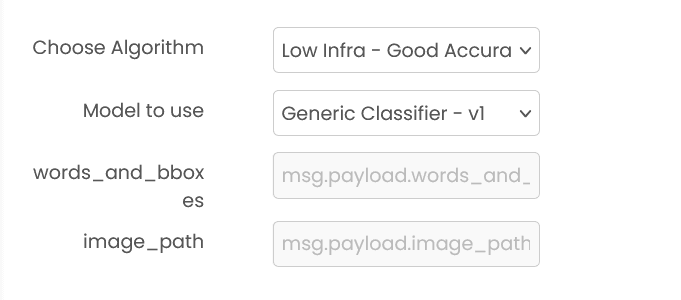
Model to use (required)
Select a pre-trained model from the dropdown menu. Models must be trained beforehand using the document classifier trainer block.
Common Input Format (All Algorithms)
msg.payload.image_path (string)
Relative path of the document image file on shared storage.
Example: "documents/invoice.png" or "scans/receipt.jpg"
Supported formats: .png, .jpg, .jpeg (case insensitive)
msg.payload.words_and_bboxes (array, optional)
Optional OCR data containing words and their bounding boxes. Providing this can improve classification accuracy.
Format: [[[x1, y1, x2, y2], "word"], ...]
Example: [[[29, 23, 150, 45], "Invoice"], [[29, 50, 200, 70], "Date"]]
Note: Coordinates are [top-left-x, top-left-y, bottom-right-x, bottom-right-y]
Common Output Format (All Algorithms)
msg.payload (object)
msg.payload contains an output field with the predicted document type.
Example: {"output": "invoice"}
Example
Input (msg.payload)
{
  "image_path": "documents/invoice.png",
  "words_and_bboxes": [
    [[29, 23, 150, 45], "Invoice"],
    [[29, 50, 200, 70], "Date"]
  ]
}
Output (msg.payload)
{
  "output": "invoice"
}
Errors
When the block fails, it raises an error. Use a Catch block in your flow to handle failures and inspect the error payload.
Common mistakes
- Missing or wrong image path:
msg.payload.image_pathis required and must point to a file on shared storage. - Unsupported image type: Only
.png,.jpg, and.jpegare supported. - Wrong OCR structure:
msg.payload.words_and_bboxesmust follow[[[x1, y1, x2, y2], "word"], ...].
Best Practices
- Use clear, well-scanned document images for better classification accuracy
- Provide OCR data (words_and_bboxes) whenever available to improve classification results
- Ensure your training data includes diverse examples of each document type
- Regularly retrain models as new document types or variations are encountered
- Always validate classification results in production applications, especially for critical workflows
Multi Modal Blocks
Blocks that combine document, image, and text understanding in a single workflow step
Document Question Answering
Extracts answers to specific questions from document images. It can identify and return answers with or without their location coordinates (bounding boxes) in the document.