LLM Query v2
Allows you to interact with various Large Language Models (LLMs) to generate text-based responses for a wide range of tasks. It supports multiple providers including OpenAI, Azure OpenAI, Anyscale, Vertex AI, and In-House Hosted models with provider-specific configurations.
Basic Configuration
Note: Field names vary by provider. See the Provider-Specific Details section below for exact requirements.
Model to Use (string)
Select the specific model you want to use from the available options.
Query (string)
The main question or input you want answered. Set via msg.payload.query. Note: Used by OpenAI, Azure OpenAI, and Anyscale. In-House Hosted and Vertex AI use prompt instead.
Prompt / System Prompt (string)
Instructions or context that guide the model's behavior (e.g., tone, rules, output format).
- In-House Hosted and Vertex AI: Use
msg.payload.prompt - OpenAI, Azure OpenAI, and Anyscale: Use
msg.payload.system_prompt
A basic guide for creating prompts:
- Define the role of LLM and task of LLM. For example "You are a helpful assistant who knows about instruction manuals of parts. Your task is to answer the User's query from the provided context.
- Try to breakdown the task and add direct points to explain as headings, for example you will be given a context to answer or if you are not confident about the answer please say I don't know.
- Give a proper output format, for example I want the answer in points manner, or generate a JSON with XYZ keys
- If you still don't get the answer try adding warnings like make sure answer from context, do not hallucinate.
Number of Responses (number)
Specify how many different responses you want the model to generate. Default: auto. Note: Only available for In-House Hosted models.
Max Output Tokens (number)
Set the maximum tokens of the generated response. Default: auto.
History Configuration (Use this feature to enable chat-mode in LLMs)
The following options are available in an expandable "History" section:
History Name (string)
Optional: A name to identify and manage conversation history.
History (array)
Optional: Previous conversation history to maintain context in multi-turn interactions. This is typically set via msg.payload.history.
Conversation ID (string)
Optional: A unique identifier for the conversation, useful for tracking multiple conversations. This is typically set via msg.payload.conversation_id.
Advanced Configuration
The following options are available in an expandable "Advanced Config" section:
Loading Type (string)
Choose the quantization level for model loading:
- 4-bit: Least Infrastructure Requirements
- 8-bit: Low Infrastructure Requirements
- 16-bit: Moderate Infrastructure Requirements
- 32-bit: High Infrastructure Requirements
Repetition Penalty (number)
Control how much the model avoids repeating the same phrases. Higher values reduce repetition. Default: auto.
Temperature (number)
Control the randomness of the output. Higher values (e.g., 0.8) make the output more random and creative, while lower values (e.g., 0.2) make it more focused and deterministic. Default: auto.
Top P (number)
Limits the pool of words considered at each step to the most likely ones until the sum of their probabilities reaches this value. Use to balance quality and variety. Default: auto.
Top K (number)
Limits the pool of words considered at each step to the top K most likely options. Lower values make outputs more focused. Default: auto.
Provider-Specific Details
In‑House Hosted Models
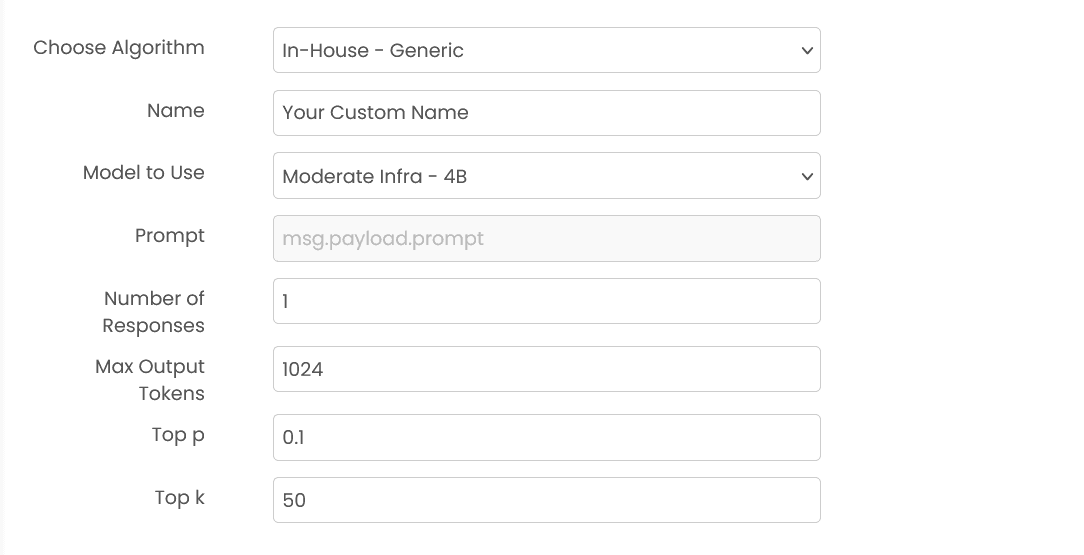
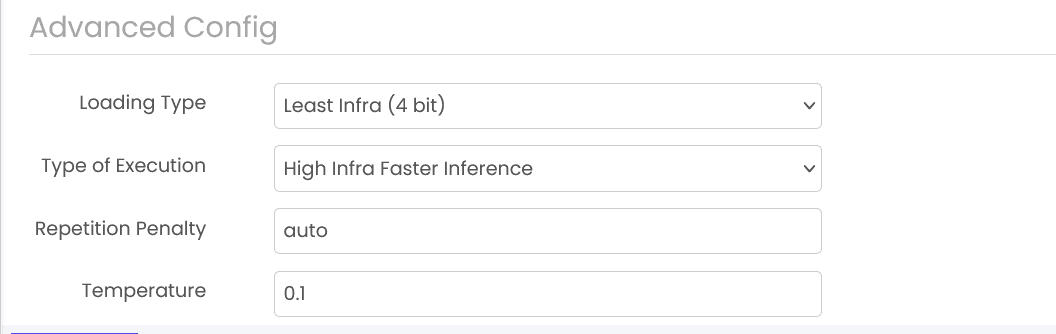
Run models managed by your organization. Useful when you need full control over data and tuning.
Required in message: prompt (instructions or context that guide the model's behavior).
Key settings: Loading Type, Max Output Tokens, Number of Responses, Temperature, Repetition Penalty, Top P, Top K.
Chat history: Optional. Provide msg.payload.history to maintain context across turns. Note: History is not supported for trained models.
Auto defaults: If you leave temperature, repetition_penalty, top_p, top_k, number_of_responses, or max_output_tokens as auto, the system chooses sensible values for you.
Model Config: Set these in the block settings: loading type, max output tokens, number of responses, temperature, repetition penalty, top_p, top_k.
In-House Output Format:
- The in-house block settings include an Output Format option (
textorjson). - If you provide
msg.payload.response_schema, the service will force JSON output and validate the response against your schema.
Structured Output: Supports JSON extraction and validation via response_schema. See the "Structured Output (JSON)" section for details.
Example (In‑House):
{
  "prompt": "You are a helpful assistant. Answer briefly. What is the warranty period?",
  "history": [
    {"user_query": "Hello", "llm_response": "Hi! How can I help?"}
  ]
}
OpenAI API Compatible (OpenAI-style endpoints)
Use this option when your provider exposes an OpenAI-style API (the same request fields and response style), but it is not the official OpenAI service.
Tool calling note: OpenAI-style endpoints do not provide provider-native tool calling in this block. If you need tool use, use the provider-specific sections for OpenAI/Azure/Vertex/Gemini.
Required in message:
msg.payload.query(string)msg.payload.model_name(string)msg.payload.api_key(string)msg.payload.base_url(string)
Optional:
msg.payload.system_prompt(string)msg.payload.model_configuration(object) (ormsg.payload.model_configdepending on your payload; advanced generation settings)msg.payload.response_schema(JSON schema object) for structured output
Example (OpenAI-style endpoint):
{
  "query": "Extract the product name from this text: 'RAPFlow Pro Suite'.",
  "system_prompt": "Return concise answers.",
  "model_name": "your-model-here",
  "api_key": "sk-...",
  "base_url": "https://api.your-provider.com",
  "response_schema": {
    "type": "object",
    "properties": { "product_name": { "type": "string" } },
    "required": ["product_name"]
  }
}
OpenAI
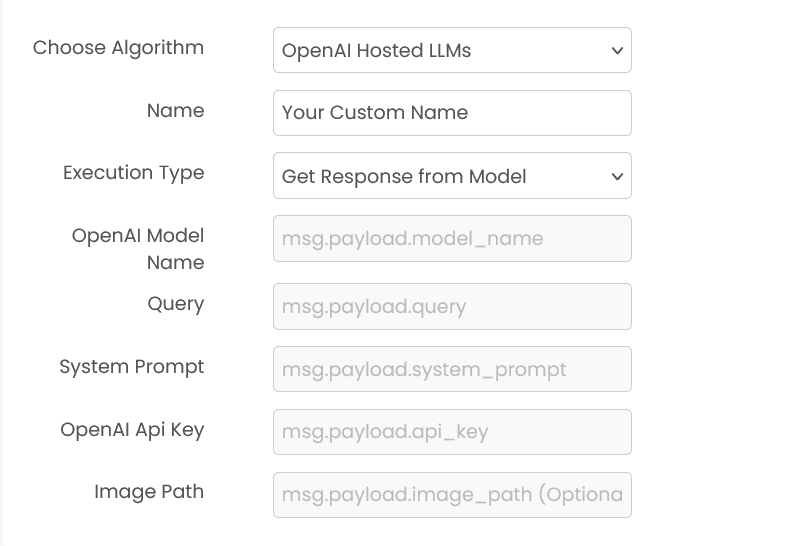
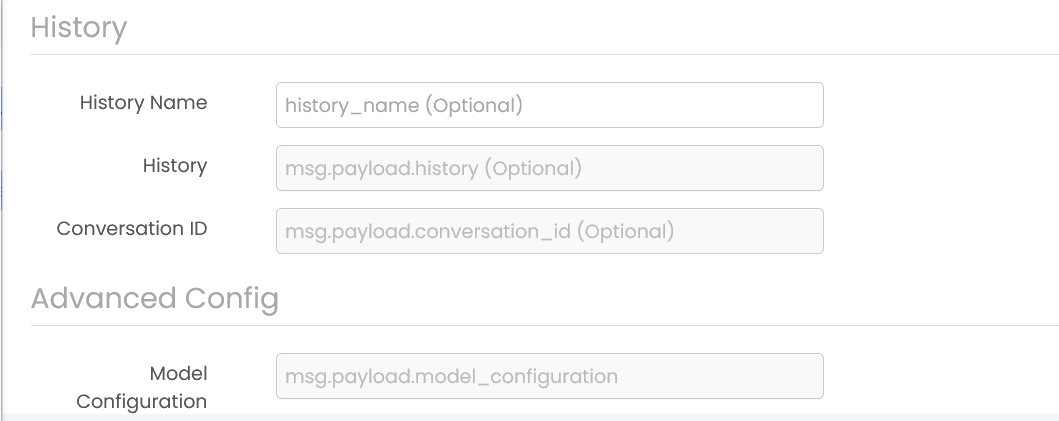
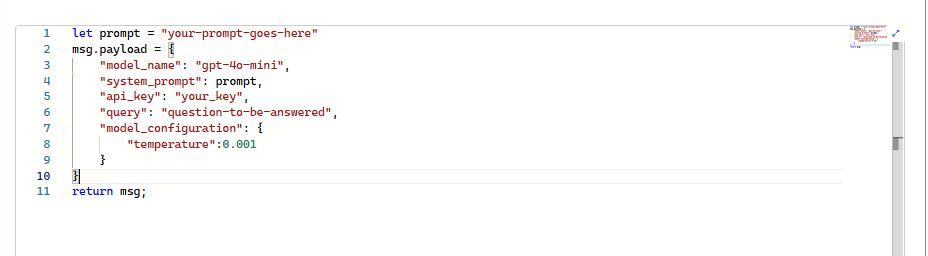
Two ways to use OpenAI:
- Model: Send a system prompt and query to a chosen model. Supports images, documents, tools, and structured output.
- Assistant: Talk to an existing assistant using its ID.
Where credentials are read from: Provide your OpenAI API key in msg.payload.api_key.
Tools Support: In Model mode, you can enable Code Interpreter, Web Search, or provide custom functions. See the Tools and Function Calling sections for details.
Where to put model configuration: Set generation options in the block settings for Model mode. Do not add model_config to the payload.
Model Config (per model): These depend on the provider/model documentation.
- GPT‑4 family example:
{
  "temperature": 0.7,
  "presence_penalty": 0.0,
  "frequency_penalty": 0.0
}- GPT‑5 family example:
{
  "text": {"verbosity": "low"},
  "reasoning": {"effort": "minimal"}
}
Only these keys are accepted for GPT‑5 style models when available.
Example (OpenAI - Model):
{
  "system_prompt": "You write concise answers.",
  "query": "Summarize: <text here>",
  "api_key": "sk-...",
  "model_name": "gpt-4o-mini",
  "history": [],
  "image_path": "images/input.jpg",
  "document_path": "docs/manual.pdf"
}
Use Temperature, Max Output Tokens, Presence/Frequency penalties in the block settings. Optional: Leave these as auto to let the service choose.
Example (OpenAI - Assistant):
{
  "query": "What can you do for data cleanup?",
  "history": [],
  "assistant_id": "asst_123...",
  "api_key": "sk-..."
}
Structured Output: See the "Structured Output (JSON)" section for details on using response_schema.
Function Calling: Provide custom function definitions in msg.payload.functions. See the "Function Calling" section for examples.
Azure OpenAI
Use OpenAI models hosted on Azure with support for web search, data grounding, and built-in tools.
Required in message: system_prompt, query, api_key, azure_endpoint (must start with https://), api_version.
Model choice: Provide either model_name or azure_deployment (at least one is required). If both are provided, model_name takes priority.
Optional authentication: azure_ad_token or azure_ad_token_provider for Azure AD authentication.
Where credentials and URLs are read from: Provide api_key, azure_endpoint, and api_version in msg.payload. The block passes these to the service.
Where to put model configuration: Set generation options in the block settings. The block passes them as model_config to the service. Do not add model_config directly to the payload.
Tools Mode: Select from the dropdown in the block:
- None: Standard LLM responses without tools
- Web Search: Enable real-time web search via Azure Responses API
- Azure Search: Query your own data sources (requires
data_source_configin payload)
Data Source Configuration: When using Azure Search, select the data source type (Azure AI Search, Elasticsearch, etc.) in the block UI, then provide connection details via msg.payload.data_source_config. See the Tools section for examples.
Example (Azure OpenAI):
{
  "system_prompt": "Follow the style guide.",
  "query": "Draft a 3‑point summary for this note.",
  "history": [],
  "model_name": "gpt-4o-mini",
  "api_key": "az-...",
  "azure_endpoint": "https://<your-resource>.openai.azure.com/",
  "api_version": "2024-12-01-preview"
}
You can also attach images/documents via image_path or document_path when your model supports them. Optional: Most generation parameters can be left as auto.
Anyscale
Use hosted models with options similar to OpenAI.
Required in message: system_prompt, query, api_key, model_name, base_url.
Key settings: Temperature, Max Output Tokens, Presence Penalty, Frequency Penalty, Chat Mode.
Chat mode: Set in block settings. Turn on to keep the tone conversational across turns.
Chat history: Optional. Provide msg.payload.history to maintain context across turns.
Where credentials are read from: Provide your Anyscale API key in msg.payload.api_key and base URL in msg.payload.base_url.
Example (Anyscale):
{
  "system_prompt": "Be brief and friendly.",
  "query": "Explain the return policy.",
  "api_key": "anyscale-...",
  "model_name": "meta-llama/Llama-2-7b-chat-hf",
  "base_url": "https://api.endpoints.anyscale.com/v1",
  "history": []
}
Vertex AI
Use Google's Gemini models on Vertex AI with support for multimodal inputs, structured output, function calling, and provider tools.
Required in message: prompt (instructions or context), project, location, service_account_info (JSON object), and model_name.
Optional: history, image_path, document_path, and response_schema if you want JSON‑shaped output.
Where to put model configuration: Set generation options in the block settings. The block passes them as model_config to the service. Do not add model_config directly to the payload.
Files and Images with Vertex AI: Optional. Use image_path / document_path with single path or list of paths.
Tools Support: Vertex AI supports Code Execution and URL Context tools. Select tools in the block's "Tools Mode" dropdown. See the Tools section for details.
Example (Vertex AI):
{
  "prompt": "Answer with actionable steps.",
  "model_name": "gemini-1.5-pro",
  "project": "my-gcp-project",
  "location": "us-central1",
  "service_account_info": {
    "type": "service_account",
    "client_email": "[email protected]",
    "private_key": "-----BEGIN PRIVATE KEY-----\n...\n-----END PRIVATE KEY-----\n"
  },
  "history": [],
  "image_path": ["images/sample.jpg"],
  "document_path": ["docs/context.pdf"],
  "response_schema": {
    "type": "object",
    "properties": {"summary": {"type": "string"}},
    "required": ["summary"]
  }
}
Gemini (Google AI)
Use Gemini directly with an API key (separate provider from Vertex AI).
Required in message: query, api_key, model_name.
Optional: system_prompt, history, image_path, document_path, image_url, document_url, response_schema (structured output), functions (function calling), and function_calling_config.
Tools Support: Select tools in the block's "Tools Mode" dropdown (for example: Code Execution, URL Context, Google Search, Maps Grounding, Deep Research, or All). See the Tools section for details.
Example (Gemini):
{
  "system_prompt": "Return only JSON matching the schema.",
  "query": "Extract company info: Tesla was founded in 2003.",
  "api_key": "gm-...",
  "model_name": "gemini-2.0-flash",
  "response_schema": {
    "type": "object",
    "properties": {
      "company_name": {"type": "string"},
      "founding_year": {"type": "integer"}
    },
    "required": ["company_name", "founding_year"]
  }
}
Files and Images
Attach inputs by passing file paths in your message:
image_path: Optional. A single path or a list of paths.document_path: Optional. A single path or a list of paths.
Optional: Use absolute paths or ensure your storage directory is configured so relative paths can be resolved.
Example:
{
  "system_prompt": "Describe what you see in the image.",
  "query": "What's in this picture?",
  "image_path": ["images/sample.jpg"],
  "document_path": ["docs/context.pdf"]
}
Structured Output (JSON)
Extract structured data from LLM responses by providing a JSON schema. When response_schema is present in the input, the system automatically:
- Extracts JSON from the LLM's text response (even if wrapped in markdown or mixed with other text)
- Repairs malformed JSON when possible
- Validates the result against your schema
- Returns the parsed JSON object
Supported Providers: In-House Hosted, OpenAI, Azure OpenAI, Vertex AI, Gemini, OpenAI API Compatible
Schema Format: Provide a JSON Schema-style object with type, properties, and required fields.
Response Structure: When using structured output, output.response contains the parsed JSON object matching your schema. Some providers may also return additional metadata (for example, whether the schema was verified).
Example (Structured Output):
{
  "system_prompt": "Extract information as JSON only.",
  "query": "Extract company info: Tesla was founded in 2003 by Elon Musk.",
  "response_schema": {
    "type": "object",
    "properties": {
      "company_name": {
        "type": "string",
        "description": "The name of the company"
      },
      "founding_year": {
        "type": "integer",
        "description": "The year the company was founded"
      },
      "founder": {
        "type": "string",
        "description": "Name of the founder"
      }
    },
    "required": ["company_name", "founding_year"]
  }
}Output:
{
  "response": {
    "company_name": "Tesla",
    "founding_year": 2003,
    "founder": "Elon Musk"
  }
}
Nested Objects and Arrays:
{
  "response_schema": {
    "type": "object",
    "properties": {
      "product": {"type": "string"},
      "features": {
        "type": "array",
        "items": {"type": "string"}
      },
      "pricing": {
        "type": "object",
        "properties": {
          "amount": {"type": "number"},
          "currency": {"type": "string"}
        },
        "required": ["amount"]
      }
    },
    "required": ["product"]
  }
}
Tools
Enable LLMs to use external tools for enhanced capabilities like web search, code execution, and data retrieval.
Supported Providers: OpenAI, Azure OpenAI, Vertex AI, Gemini
Note: OpenAI API Compatible endpoints do not currently support function calling in this block.
Note: OpenAI API Compatible endpoints do not currently expose provider-native tool calling in this block.
OpenAI Tools
Available Tools (Model mode):
- Web Search: Search the web for up-to-date information
- Code Interpreter: Execute Python code for calculations and data analysis
- Function Calling: Call custom functions you define (see Function Calling section)
Configuration: Select tools in the block's Tools Mode dropdown (none, web_search, code_interpreter, both). Use Tool Choice to control function calling (auto, none, required).
Example (OpenAI with Code Interpreter):
{
  "system_prompt": "Help with data analysis.",
  "query": "Calculate the average of these numbers: 15, 23, 42, 18, 37",
  "api_key": "sk-...",
  "model_name": "gpt-4o"
}
Azure OpenAI Tools
Available Tools:
- Web Search: Search the web using Azure's Responses API with Bing integration
- Azure Search (On Your Data): Query your own data sources (Azure AI Search, Elasticsearch, Cosmos DB, Pinecone, etc.)
- Function Calling: Call custom functions you define (see Function Calling section)
Configuration: Select tools in the block's "Tools Mode" dropdown:
- None: No tools enabled
- Web Search: Enable web search (uses Azure Responses API)
- Azure Search: Query your data (requires data source configuration)
Web Search Example:
{
  "system_prompt": "Provide current information with citations.",
  "query": "What are the latest developments in renewable energy?",
  "api_key": "az-...",
  "azure_endpoint": "https://<your-resource>.openai.azure.com/",
  "api_version": "2024-12-01-preview",
  "model_name": "gpt-4o"
}
Azure Search (On Your Data) Example:
When using Azure Search, provide the data source configuration in msg.payload.data_source_config:
{
  "system_prompt": "Answer from our knowledge base.",
  "query": "What is our company's return policy?",
  "api_key": "az-...",
  "azure_endpoint": "https://<your-resource>.openai.azure.com/",
  "api_version": "2024-12-01-preview",
  "model_name": "gpt-4o",
  "data_source_config": {
    "endpoint": "https://<your-search>.search.windows.net",
    "index_name": "your-index-name",
    "authentication": {
      "type": "api_key",
      "key": "YOUR_SEARCH_API_KEY"
    }
  }
}
Supported Data Source Types:
- Azure AI Search
- Elasticsearch
- Azure Cosmos DB
- Pinecone
- Azure ML Index
- Microsoft 365
- SharePoint
Note: Select the data source type in the block's UI dropdown, and provide the connection details via msg.payload.data_source_config.
Vertex AI Tools
Available Tools:
- Code Execution: Execute Python code for calculations and data processing
- URL Context: Retrieve and analyze content from URLs
Configuration: Select tools in the block's Tools Mode dropdown (none, url_context, code_execution, both). Function calling can be enabled by providing msg.payload.functions.
Example (Vertex AI with Code Execution):
{
  "prompt": "Calculate the factorial of 15.",
  "model_name": "gemini-2.0-flash-exp",
  "project": "my-gcp-project",
  "location": "us-central1",
  "service_account_info": {}
}
Gemini Tools
Gemini is available as a separate provider (not only through Vertex AI) and supports additional tool options.
Available Tools:
- Code Execution
- URL Context
- Google Search
- Maps Grounding
- Deep Research
- All: Enable all supported tools (model decides what to use)
Configuration: Select tools in the block's Tools Mode dropdown (none, code_execution, url_context, google_search, maps_grounding, deep_research, all). Function calling can be enabled by providing msg.payload.functions.
Function Calling
Define custom functions that the LLM can call to extend its capabilities beyond built-in tools. The LLM decides when to call your functions and provides the arguments.
Supported Providers: OpenAI, Azure OpenAI, Vertex AI, Gemini
How it works:
- Define functions with JSON schemas in
msg.payload.functions - The LLM analyzes the user's query and decides if a function call is needed
- The response includes function call details (name, arguments) in
tool_calls - Your flow executes the function and optionally sends results back to the LLM
Function Definition Format:
{
  "system_prompt": "You are a helpful assistant.",
  "query": "What's the weather in San Francisco?",
  "functions": [
    {
      "name": "get_weather",
      "description": "Get current weather for a location",
      "parameters": {
        "type": "object",
        "properties": {
          "location": {
            "type": "string",
            "description": "City name, e.g., 'San Francisco'"
          },
          "unit": {
            "type": "string",
            "enum": ["celsius", "fahrenheit"],
            "description": "Temperature unit"
          }
        },
        "required": ["location"]
      }
    }
  ]
}
Response with Function Call:
{
  "response": "",
  "tool_calls": [
    {
      "id": "call_abc123",
      "type": "function",
      "function": {
        "name": "get_weather",
        "arguments": "{\"location\": \"San Francisco\", \"unit\": \"fahrenheit\"}"
      }
    }
  ]
}
Multi-turn Function Calling Flow:
- Initial Request: Send query with function definitions
- LLM Response: Receive function call request with arguments
- Execute Function: Your flow calls the actual function/API
- Send Result: Include function result in next request's history
- Final Response: LLM generates natural language response using function results
Example Multi-turn Flow (conceptual):
// Step 1: Initial request
msg.payload = {
  query: "What's the weather in Paris?",
  functions: [weatherFunctionDef]
};

// Step 2: LLM returns tool_call
// Execute weather API in your flow

// Step 3: Send result back
msg.payload = {
  query: "Here's the weather data: 18°C, partly cloudy",
  history: [
    { user_query: "What's the weather in Paris?", llm_response: "<tool_call>" },
    { user_query: "Here's the weather data: 18°C, partly cloudy", llm_response: "..." }
  ]
};
Tool Choice (OpenAI/Azure OpenAI):
Control when the LLM uses functions via the "Tool Choice" setting in the block:
- Auto: LLM decides when to call functions (default)
- None: Never call functions
- Required: Always call at least one function
Example
Input (msg.payload)
{
  "system_prompt": "You write concise answers.",
  "query": "What is the warranty period?",
  "history": []
}
Output (msg.payload)
{
  "response": "The warranty period is 12 months.",
  "input": "What is the warranty period?"
}
Errors
When the block fails, it raises an error. Use a Catch block in your flow to handle failures and inspect the error payload.
Common mistakes
- Using the wrong message field for the provider: Some providers expect
query, others expectprompt. Follow the provider section you selected. - Missing credentials: Provide required keys/endpoints via the message fields shown in the provider section.
- History shape mismatch: If you pass history, keep it as a list of
{ user_query, llm_response }items. - Malformed response_schema: Ensure your schema follows JSON Schema format with
type,properties, andrequiredkeys. - Missing data_source_config for Azure Search: When using Azure Search tool mode, you must provide
data_source_configinmsg.payloadwith endpoint, index_name, and authentication. - Function definitions without parameters: Each function in
functionsarray must have aparametersobject withtypeandproperties.
Output
The block sends the generated response directly as msg.payload.
Tips for Best Results
- Be clear and specific in your prompts; include desired format and constraints.
- Optional: Use History and Conversation ID to keep context across turns.
- Tune Model Config in the block settings. Match keys to the chosen model's documentation (e.g., GPT‑4 uses temperature/penalties; GPT‑5 uses text.verbosity and reasoning.effort).
- Start with defaults; change one parameter at a time to see impact.
- Optional: When sending images/documents, ensure paths are accessible and within allowed size limits.
- Structured Output: When using
response_schema, explicitly instruct the LLM in your prompt to return only JSON (e.g., "Return only JSON matching the schema"). - Tools: Let the LLM decide when to use tools (set Tool Choice to "auto"). The model will choose the most appropriate tool based on the user's query.
- Function Calling: Provide clear, descriptive function names and parameter descriptions so the LLM understands when to call each function.
Note
The performance and capabilities of the LLM Query block may vary depending on the selected model and configuration. Always review and validate the generated outputs, especially for critical applications.