OCR (Optical Character Recognition)
Extracts text from images using Optical Character Recognition. It can detect and recognize both printed and handwritten text, returning words with their bounding box coordinates.
Quick Start
To get started:
- Choose a model from the Model to use dropdown
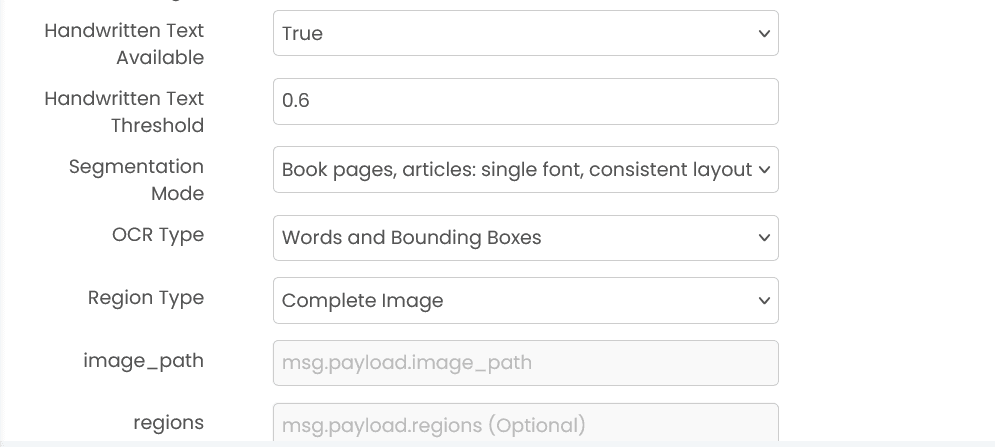
- Select OCR Type (words, lines, handwritten, etc.)
- Send image path via
msg.payload.image_path - Optionally specify regions via
msg.payload.regions - Receive OCR results in
msg.payload
Configuration
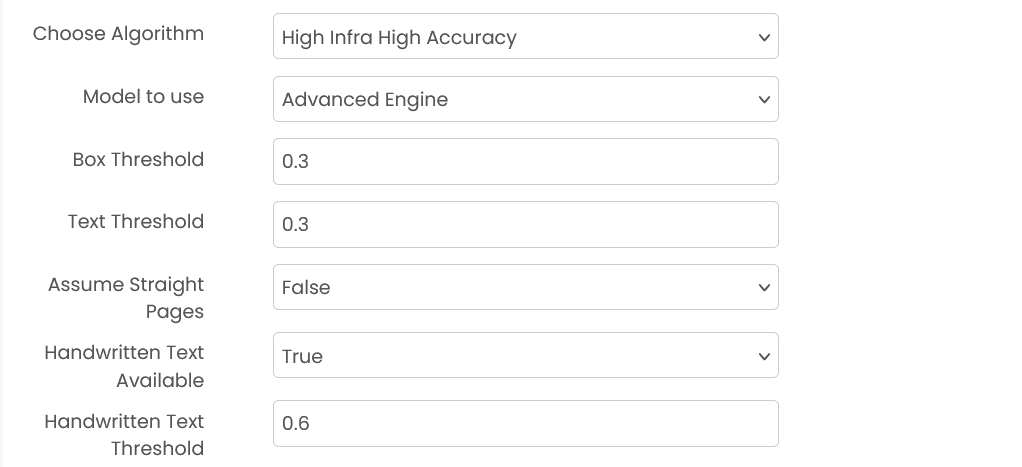
Model to use (required)
Select an OCR model from the dropdown menu.
OCR Type (required)
Type of OCR to perform:
- words_and_bounding_boxes: Extract words with coordinates
- line_detection_and_recognition: Extract text lines
- line_detection_and_recognition_with_handwritten_text: Handle mixed handwritten/printed text
- complete handwritten OCR: For fully handwritten documents
- partial handwritten OCR: For documents with some handwritten content
Box Threshold (optional)
Confidence threshold (0-1) for text detection boxes. Default: 0.3
Text Threshold (optional)
Confidence threshold (0-1) for text recognition. Default: 0.3
Common Input Format (All Algorithms)
msg.payload.image_path (string)
Relative path of the image file on shared storage.
Example: "documents/scan.jpg"
msg.payload.regions (array, optional)
Specific regions to perform OCR on.
Format: [[x1, y1, x2, y2], ...]
Output by OCR Type
msg.payload contains an output field with the OCR results.
words_and_bounding_boxes / complete handwritten OCR / partial handwritten OCR
msg.payload.output is a list of entries in the format:
[[bbox, text, confidence], ...]
bbox is either [x1, y1, x2, y2] or a polygon [x1, y1, x2, y2, x3, y3, x4, y4].
Example: {"output": [[[100, 50, 200, 80], "Invoice", 98], [[300, 200, 400, 230], "Total", 92]]}
line_detection_and_recognition / line_detection_and_recognition_with_handwritten_text
msg.payload.output is a list of line entries in the format:
[[line_bbox, words_and_bboxes, line_text], ...]
words_and_bboxes uses the same [bbox, text, confidence] entries described above.
Example: {"output": [[[90, 40, 420, 90], [[[100, 50, 200, 80], "Invoice", 98]], "Invoice"]]}
Region-based Outputs
If region selection is enabled in configuration:
- For coordinates-based selection,
msg.payload.outputis an object like{ "1": { "region": [x1, y1, x2, y2], "ocr": [...] }, ... } - For other region types,
msg.payload.outputis an object like{ "0": { "region": [x1, y1, x2, y2], "output": [...] }, ... }
Example
Input (msg.payload)
{
  "image_path": "documents/scan.jpg",
  "regions": [[0, 0, 1200, 800]]
}
Output (msg.payload)
{
  "output": [
    [[100, 50, 200, 80], "Invoice", 98],
    [[300, 200, 400, 230], "Total", 92]
  ]
}
Errors
When the block fails, it raises an error. Use a Catch block in your flow to handle failures and inspect the error payload.
Common mistakes
- Missing image path:
msg.payload.image_pathis required and must point to a file on shared storage. - Invalid regions format: If provided,
msg.payload.regionsmust be[[x1, y1, x2, y2], ...]. - Threshold out of range: Threshold values must be between 0 and 1.
Best Practices
- Use clear, high-resolution images for better OCR accuracy
- Choose appropriate OCR type based on your document content
- Use region-based OCR when only specific areas need text extraction
- Adjust thresholds to balance between recall and precision
- Preprocess images (deskew, enhance contrast) for better results
- Use handwritten-specific models for handwritten content
- Always validate OCR results in critical applications