Monitoring Task Runs
View task execution logs and status in Bot Management Console
RAPBot Agent executes tasks on your machine. Monitoring and log history are viewed in Bot Management Console.
Task Execution Logs
- Open your organization in Orchestrator
- Open the agent detail page
- Click Show Logs (list icon in the agent header)
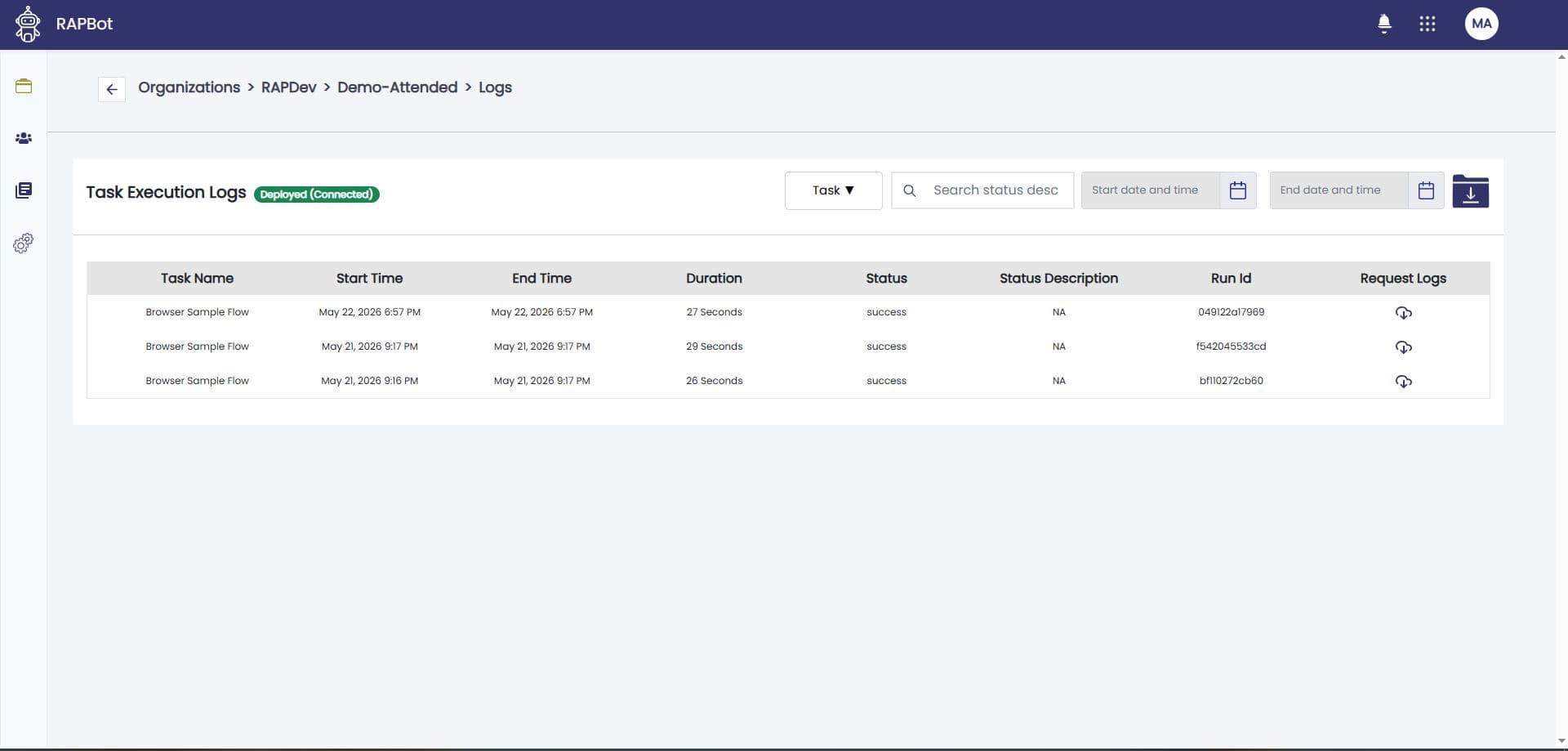
The Task Execution Logs page shows:
| Column | Description |
|---|---|
| Task Name | Which task ran |
| Start / End Time | Run timestamps |
| Duration | How long the run took |
| Status | success, failed, stopped, etc. |
| Status Description | Failure or stop reason when applicable |
| Run Id | Unique run identifier |
| Request Logs | Download detailed log files |
Filter by task name, status text, and date range. The page header also shows the agent connection badge (e.g. Deployed (Connected)).
Orchestrator reference: Task Runs
Run Status
| Status | Typical cause |
|---|---|
| success | Task reached end with Success |
| failed | end Failed or automation error |
| stopped | Operator stopped the run from Orchestrator |
| skipped | Another task was already running on the agent |
Checkpoints and Log Files
During a run on the agent:
- print block with process checkpoint — progress visible in Orchestrator
- print block with write to log file — content in downloadable run logs
Studio: print block · end block
Connection Warnings
If the agent loses connectivity or the engine stops, runs may fail and Orchestrator shows Deployed (Not Connected) while the agent shows warnings. See Warnings & Background.
CLI
On the agent machine: rap-agent running-task shows tasks currently executing. Full history remains in Orchestrator.