Warnings & Background Operation
Connectivity warnings in Agent and Orchestrator, and running in the system tray
RAPBot Agent and Orchestrator both surface connection and engine health issues so operators can see problems from either side.
Warnings in RAPBot Agent
When connectivity or the automation engine is unhealthy, the agent shows warnings in the UI:
| Symptom | What it means |
|---|---|
| Warning icon (top of Tasks screen) | Hover for a message such as Please check the internet connection |
| Disconnected status (bottom-left) | Agent cannot reach Orchestrator or the engine is not running |
| Tasks fail to start | Often tied to engine or network issues — check warnings first |
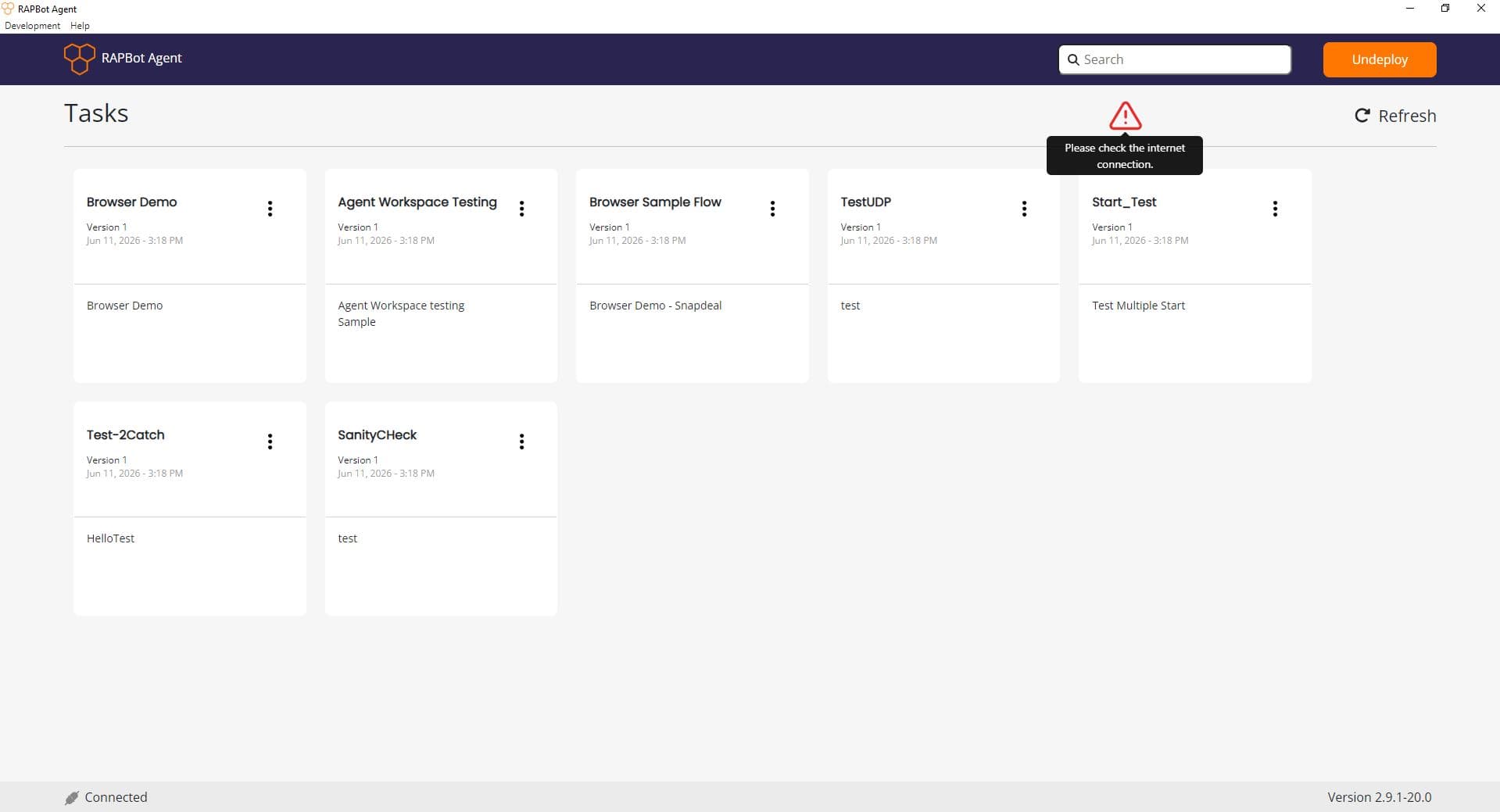
Common causes:
- Internet connectivity — network outage, VPN, or firewall blocking Orchestrator
- Engine down — the agent automation engine stopped or failed to start
- Orchestrator unreachable — wrong URL, Orchestrator maintenance, or certificate issues
Resolve the underlying issue, then use Refresh or wait for the agent to recover connection. The status bar should return to Connected.
Warnings in Orchestrator
Orchestrator reflects the same deployment problems on the agent card:
| Status | Meaning |
|---|---|
| Deployed (Connected) | Agent machine is connected and healthy |
| Deployed (Not Connected) | Agent was deployed but is not reachable — network, service stopped, or engine down |
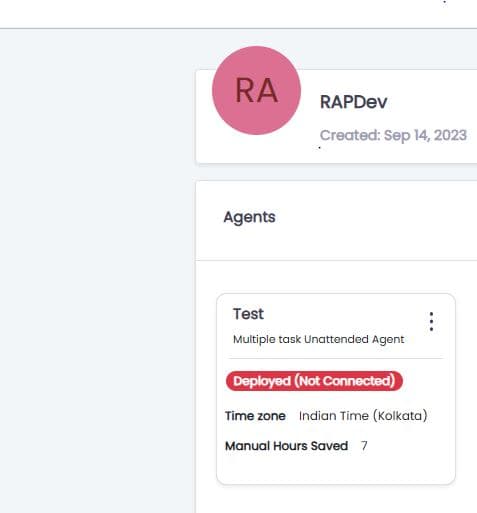
When the agent reconnects, Orchestrator updates to Deployed (Connected):
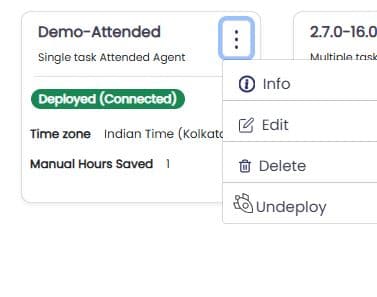
See Agents — Agent Status for all status values.
Running in the Background
Closing the RAPBot Agent window does not stop the agent. The automation service keeps running in the background so scheduled and triggered tasks can still execute.

System tray
- The RAPBot Agent icon (orange honeycomb) appears in the Windows system tray (click the ^ arrow on the taskbar if hidden)
- Click the tray icon to open the Agent window again
- To fully stop the agent, use Exit or Quit from the tray icon context menu — not the window close (X) button alone
Until you exit from the tray, the agent service continues running, stays connected to Orchestrator (when healthy), and can execute scheduled tasks.