Agent Interface
RAPBot Agent tasks screen, Refresh, automatic sync, and status bar
After a successful connection, RAPBot Agent opens the Tasks screen. This is the main view for running automations assigned from Bot Management Console.
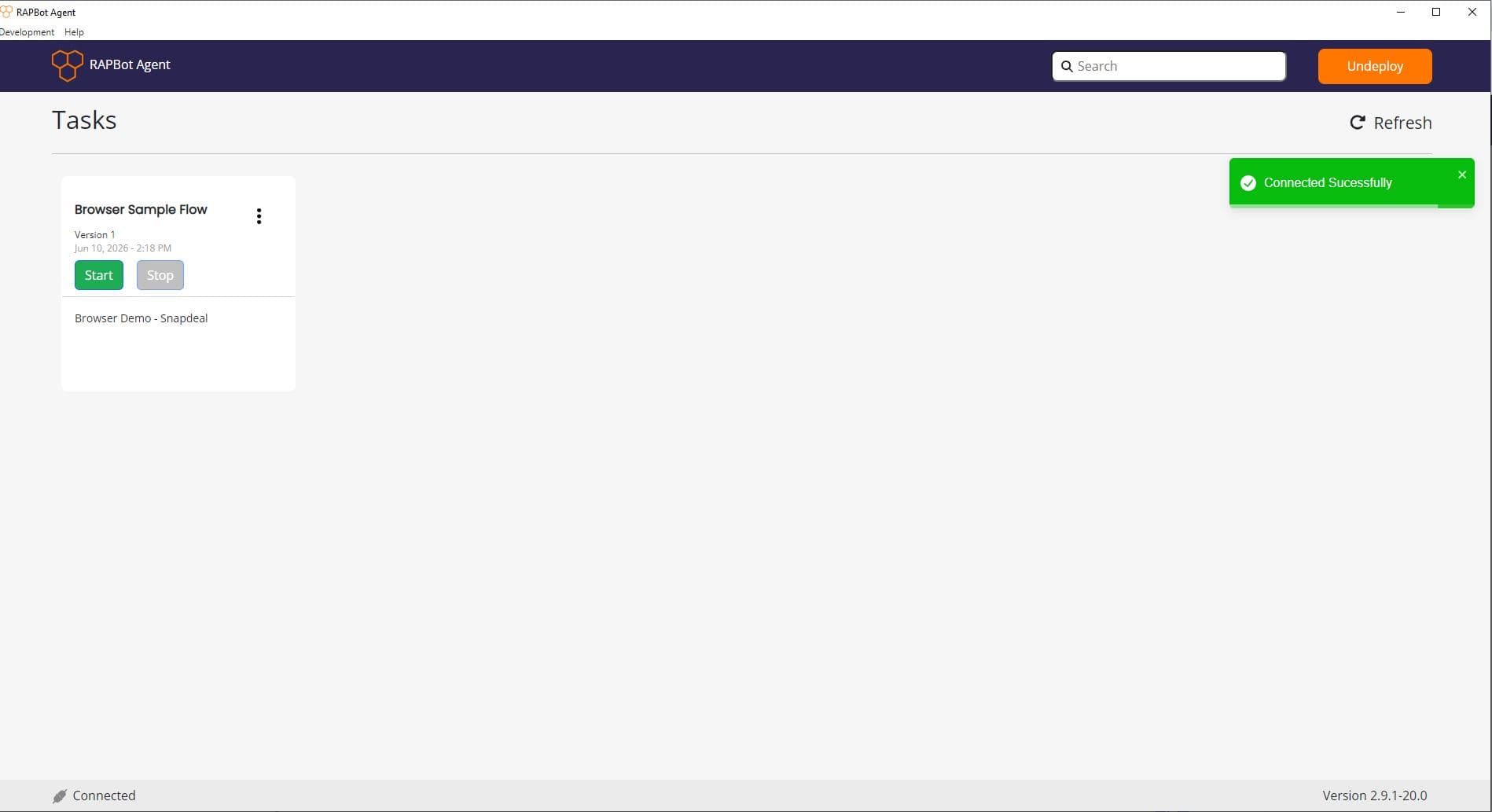
Header
| Element | Description |
|---|---|
| Search | Filter tasks by name on the dashboard |
| Undeploy | Disconnect this agent from Orchestrator and return to the connection screen |
Tasks Dashboard
Each task appears as a card showing:
| Field | Description |
|---|---|
| Task name | Name from Orchestrator |
| Version | Active version assigned to this agent |
| Timestamp | When the task package was last updated on the agent |
| Start / Stop | Manually start or stop a task (availability depends on agent type) |
| ⋮ menu | Schedule and Config — view schedule and configuration synced from Orchestrator |
Single vs multiple task agents
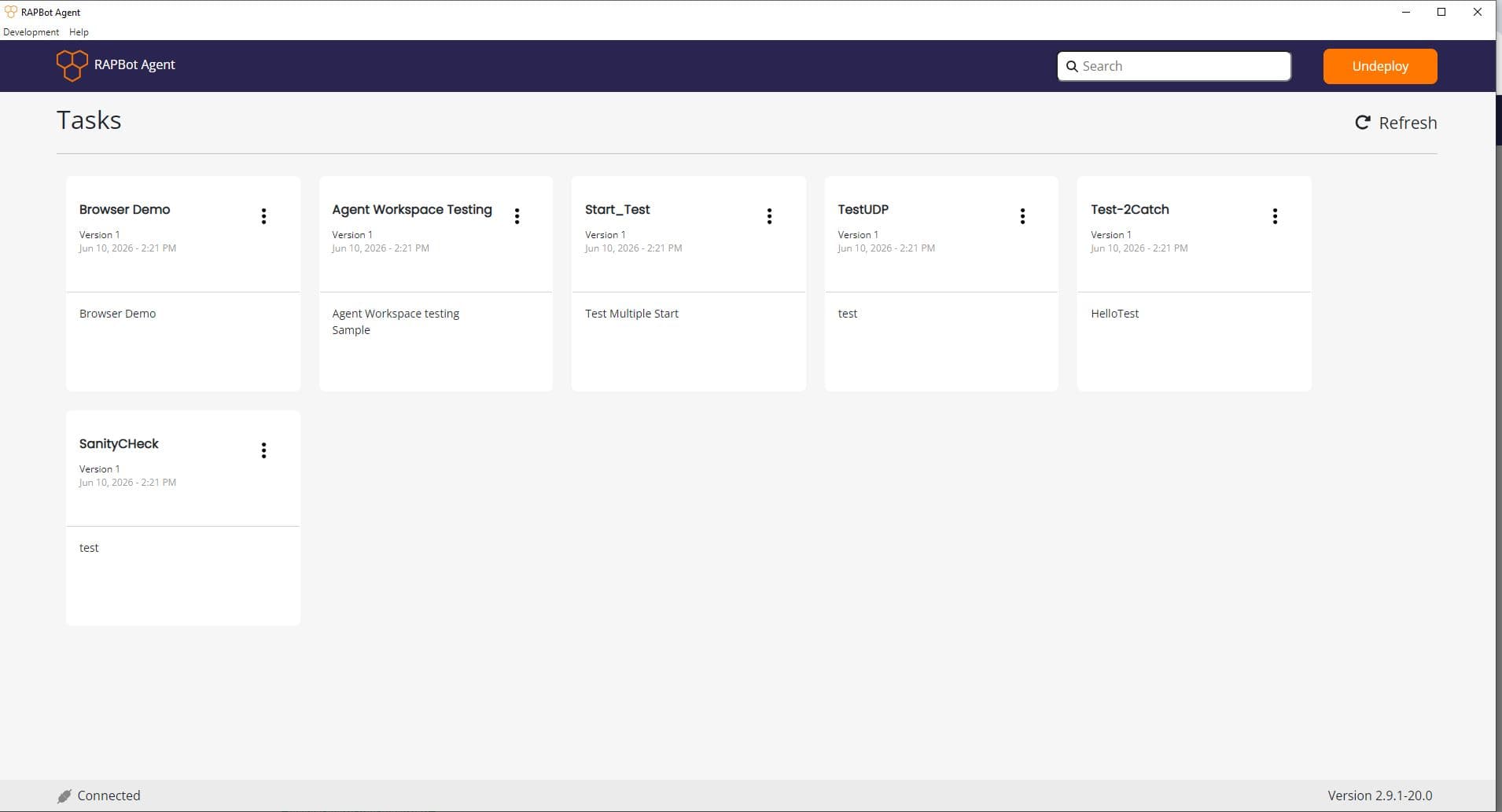
A single task attended agent may show one primary task after connect. A multiple task unattended agent lists every task assigned in Orchestrator:
Refresh Button
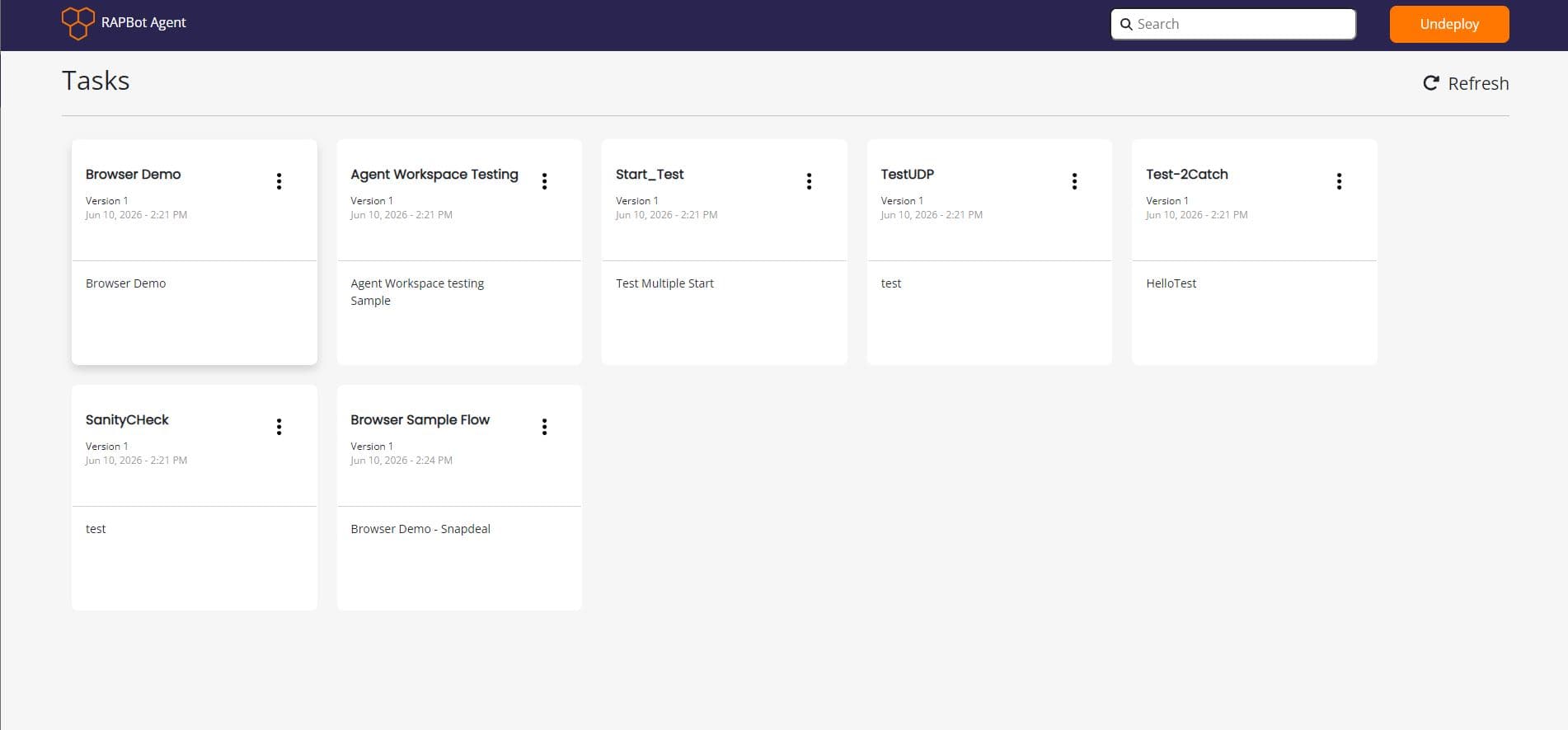
The Refresh button (top right of the Tasks screen) immediately pulls the latest data from Orchestrator for this agent:
- Tasks and versions assigned to the agent
- Schedules for each task
- Task configuration (variables from the Studio start block)
- Email connections used by tasks
- Pending task triggers from the Trigger Task API (added to the agent's local task queue)
Use Refresh when you have just added, removed, or changed tasks, configuration, or API-triggered runs in Orchestrator and want the update right away.
Automatic Sync
Tasks, schedules, configuration, and pending API task triggers are automatically synced from Orchestrator to the agent within 30 seconds under normal conditions. API triggers are written to the agent's local task queue when received. You do not need to click Refresh for every change — the agent keeps its local copy up to date on a regular cycle.
After assigning or updating tasks in Orchestrator, wait up to 30 seconds or click Refresh to see changes immediately.
Task Options Menu
Click ⋮ on a task card to open:
| Option | Description |
|---|---|
| Schedule | View the schedule synced from Orchestrator (recurrence, dates, execution time) |
| Config | View current task configuration values (payload, topic, variables, etc.) |
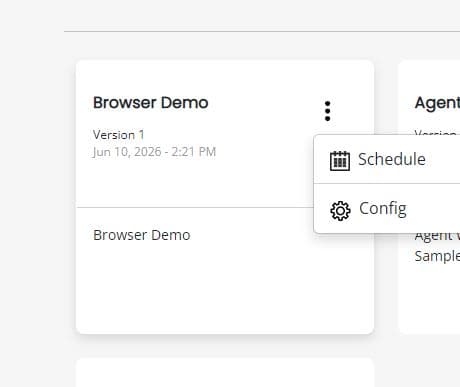
Config Info
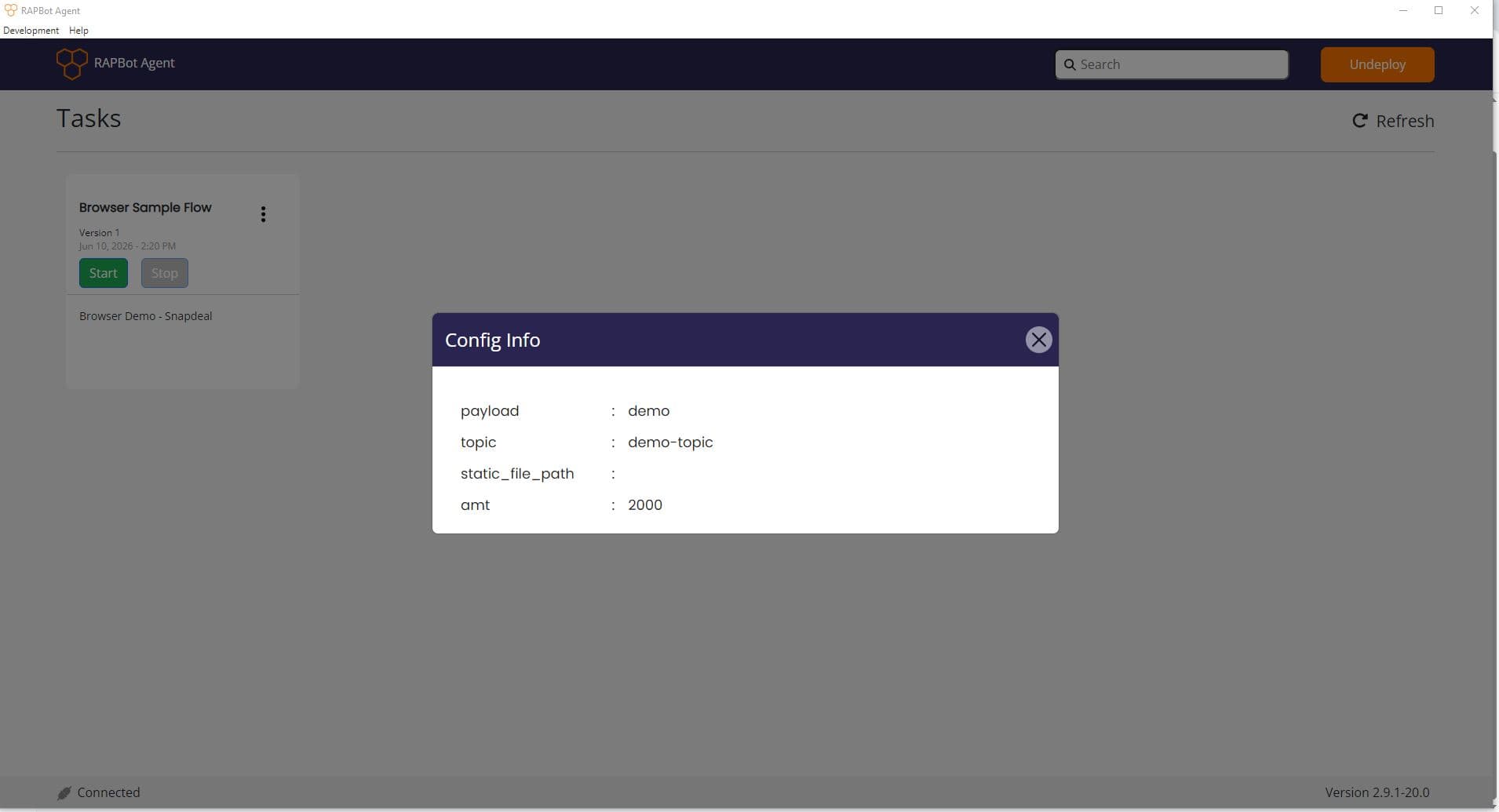
Configuration values are set in Orchestrator when a task is assigned to the agent. They map to variables defined in the Studio start block.
Schedule Info
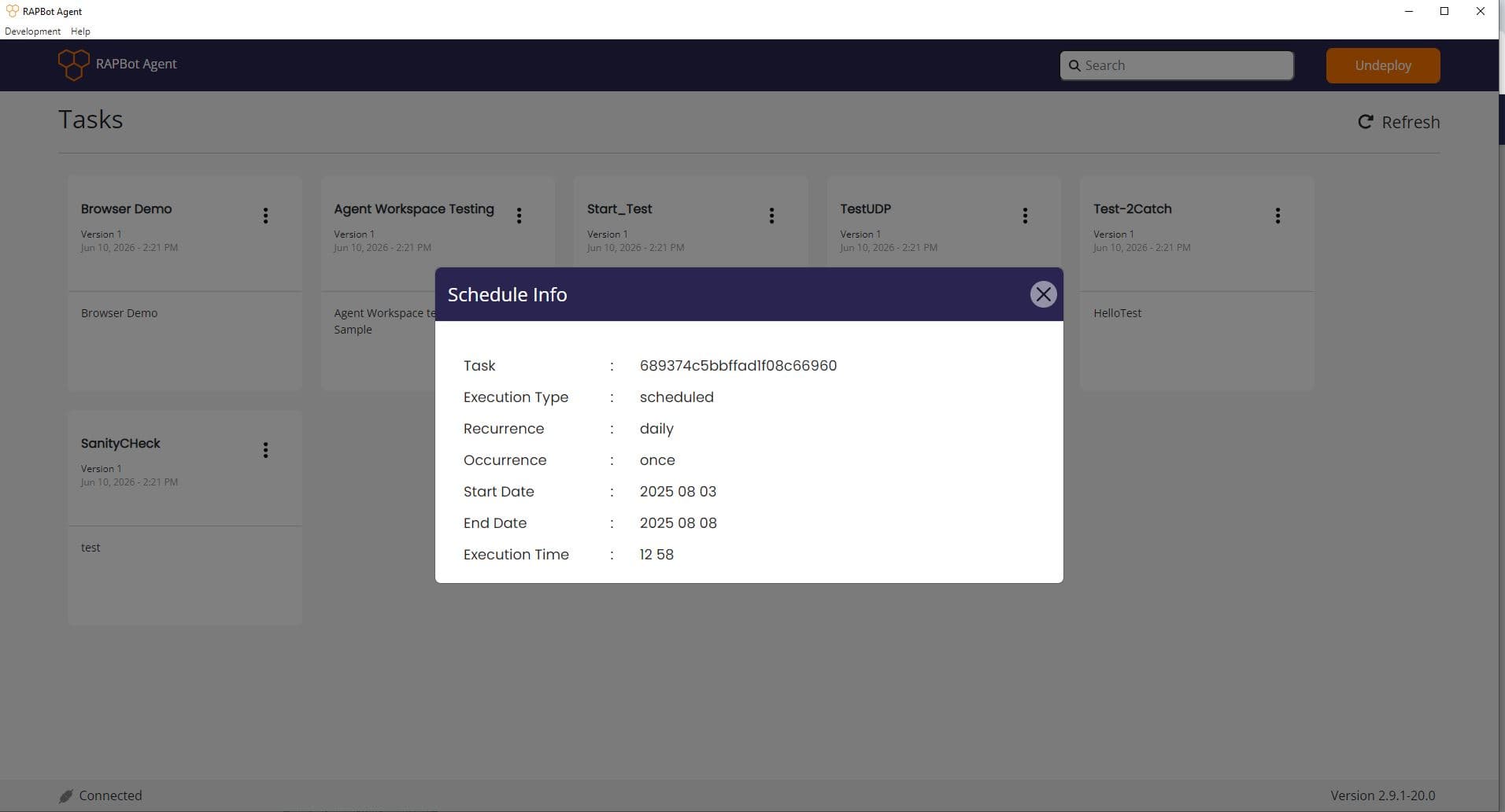
Schedules are created in Orchestrator — see Tasks & Scheduling.
Status Bar
The bottom status bar shows:
| Indicator | Meaning |
|---|---|
| Connected (green) | Agent is linked to Orchestrator and the automation engine is healthy |
| Disconnected | Agent is not connected — use the connection screen or check warnings |
| Version | Installed RAPBot Agent build (e.g. Version 2.9.1-20.0) |
Related
- Tasks & Scheduling — add tasks and configure schedules in Orchestrator
- Warnings & Background Operation
- Monitoring Task Runs