Output debug data, write to task logs, and report process checkpoints to Orchestrator
The print block inspects flow data during execution. Use it to view values in the debug sidebar, write entries to the task log file, and mark process checkpoints that are reported to Bot Management Console while a task is running on an agent.
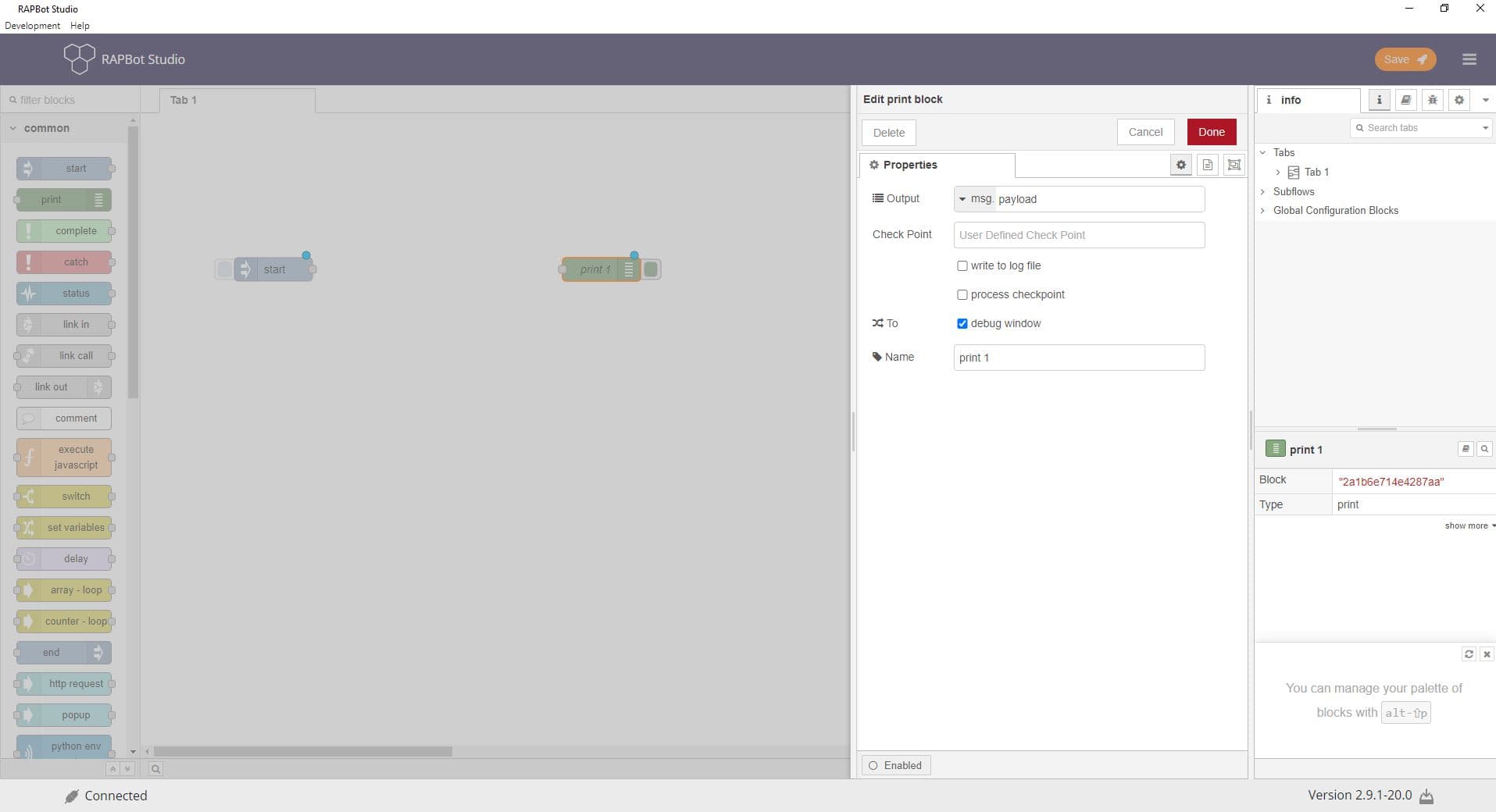
Configuration
| Field | Description |
|---|---|
| Output | Message property to display or log. Default is msg.payload. You can also output the complete msg object or use a JSONata expression. |
| Check Point | User-defined checkpoint label (up to 60 characters). Describes the milestone reached in the flow (e.g. Invoice downloaded, Login complete). Supports dynamic values from the message. |
| write to log file | When enabled, writes the checkpoint message to the task run log file on the agent. Uses the Check Point value; if empty, falls back to msg.payload (truncated to 60 characters). |
| process checkpoint | When enabled, sends the checkpoint to Bot Management Console for the currently running task. Orchestrator records progress so you can track where the agent is in the flow. Uses the same message as Check Point (or msg.payload if empty). |
| Name | Optional display label shown on the block in the canvas (e.g. print 1). |
How Check Point Works
The Check Point field is the label for a milestone in your automation. When the flow reaches a print block, that label identifies what just completed.
You can enter a fixed string:
User login successfulOr reference message data for dynamic labels:
Processing order {{msg.orderId}}If Check Point is left empty, the block uses msg.payload as the checkpoint message (up to 60 characters).
write to log file
Enable write to log file to persist checkpoint messages to the agent's task execution log. This is useful for:
- Auditing what happened during a run
- Troubleshooting failures after execution completes
- Keeping a local record independent of Orchestrator
The log entry uses your Check Point text, or msg.payload when Check Point is blank.
process checkpoint
Enable process checkpoint to report progress to Bot Management Console while the task runs on an agent. Orchestrator associates the checkpoint with the active task run so you can:
- Monitor how far an unattended agent has progressed
- Identify the last successful step before a failure
- Track execution milestones in Orchestrator logs
Notes:
- process checkpoint applies when the flow runs on a connected agent with an active task run. It has no effect during local Studio testing without an agent.
- The checkpoint message is limited to 60 characters.
- You can enable write to log file and process checkpoint together — the same milestone is written locally and sent to Orchestrator.
Output Options
| Output setting | What is shown / logged |
|---|---|
msg.payload | The main data property of the incoming message |
Complete msg object | The entire message object |
| JSONata expression | A computed value from the message |
Output data also appears in the Studio debug sidebar when testing flows locally.
Example Setup
| Goal | Configuration |
|---|---|
| Debug a value in Studio | Output: msg.payload only |
| Log a step to the agent log file | Check Point: Excel file saved + write to log file: enabled |
| Report progress to Orchestrator | Check Point: Payment submitted + process checkpoint: enabled |
| Full audit trail | Enable both write to log file and process checkpoint |
Use Cases
- Verify data at a specific point in the flow during development
- Mark business milestones (login, data extract, file upload) for Orchestrator monitoring
- Build an execution audit trail in task log files
- Trace execution path through complex multi-step automations
Related
- Bot Management Console Tasks — Task execution and logging in Orchestrator