Users
Manage users, roles, and permissions in VerifyMe
The User Screen is the central management interface for user administration in VerifyMe. This screen provides different capabilities based on user role, with SuperAdmins having system-wide access and Organization Admins managing users within their organization.
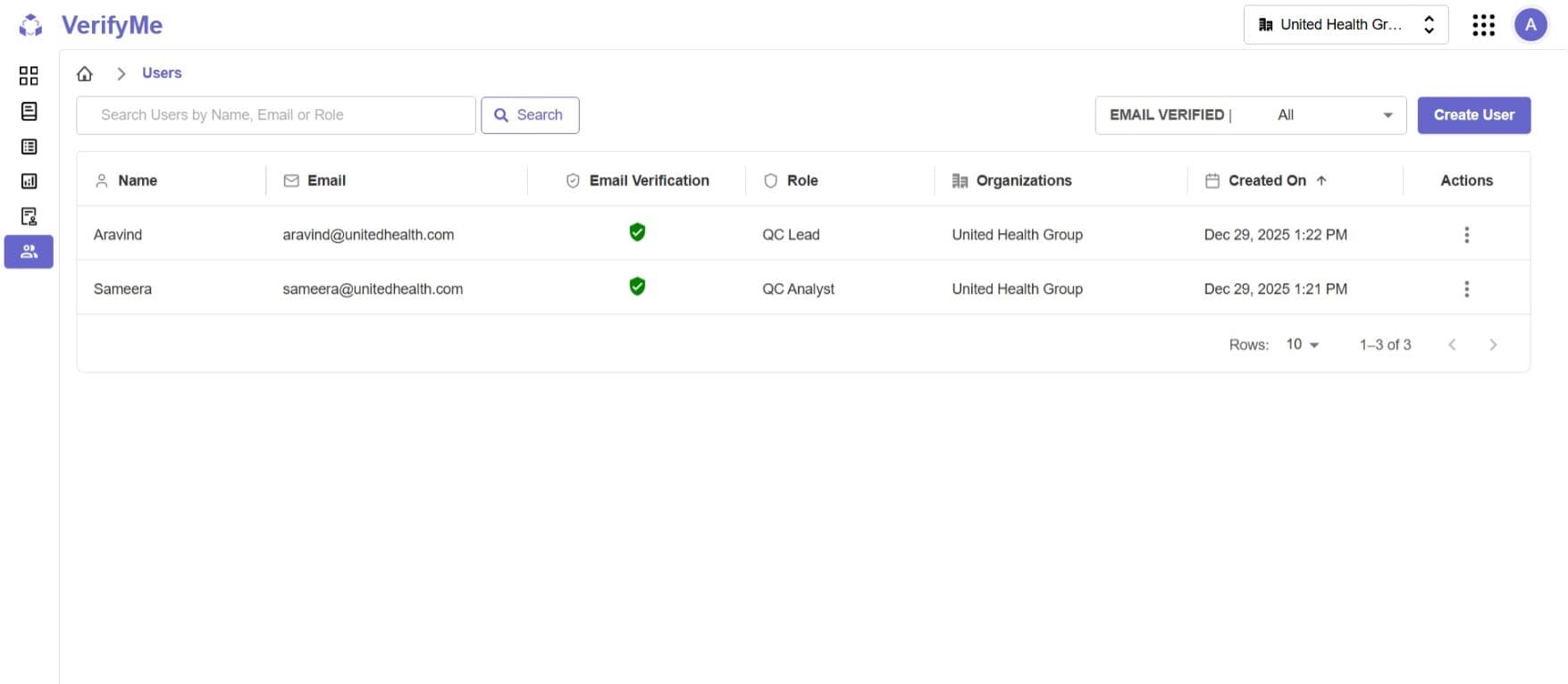
Users Table
A comprehensive table displaying all users with the following columns:
| Column | Description | Details |
|---|---|---|
| Name | User's full name or username | Display name for the user account |
| User's email address | Unique identifier and contact method | |
| Email Verification | Status of email verification | ✅ Verified (green checkmark) or ❌ Unverified |
| Role | User's role in VerifyMe | Organization Admin, QC Lead, or QC Analyst |
| Organizations | Organization(s) user belongs to | Organization assignment(s) |
| Created On | Account creation date/time | Sortable (indicated by ↑ arrow in header) |
| Actions | Available operations | Edit, Delete, Reset Password (⋮ menu) |
Role Types
| Role | Description | Created By |
|---|---|---|
| Organization Admin | Project and user manager | SuperAdmin |
| QC Lead | Quality control supervisor | Organization Admin |
| QC Analyst | Document verification specialist | Organization Admin |
Available Actions
| Action | Description | Access |
|---|---|---|
| Edit | Modify user details | Based on role permissions |
| Delete | Remove user from system | Based on role permissions |
| Reset Password | Reset user's password | Based on role permissions |
Available actions depend on your role and the target user's role
Create User
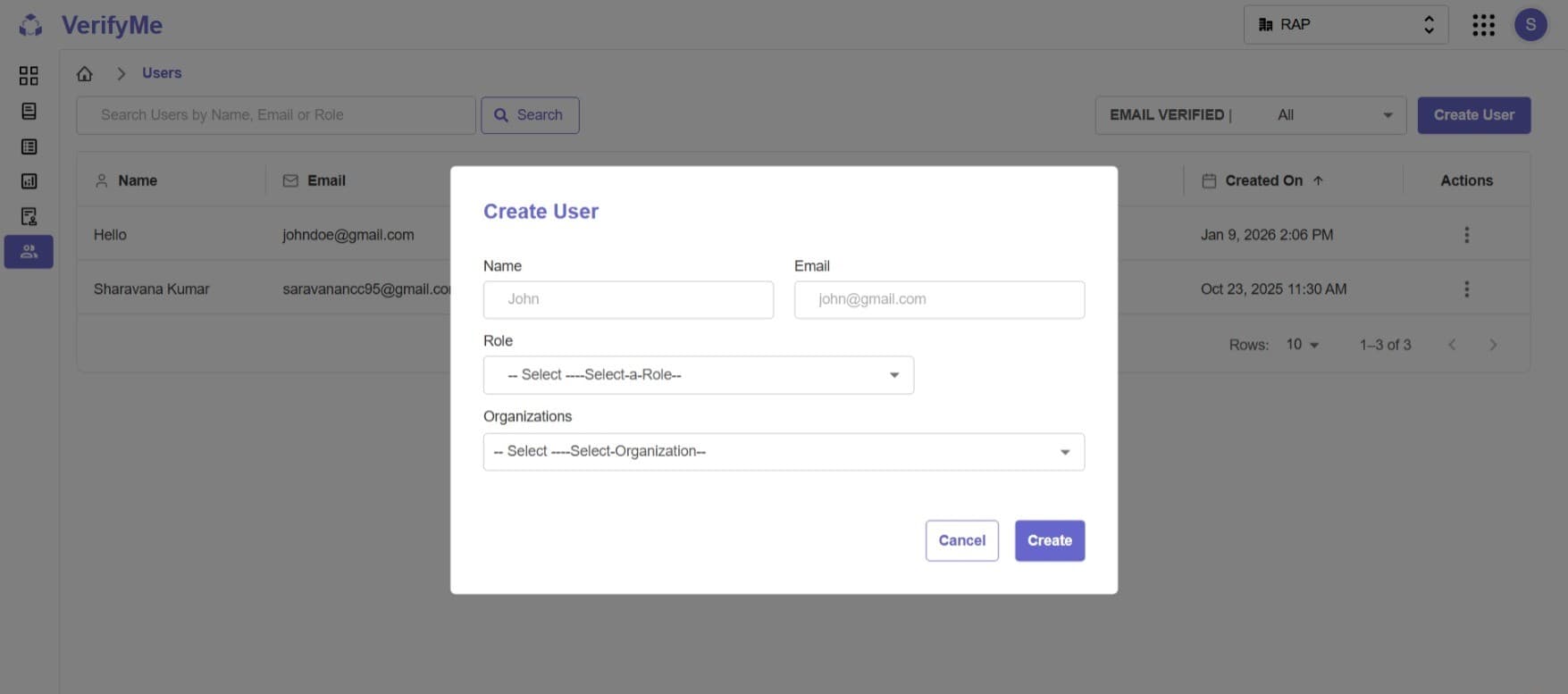
Button Location: Top right corner of the screen
Roles Available for Creation:
1. Organization Admin
- Created by SuperAdmin
- Can create QC Lead and QC Analyst roles
- Can create projects and assign users to projects
- Can view analytics and reports
2. QC Lead
- Quality control supervisor
- Can edit document types
- Oversees QC Analysts
- Performs document verification
- Can review marked files
3. QC Analyst
- Document verification specialist
- Performs quality checks on documents
- Verifies and adjusts AI-extracted fields
- Cannot edit document types or projects
Important Restrictions:
- Organization Admins CANNOT create other Organization Admin accounts
- Organization Admins can only create QC Lead and QC Analyst roles
User Creation Process for Org Admin:
- Click Create User button
- Fill in user details:
- Name: User's full name
- Email: Unique email address
- Role: Select "QC Lead" or "QC Analyst"
- Organization: Auto-assigned to your organization
- Password: Set initial password or send invitation
- Save to create the user
- User receives email verification request
- Assign user to projects after verification
User Actions
Each user row has an Actions menu (⋮) with options based on your role.
1. Edit User
Modify user information including name, email, role, and organization.
Access:
- SuperAdmin: Can edit all user types and reassign organizations
- Organization Admin: Can edit QC Lead and QC Analyst only (cannot edit Org Admin accounts)
2. Delete User
Permanently remove a user from the system.
Access:
- SuperAdmin: Can delete Organization Admins
- Organization Admin: Can delete QC Lead and QC Analyst only
Important: Deletion is permanent. Consider impact on active projects and audit trails. Best practice: Deactivate users instead of deleting to preserve history.
3. Reset Password
Reset a user's password when they cannot access their account.
Access:
- SuperAdmin: Can reset passwords for Organization Admins
- Organization Admin: Can reset passwords for QC Lead and QC Analyst only
Note: Reset links expire after 24-48 hours.
Best Practices
User Management
Organization:
- Maintain clear naming conventions for users
- Keep email addresses up to date
- Ensure all users verify their emails promptly
- Regularly audit user list for accuracy
Security:
- Remove users immediately when they leave the organization
- Reset passwords for security concerns
- Monitor email verification status
- Review user access periodically
Role Assignment:
- Assign roles based on actual job responsibilities
- Don't over-assign QC Lead or Organization Admin roles
- Promote users only when they're ready for additional responsibilities
- Document role changes for audit purposes
Organization Admin Best Practices:
- Create QC users based on workload needs
- Balance QC Lead and QC Analyst ratios
- Monitor QC team performance
- Communicate with SuperAdmin for Organization Admin needs
Access Control
| Action | SuperAdmin | Organization Admin | QC Lead | QC Analyst |
|---|---|---|---|---|
| View Users Screen | ✅ (All Users) | ✅ (Org Users) | ❌ | ❌ |
| Create Org Admin | ✅ | ❌ | ❌ | ❌ |
| Create QC Lead | ❌ | ✅ | ❌ | ❌ |
| Create QC Analyst | ❌ | ✅ | ❌ | ❌ |
| Edit All Users | ❌ | ✅ | ❌ | ❌ |
| Edit Org Admin | ✅ | ❌ | ❌ | ❌ |
| Edit QC Users | ❌ | ✅ | ❌ | ❌ |
| Delete Users | ✅ (Org Users) | ✅ (QC only) | ❌ | ❌ |
| Reset Password | ✅ (Org Users) | ✅ (QC only) | ❌ | ❌ |
Important:
- SuperAdmins have system-wide access and can view all users across all organizations
- Organization Admins can only view and manage users within their assigned organization
- QC Leads and QC Analysts do not have permission to view or access this page