Audit Logs
Track and monitor all user activities and system events in VerifyMe
The Audit Logs screen provides comprehensive tracking and monitoring of all user activities and system events within VerifyMe. This powerful tool enables administrators to maintain security, ensure compliance, monitor user behavior, and troubleshoot issues by providing a detailed chronological record of every action performed in the system.
Access: SuperAdmin and Organization Admin only
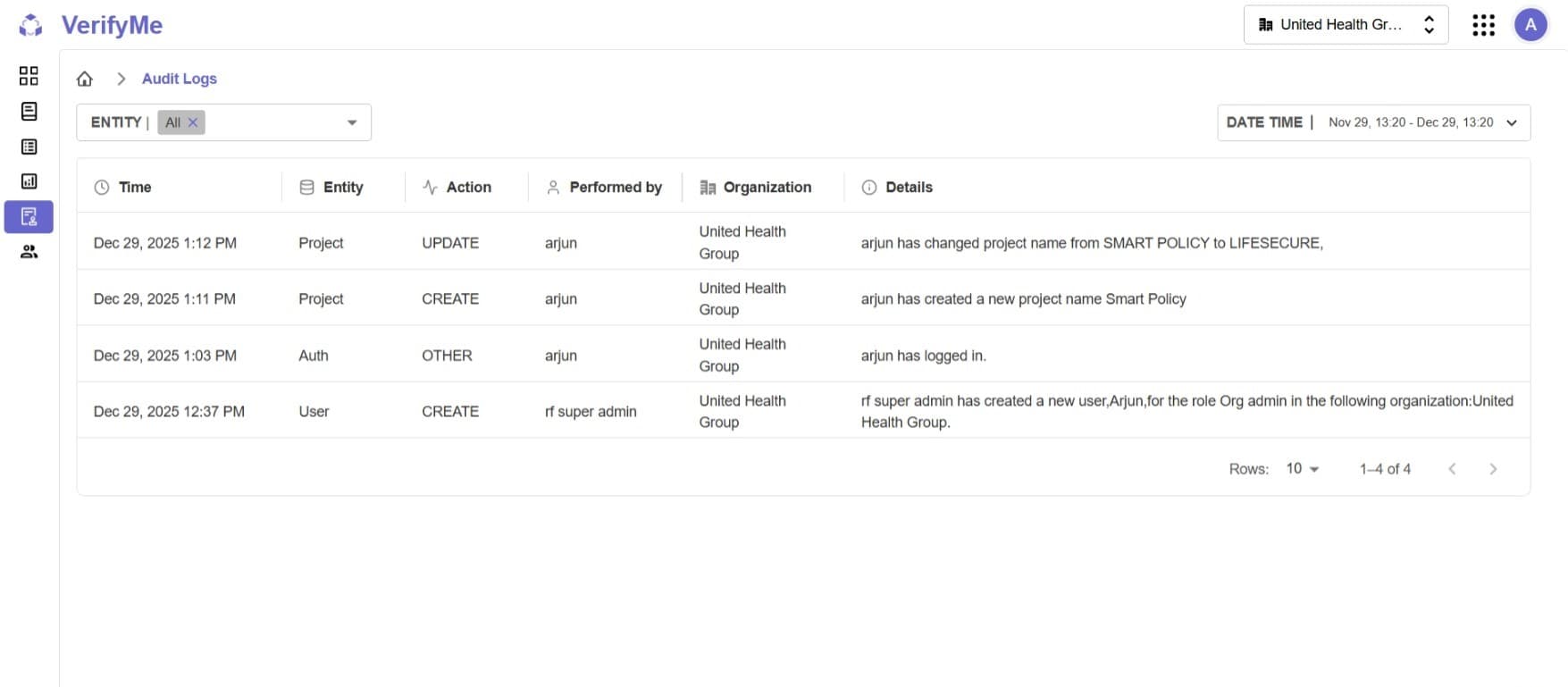
Audit Logs Table
A comprehensive table displaying all logged activities with detailed information about each event.
Table Columns
1. Time
- Description: Exact date and time when the action occurred
- Format: "MMM DD, YYYY HH:MM AM/PM"
- Example: "Dec 29, 2025 1:12 PM"
- Timezone: Displays in system or user's configured timezone
- Sort Order: Most recent events typically displayed first (default)
2. Entity
The system component or feature where the action occurred.
Available Entities:
- Auth: Login attempts, authentication events, logout activities, session management
- Document Type: Document type creation, modifications, deletion, field configuration changes
- Project: Project creation, updates, deletion, configuration changes, name changes
- QC Screen: File assignments, status updates, verification activities, document submissions
- User: User account creation, profile updates, deletion, role changes, password resets
3. Action
The specific operation performed.
Available Actions:
- CREATE: New records added (user, project, document type, etc.)
- UPDATE: Modifications to existing records
- DELETE: Records removed from system
- SUBMITTED: Document verification completed
- RESET PASSWORD: Password reset operations
- RESTORE: Deleted items restored
- MARKED FOR REVIEW: Files flagged for additional review
- ADD: Comments, fields, or items added
- ASSIGNED: Files or users assigned to projects
- UNASSIGNED: Assignments removed
- TIMEOUT: Inactivity timeouts occurred
- OTHER: Login, logout, and miscellaneous actions
4. Performed By
- Description: The user who performed the action
- Display: Username, email address, or system identifier
- Examples: "arjun", "rf super admin", "[email protected]", "SYSTEM"
5. Organization
- Description: The organization associated with the action
- Display: Organization name with icon
- Example: "United Health Group"
6. Details
Additional context and specific information about the action in natural language format.
Example Details:
- "arjun has logged in."
- "arjun has created a new project name Smart Policy"
- "arjun has changed project name from SMART POLICY to LIFESECURE."
- "rf super admin has created a new user,Arjun,for the role Org admin in the following organization:United Health Group."
Common Use Cases
Security Monitoring
Monitoring Login Activities:
- Set Entity filter to "Auth"
- Set Date Time filter to appropriate range (e.g., "Past 1d" or "Past 7d")
- Review login patterns and activities
- Look for multiple failed login attempts, after-hours access, unusual login patterns
User Activity Tracking
Monitoring Specific User:
- Find specific user in "Performed By" column
- Set appropriate date range
- Review all actions by that user
- Track productivity and compliance
Project Management
Tracking Project Lifecycle:
- Filter by Entity: "Project"
- Set date range to project timeline
- Review all project-related activities
- Monitor creation, updates, and completion
Compliance Auditing
Regulatory Compliance Review:
- Set filter to required compliance period (e.g., "Past 90d")
- Review all CREATE, UPDATE, DELETE actions
- Document change management compliance
- Export logs for reporting if needed
Troubleshooting
Investigating Issues:
- Set filter to time when issue occurred
- Search for related entity or user
- Review sequence of events
- Identify root cause from details
Best Practices
Regular Monitoring
- Daily Reviews: Check authentication logs, review critical actions, monitor for unusual patterns
- Weekly Reviews: Comprehensive review of all entities, analyze user activity patterns
- Monthly Reviews: Full audit for compliance reporting, long-term trend analysis
Access Control
| Feature | SuperAdmin | Organization Admin | QC Lead | QC Analyst |
|---|---|---|---|---|
| View Audit Logs | ✅ | ✅ | ❌ | ❌ |
Important: Only SuperAdmins and Organization Admins have access to the Audit Logs screen. This ensures that sensitive system activity information is restricted to authorized personnel with system-wide oversight responsibilities.
Related Documentation
- User Screen - Manage users and track their creation in audit logs
- Project Screen - Monitor project activities through audit logs
- Quality Check Screen - Track QC activities and file processing