Project
Central hub for managing all projects within VerifyMe
Overview
The Project Screen is the central hub for managing all projects within VerifyMe. This screen is accessible to all roles and provides comprehensive project oversight, file tracking, and project management capabilities.
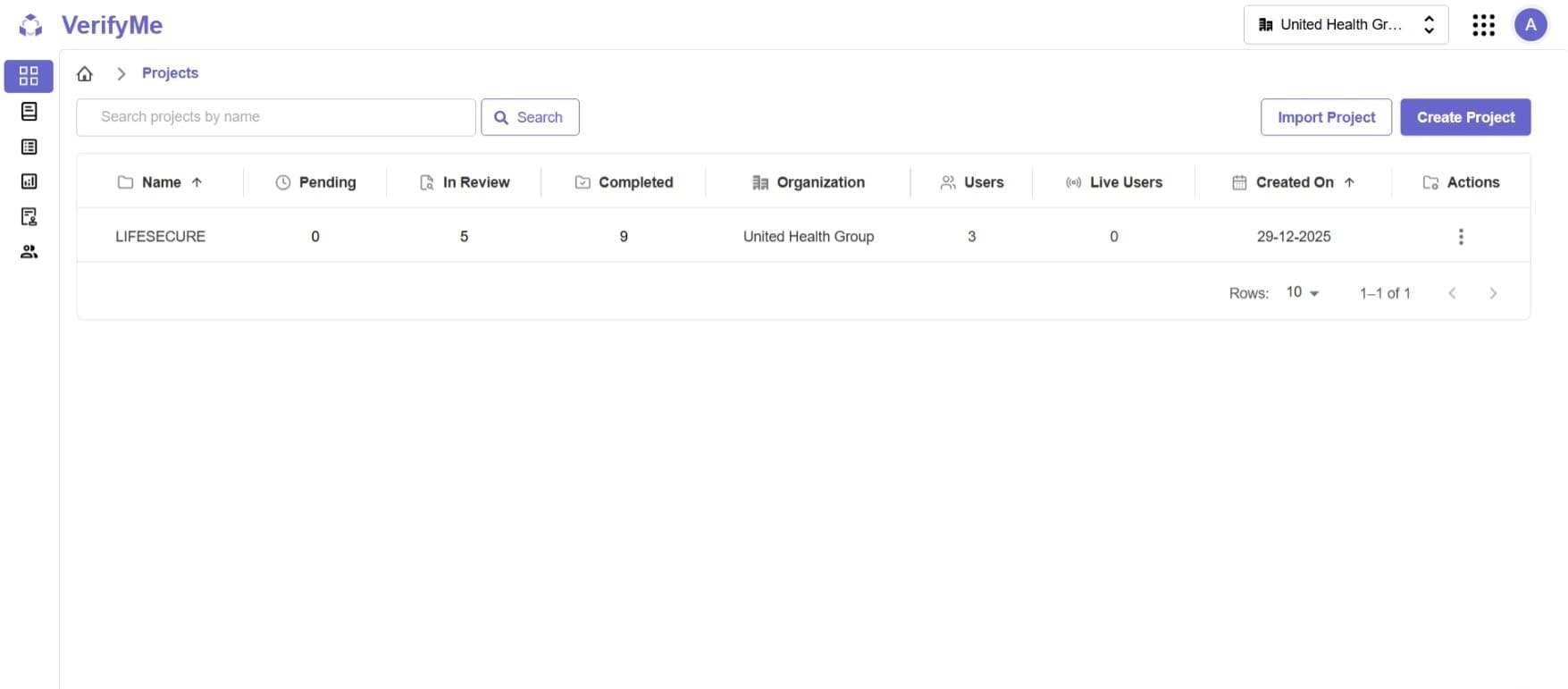
Project Table
The Project Screen displays a comprehensive table with real-time project information across the following columns:
| Column | Description |
|---|---|
| Project Name | The unique name identifier for the project |
| Pending Files | Total number of files awaiting verification and processing |
| In Review | Total number of files currently being reviewed by QC team |
| Completed Files | Total number of files that have finished the verification process |
| Organization | The organization to which the project belongs |
| Total Users | Total number of users assigned to work on this project |
| Live Users | Number of users currently active and working on the project |
| Created Date | The date when the project was initially created |
| Actions | Available operations and management options for the project |
Available Actions
Each project in the table includes action buttons for project management:
1. Delete Project
Permanently removes the project from the system.
- Access: Organization Admin only
- Caution: Irreversible action. Back up data before deletion.
2. Edit Project
Modify project details: name, description, organization, document type, and assigned users.
- Access: Organization Admin and QC Lead only
3. Doc Allocation
- Assign documents to specific users within the project
- Distribute workload across team members
- Manage document assignments for efficient workflow
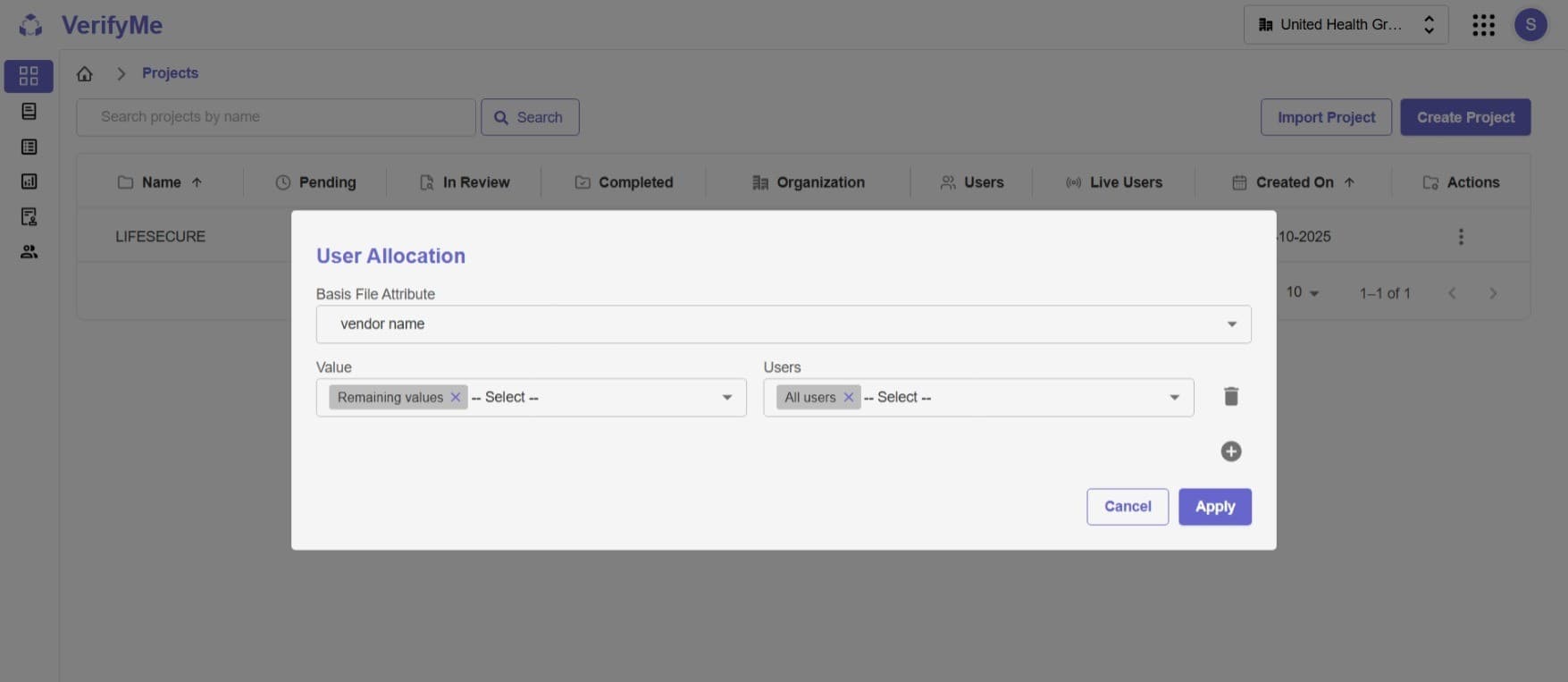
Access: Organization Admin and QC Lead only
4. Manage Interdependent Fields
- Configure and manage field dependencies within the project
- Set up conditional relationships between document fields
- Define how dropdown values change based on other field selections
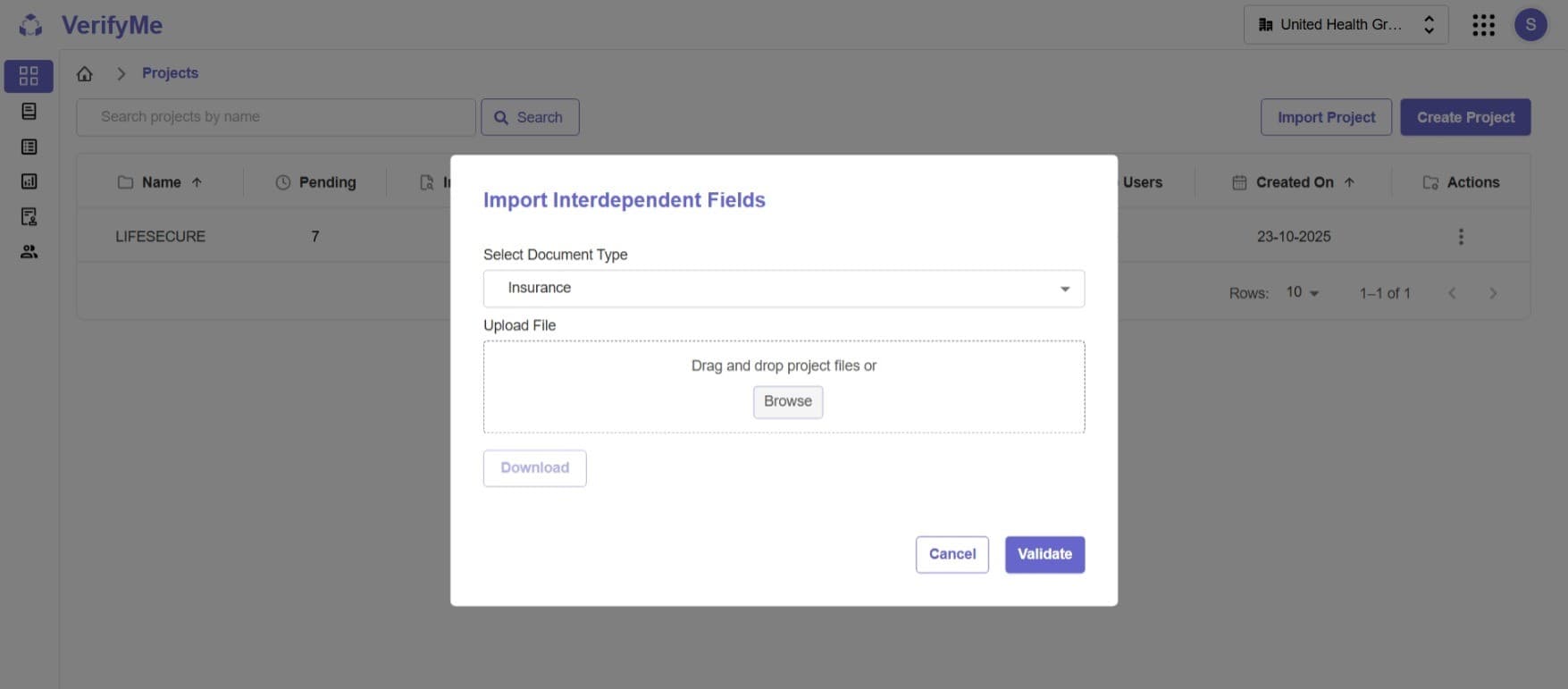
Access: Organization Admin and QC Lead only
Import Projects
The Project Screen includes an Import Projects feature that allows Organization Admins to bulk-import multiple projects into the system.
Key Features
- Upload projects in bulk using a structured JSON format
- Accepts only JSON files for import
- Save time when setting up multiple projects
- Ensure consistency across imported projects
Access: Organization Admin and QC Lead only
Usage
- Click the Import Projects button
- Upload your project file (format as specified by system requirements)
- Review the import preview
- Confirm and complete the import process
Creating New Projects
Organization Admins create new VerifyMe projects by filling out a form with project name, description, organization selection, document type template, and user assignments (QC Lead/QC Analyst).
For step-by-step instructions on creating a new project, see the Create Project Documentation.
File Status Management
VerifyMe's file status system tracks documents through three stages: Pending, In Review, and Completed.
For detailed information about file statuses, review workflows, see the File Status Documentation.
Quality Check Screen
The Quality Check Screen is the primary workspace for QC Leads and QC Analysts to verify documents
For detailed information on using the Quality Check Screen to review pending files, see the Quality Check Documentation.