Document Configuration
Create and manage document templates that define field structures and data requirements
The Document Configuration page is where you build and customize your document type structure.
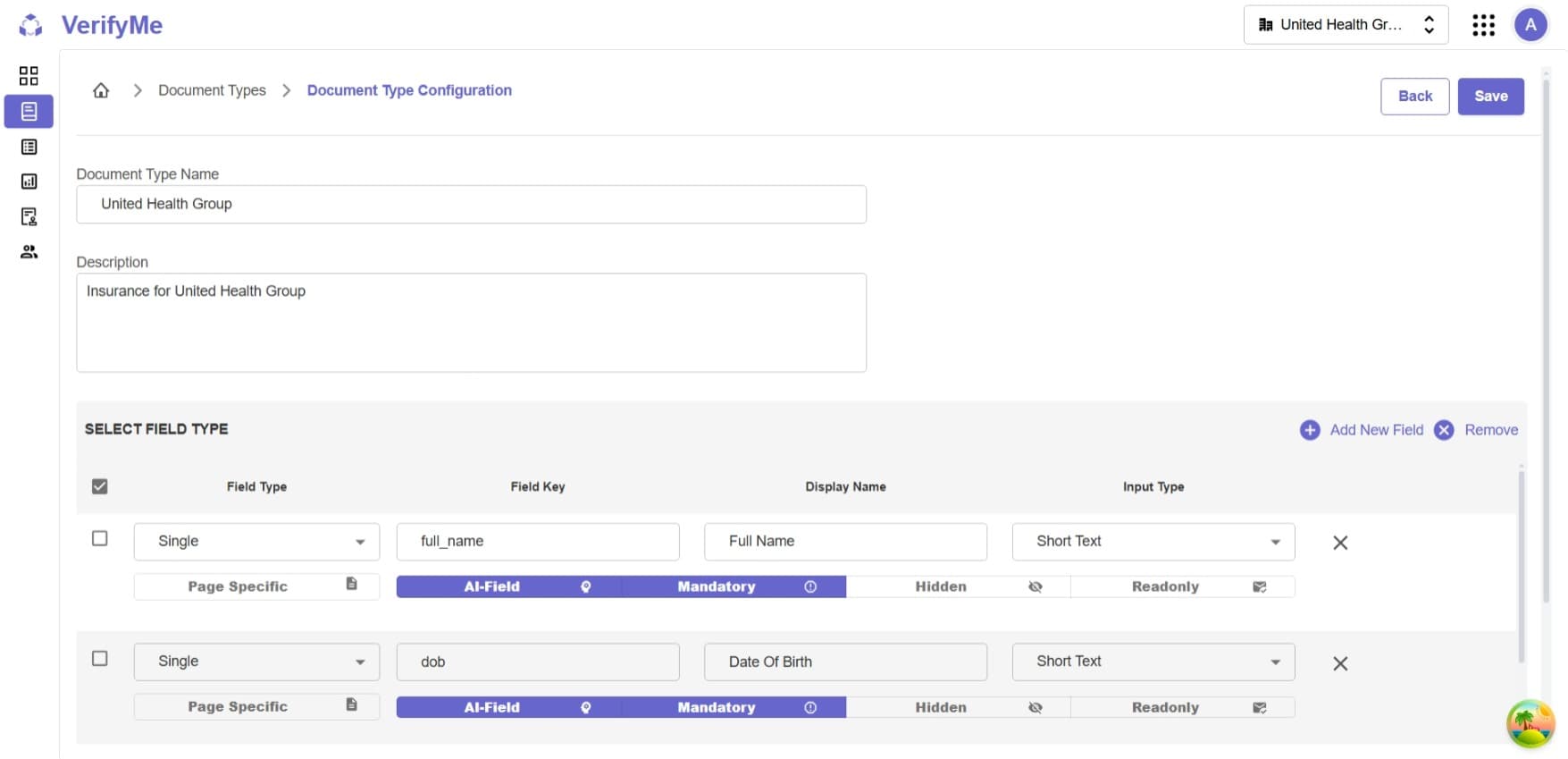
Basic Information
When creating or editing a document type, you must first provide basic information:
1. Document Name
- Required: Yes
- Description: The name of your document type
- Examples: "Invoice", "Bank Cheque", "Purchase Order", "Tax Form W-2"
- Best Practice: Use clear, descriptive names that identify the document purpose
2. Document Description
- Required: Yes
- Description: Detailed explanation of the document type's purpose
- Examples:
- "Standard invoice template for vendor payments"
- "Bank cheque verification with payee and amount details"
- "Purchase order with line items and vendor information"
- Best Practice: Include what fields are captured and what the document is used for
Creating Document Types with JSON
Document types can also be created programmatically using JSON format. This is particularly useful for:
- Bulk creation of document types
JSON Structure Example
Below is a sample JSON configuration for a Passport document type:
{
    "docType": "Passport",
    "description": "Standard passport document with basic fields",
    "fieldsConfiguration": [
        {
            "type": "single",
            "pageSpecific": false,
            "orientation": "horizontal",
            "fields": [
                {
                    "key": "passport_number",
                    "name": "Passport Number",
                    "type": "short",
                    "mandatory": true,
                    "isAIBuildIn": false,
                    "hidden": false,
                    "formulaDerived": false,
                    "readOnly": false,
                    "customValidation": "",
                    "isDeleted": false
                }
            ],
            "isDeleted": false
        },
        {
            "type": "single",
            "pageSpecific": false,
            "orientation": "horizontal",
            "fields": [
                {
                    "key": "full_name",s
                    "name": "Full Name",
                    "type": "short",
                    "mandatory": true,
                    "isAIBuildIn": true,
                    "hidden": false,
                    "formulaDerived": false,
                    "readOnly": false,
                    "customValidation": "",
                    "isDeleted": false
                }
            ],
            "isDeleted": false
        },
        {
            "type": "single",
            "pageSpecific": false,
            "orientation": "horizontal",
            "fields": [
                {
                    "key": "date_of_birth",
                    "name": "Date of Birth",
                    "type": "date",
                    "mandatory": true,
                    "isAIBuildIn": false,
                    "hidden": false,
                    "formulaDerived": false,
                    "readOnly": false,
                    "customValidation": "",
                    "isDeleted": false
                }
            ],
            "isDeleted": false
        },
        {
            "type": "single",
            "pageSpecific": false,
            "orientation": "horizontal",
            "fields": [
                {
                    "key": "gender",
                    "name": "Gender",
                    "type": "nonDependencydropdown",
                    "mandatory": true,
                    "isAIBuildIn": false,
                    "hidden": false,
                    "values":["Male","Female","Other"],
                    "formulaDerived": false,
                    "readOnly": false,
                    "customValidation": "",
                    "isDeleted": false
                }
            ],
            "isDeleted": false
        }
    ]
}
JSON Field Descriptions
- docType: The name of the document type
- description: Detailed description of the document type's purpose
- fieldsConfiguration: Array of field group configurations
- type: Field group type (
single,multipart, `collection etc.) - pageSpecific: Whether fields are specific to certain pages
- fields: Array of individual field definitions
- key: Unique identifier for the field
- name: Display name for the field
- type: Data type (
short text,long text,date,etc) - mandatory: Whether the field is required
- isAIBuildIn: Whether AI extraction is enabled for this field
- hidden: Whether the field is hidden from the UI
- formulaDerived: Whether the field value is calculated from a formula
- readOnly: Whether the field can be edited
- customValidation: Custom validation rules (if any)
- isDeleted: Soft delete flag
- type: Field group type (
Document Field Types
VerifyMe supports three types of field structures to accommodate different document layouts and data organization needs:

1. Single Fields
Definition: Individual, standalone fields that exist independently in the document structure.
Use Cases:
- Simple data points that don't need grouping
- Standalone information like document ID, date, or status
- Fields that appear once in the document
Examples:
- Invoice Number
- Issue Date
- Total Amount
- Vendor Name
- Status
- Document ID
Configuration Requirements:
- Field Type: Single
- Field Key: Unique identifier (e.g.,
invoice_number,issue_date) - Display Name: User-friendly label (e.g., "Invoice Number", "Issue Date")
- Input Type: Choose from 5 available types (see Input Types section)
2. Multipart Fields
Definition: A logical grouping of related single fields that belong together conceptually.
Use Cases:
- Group related information that forms a logical unit
- Organize fields that represent different aspects of the same entity
- Improve readability and data organization
Other Examples:
- Contact Information: Phone, Email, Fax, Website
- Employee Information: Employee ID, Name, Department, Position
- Product Details: Product Code, Description, Category, Brand
Configuration Requirements:
- Field Type: Multipart
- Multipart Name: Name of the grouped section (e.g., "Billing Address")
- Multipart Key: Unique identifier (e.g.,
billing_address)
3. Collection Fields
Definition: Repeatable groups of fields that can appear multiple times in a document, representing a list or table of similar items.
Use Cases:
- Line items in invoices or purchase orders
- Multiple entries of the same type of information
- Tables with repeating rows
- Lists of items, products, or records
Employment History Collection:
- Company Name
- Position/Title
- Start Date
- End Date
- Responsibilities
Transaction History Collection:
- Transaction Date
- Transaction Type
- Amount
- Description
- Balance
Configuration Requirements:
- Field Type: Collection
- Collection Name: Name of the repeatable group (e.g., "Line Items")
- Collection Key: Unique identifier (e.g.,
line_items)
Input Types
VerifyMe supports five input types for fields. Each input type determines how data is entered and displayed.
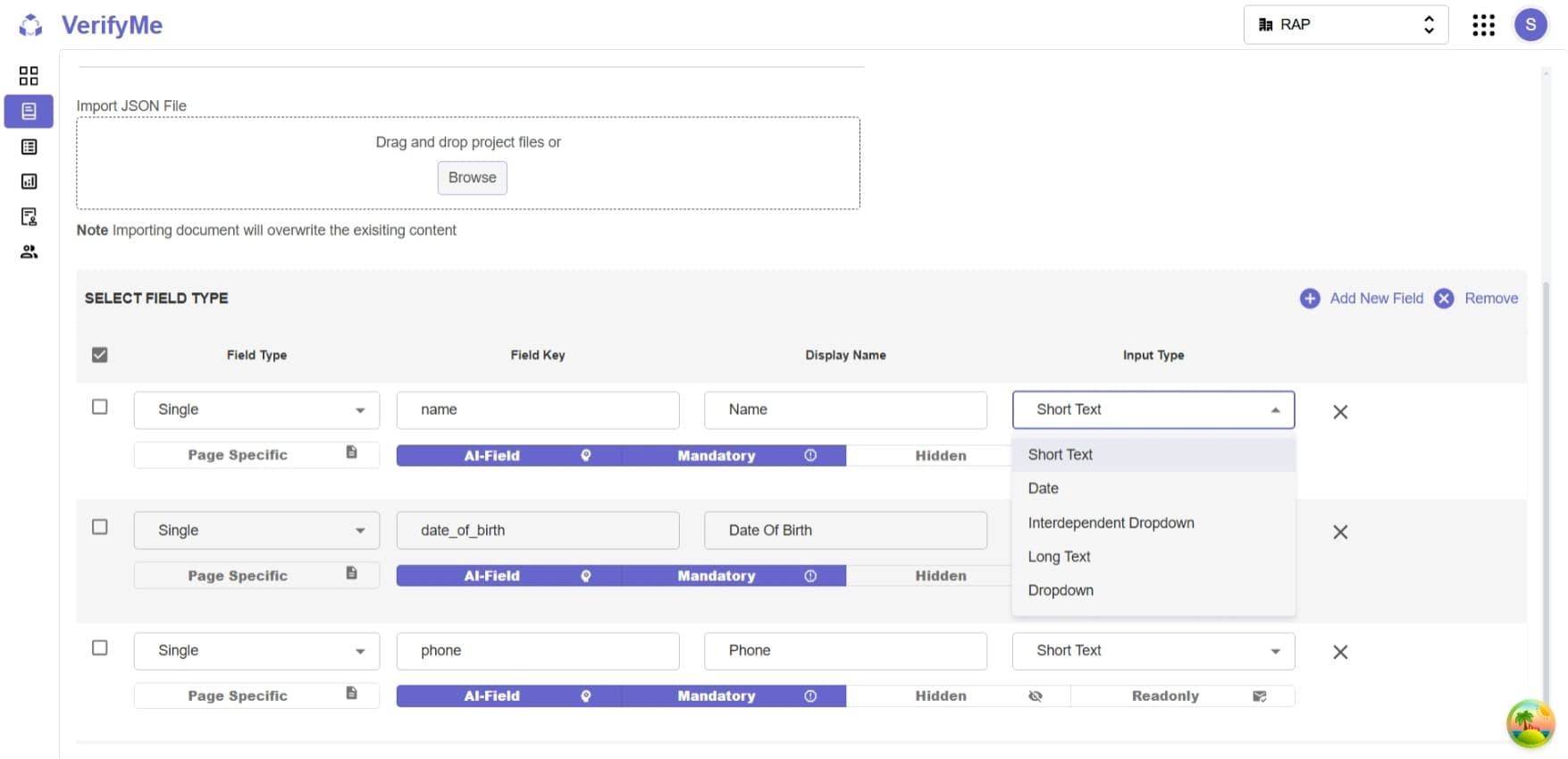
1. Short Text
Description: Single-line text input for brief entries
Use Cases:
- Names
- IDs and reference numbers
- Short codes
- Single-word or short-phrase entries
Examples:
- Invoice Number: "INV-2024-001"
- Vendor Code: "VEND-123"
2. Long Text
Description: Multi-line text area for extended content
Use Cases:
- Descriptions
- Addresses
Examples:
- Product Description
- Work Description: "Created infrastructure for Project Alpha and passed on overview sheet to team."
3. Dropdown
Description: Selection from a predefined list of options
Use Cases:
- Fixed categories
- Status values
- Predefined choices
- Standardized values
Examples:
- Payment Method: [Cash, Credit Card, Bank Transfer, Cheque]
- State: [California, Texas, New York, ...]
4. Interdependent Dropdown
Description: Dropdown whose available options depend on the value selected in another field
Use Cases:
- Hierarchical relationships
- Dependent categories
Examples:
Country → State → City:
- Select Country: "United States"
- State dropdown shows: [California, Texas, New York, ...]
- Select State: "California"
- City dropdown shows: [Los Angeles, San Francisco, San Diego, ...]
Product Category → Product:
- Select Category: "Electronics"
- Product dropdown shows: [Laptop, Phone, Tablet, ...]
- Select Category: "Furniture"
- Product dropdown shows: [Chair, Desk, Cabinet, ...]
Department → Position:
- Select Department: "Engineering"
- Position dropdown shows: [Software Engineer, DevOps Engineer, QA Engineer, ...]
Configuration Note: Interdependent dropdowns require configuration of the dependency relationship in the "Manage Interdependent Fields" section of the Project Screen.
5. Date
Note: The original specification mentions "Long Text" twice. Common additional input types include Date, Number, Currency, or Boolean fields. Please verify with your system administrator for the actual fifth input type.
Field Tags
Field tags control the behavior and properties of individual fields during configuration.

Available Tags
1. Page Specific
Field appears only on specific pages of the document.
Use Cases: Multi-page documents with page-specific information (headers, line items, terms).
Behavior: Field visible and editable only on designated pages, reducing clutter.
2. AI Fields
Field is processed and populated by AI/LLM for automatic extraction.
Use Cases: Auto-extracted data like vendor names, amounts, dates, and addresses.
Behavior: AI provides initial values for human verification, reducing manual data entry.
3. Mandatory
Field must be filled before document submission.
Use Cases: Critical information, required data, compliance requirements, key identifiers.
Behavior: Document cannot be submitted until mandatory fields are completed. Validation error appears if empty.
4. Hidden
Field exists in data structure but is not visible to users.
Use Cases: Internal system fields, calculated values, metadata, backend-populated fields.
Behavior: Not displayed in Quality Check Screen. Data stored and used by system but not viewable or editable by users.
5. Readonly
Field is visible but cannot be edited by users.
Use Cases: Display-only information, pre-populated data, system-calculated values, reference information.
Behavior: Visible in Quality Check Screen but not modifiable. Prevents accidental changes to protected data.
Special Feature: Allow Add Values (Dropdowns Only) - Enables users to add new values to readonly dropdown fields while keeping existing values protected.
Best Practices
Document Type Design
Planning
- Analyze sample documents before creating document types
- Identify all required fields and their relationships
- Determine which fields are mandatory for business needs
- Consider how data will be used downstream
Organization
- Use Multipart fields to group related information
- Use Collections for repeating data patterns
- Keep single fields for standalone data points
- Create logical field hierarchies
Naming Conventions
- Use clear, descriptive field names
- Follow consistent naming patterns (e.g., all lowercase with underscores for keys)
- Make display names user-friendly and professional
- Document your naming conventions for team consistency
Field Configuration
Input Type Selection
- Choose Short Text for brief entries (names, codes, IDs)
- Use Long Text for descriptions and multi-line content
- Use Dropdowns for standardized values to maintain consistency
- Use Interdependent Dropdowns for hierarchical relationships
- Enable "Allow Add Values" for dropdowns that may need to grow
Tag Usage
- Mark critical fields as Mandatory to ensure data completeness
- Use AI Fields tag for fields that should be auto-extracted
- Use Page Specific for multi-page documents to reduce clutter
- Use Hidden for system fields users don't need to see
- Use Readonly to protect pre-populated or calculated values
Field Keys
- Keep field keys short but meaningful
- Use consistent naming patterns (snake_case recommended)
- Avoid special characters except underscores
- Make keys descriptive of the field's content
Access Summary
| Feature | Organization Admin | QC Lead | QC Analyst |
|---|---|---|---|
| View Document Types | ✅ | ✅ | ❌ |
| Create Document Type | ✅ | ❌ | ❌ |
| Edit Document Type | ✅ | ✅ | ❌ |
| Delete Document Type | ✅ | ❌ | ❌ |
| Configure Fields | ✅ | ✅ | ❌ |
| Add Fields | ✅ | ✅ | ❌ |