Quality Check
Primary interface for QC Leads and QC Analysts to perform document verification tasks
Overview
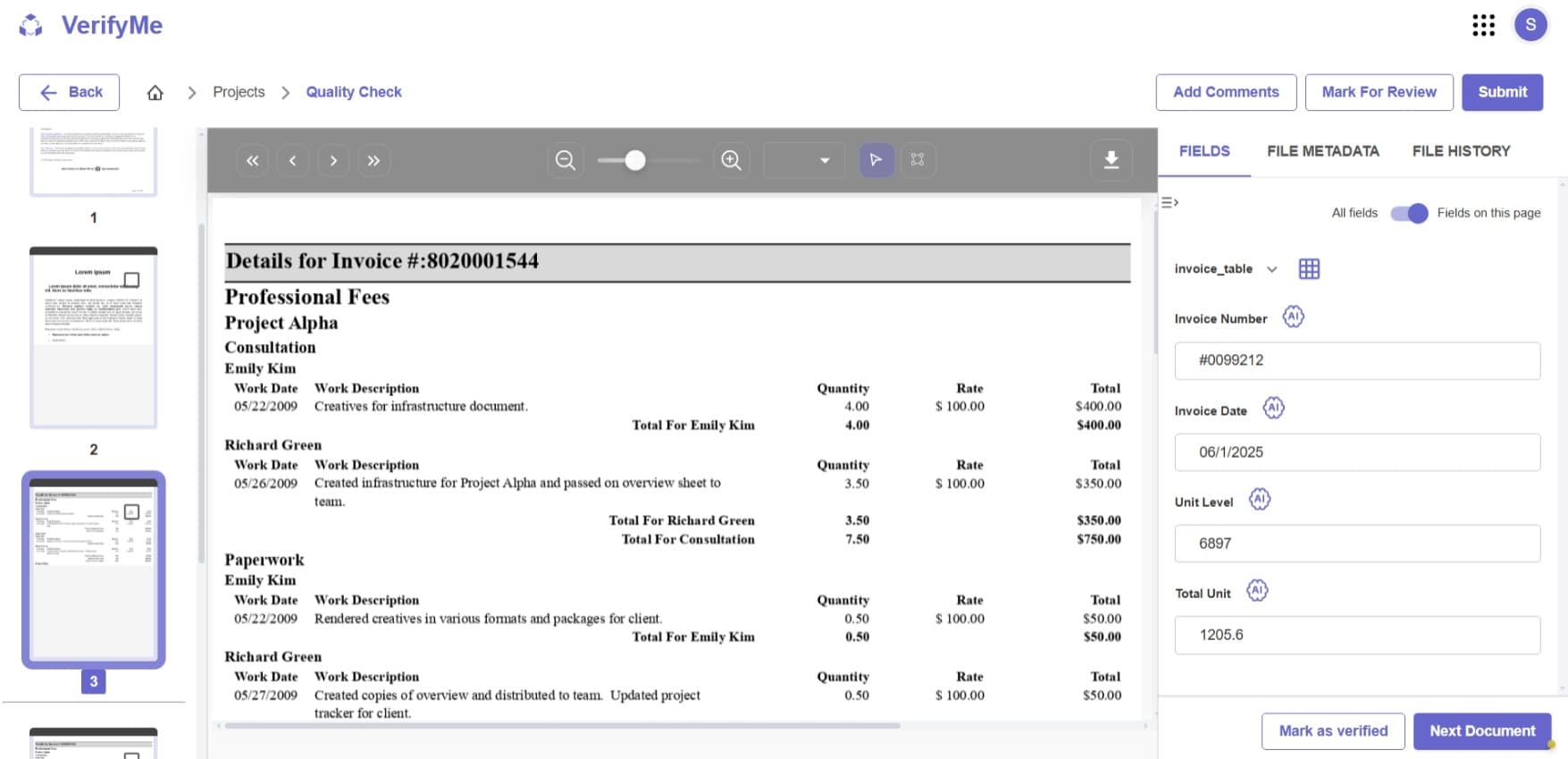
The Quality Check Screen is the primary interface where QC Leads and QC Analysts perform document verification tasks. This screen provides a comprehensive workspace for reviewing documents, validating extracted data, adding comments, and managing file status.
Screen Layout
The Quality Check Screen is divided into three main panels:
- Left Panel - Page Navigation
- Center Panel - Document Viewer
- Right Panel - Fields & Actions
Left Panel - Page Navigation
The left side of the screen displays thumbnail previews of all pages in the current document.
Features
- Thumbnail View: Visual preview of each page
- Page Numbers: Sequential numbering for easy reference
- Page Selection: Click on any thumbnail to navigate directly to that page
- Current Page Indicator: Highlighted border around the active page
- Scroll Navigation: Scroll through pages when documents have multiple pages
Center Panel - Document Viewer
The center panel displays the actual document image with various tools for inspection and annotation.
Document Display
- Full-Page View: High-resolution view of the selected page
- Document Content: Shows the actual uploaded document image
- Interactive Canvas: Click and interact with the document directly
Navigation Controls
| Icon | Function | Description |
|---|---|---|
| ⏮ | First Page | Jump to first page |
| ◀ | Previous Page | Go to previous page |
| ▶ | Next Page | Go to next page |
| ⏭ | Last Page | Jump to last page |
Zoom Controls
Zoom In (🔍+)
Enlarge document for detailed inspection.
Zoom Out (🔍-)
Reduce size to see more of the page.
Zoom Slider
Drag slider for precise zoom level control.
Fit to Screen
Auto-adjust zoom to fit entire page in viewport.
Drawing & Annotation Tools
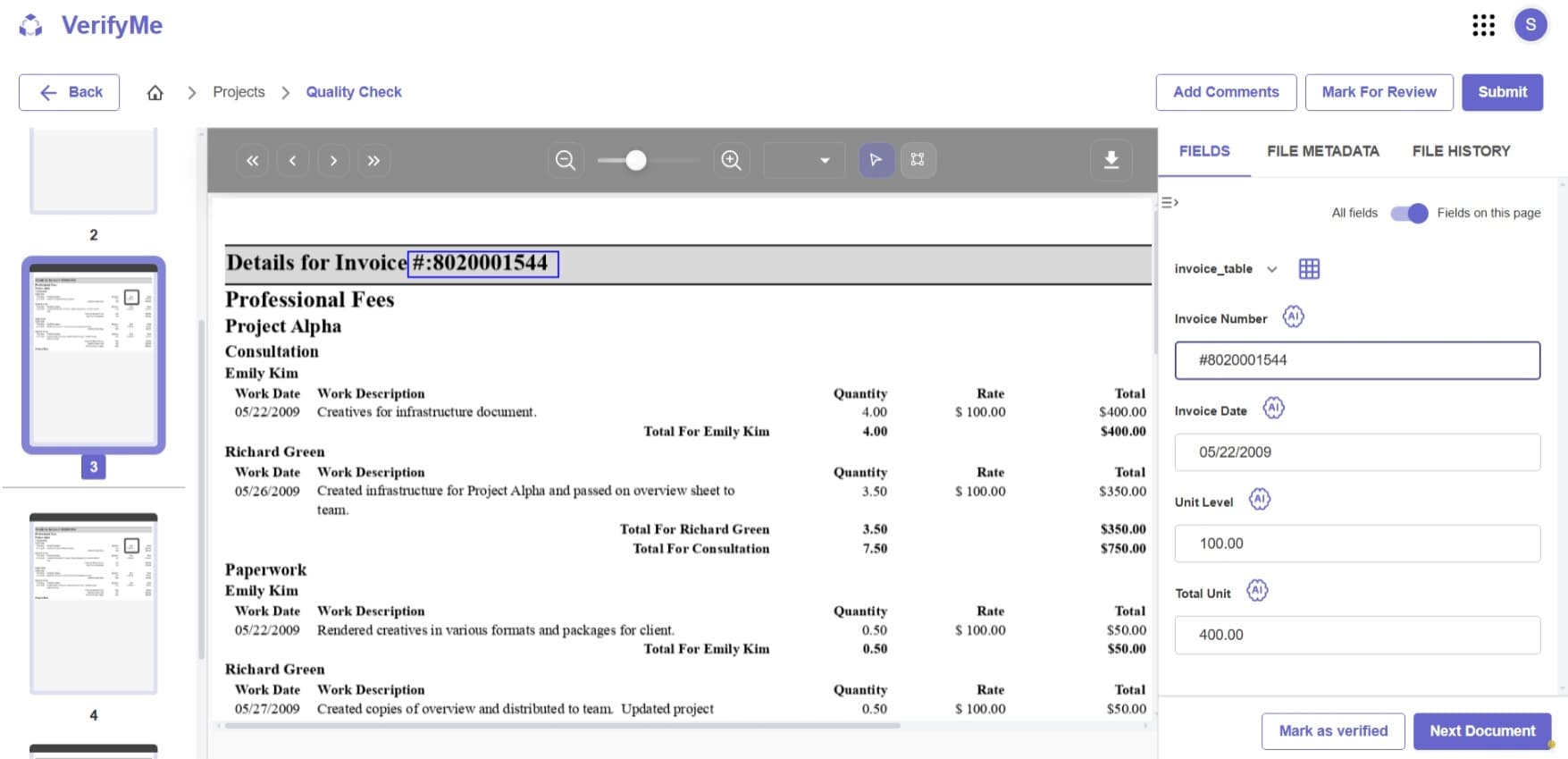
Bounding Box Tool (📐)
Draw rectangular boxes to mark areas or highlight text.
How to Use:
- Click the bounding box tool icon
- Click and drag on document to create box
- Release to complete
- Adjust corners/edges to refine
Download Option
Download Page (⬇)
Download current page as an image file for reference.
Right Panel - Fields & Actions
The right panel contains three main tabs and action buttons for managing the document verification process.
Action Buttons (Top Right)
1. Add Comments
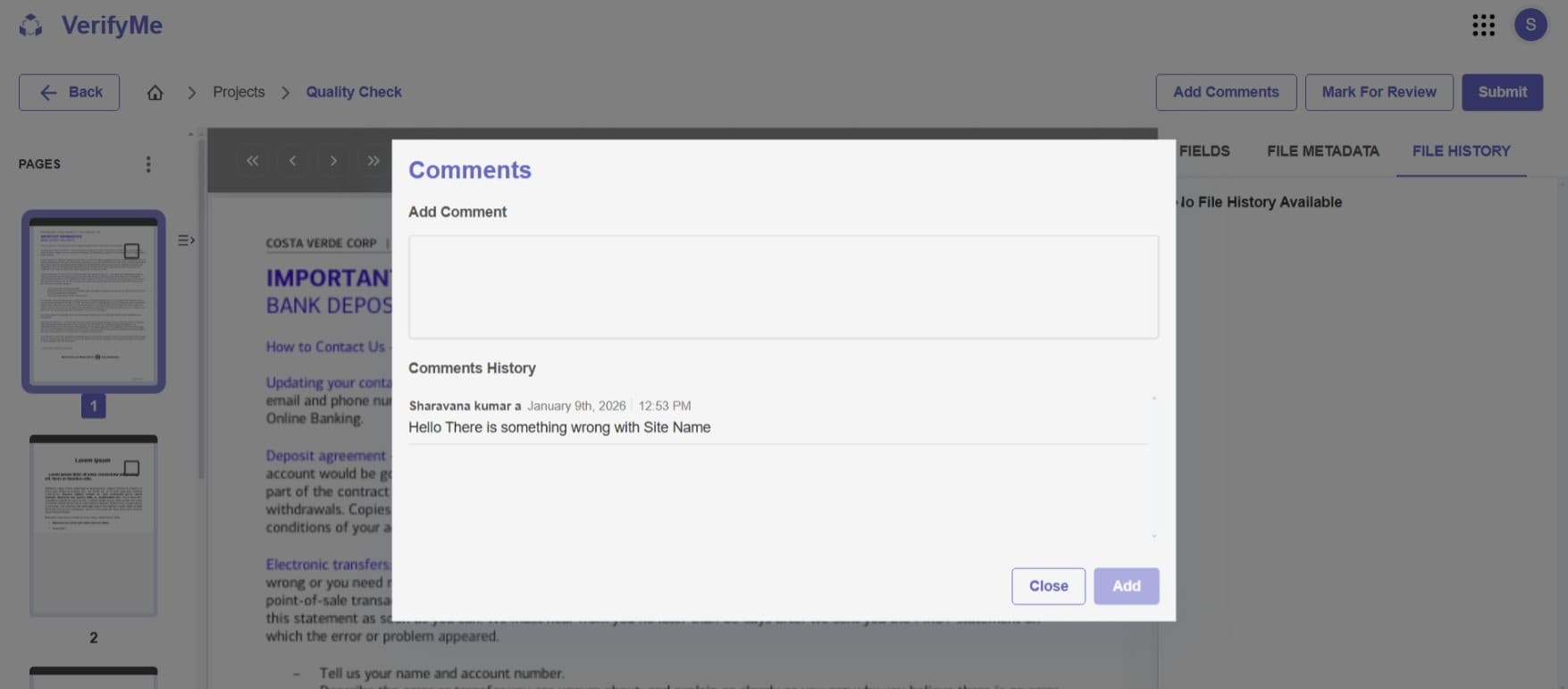
- Opens the comments dialog
- Add notes about the document or specific fields
- View comments from other team members
- Facilitates collaboration and communication
2. Mark For Review
- Flags the document for additional review
- Moves the file to the "Mark Review" section
- Indicates the document needs attention from QC Lead or another team member
- Use when uncertain about data accuracy or when issues are found
3. Submit
- Completes the verification process
- Moves the file to "Completed Files" status
- Indicates all fields have been verified and the document is ready
- Final action after successful quality check
Tab Navigation
Tab 1: FIELDS
The Fields tab is the primary workspace for data verification and displays all extracted information from the document.
Features
Field Display
- Shows all fields configured in the document type
- Fields are organized by type (Single, Multipart, Collection)
- Each field displays its extracted value
- Fields can be filtered using the dropdown selector
Field Type Selector
- Dropdown menu showing current field type (e.g., "cheque", "invoice_table")
- Switch between different field types in multi-field documents
- Helps organize and navigate complex document structures
View Toggle
- All fields: Shows all configured fields
- Fields on this page: Shows only fields relevant to the current page
- Page-specific filtering for easier navigation
Field Interaction
When you click on any field in the Fields panel:
- Bounding Box Appears: A blue rectangular box highlights the source of the extracted text on the document
- Text Highlight: The extracted text area is visually emphasized
- Verification: You can see exactly where the data came from on the original document
- Bounding Box Adjustment: You can click and drag the corners or edges of the bounding box to refine the selection area
Adjusting Bounding Boxes:
- Click on a field to display its bounding box
- Drag corners to resize the box
- Drag edges to adjust width or height
- Ensure the box accurately captures the intended text
- Proper bounding ensures accurate data extraction for future AI learning
Field Examples
Document Type: Cheque
- Vendor Name
- Vendor Code
Document Type: Invoice_table
- Site Name
- Site No
- Address 1
- Pincode
Document Type: Invoice
- Various invoice-specific fields extracted from the document
LLM-Extracted Fields
All fields displayed in this panel are extracted by the LLM (Large Language Model):
- AI automatically identifies and extracts relevant data from documents
- Extracted values are pre-populated in the fields
- QC team verifies accuracy and makes corrections as needed
- Bounding boxes show the AI's interpretation of where data originated
Tab 2: FILE METADATA
The File Metadata tab displays information about the document file itself.
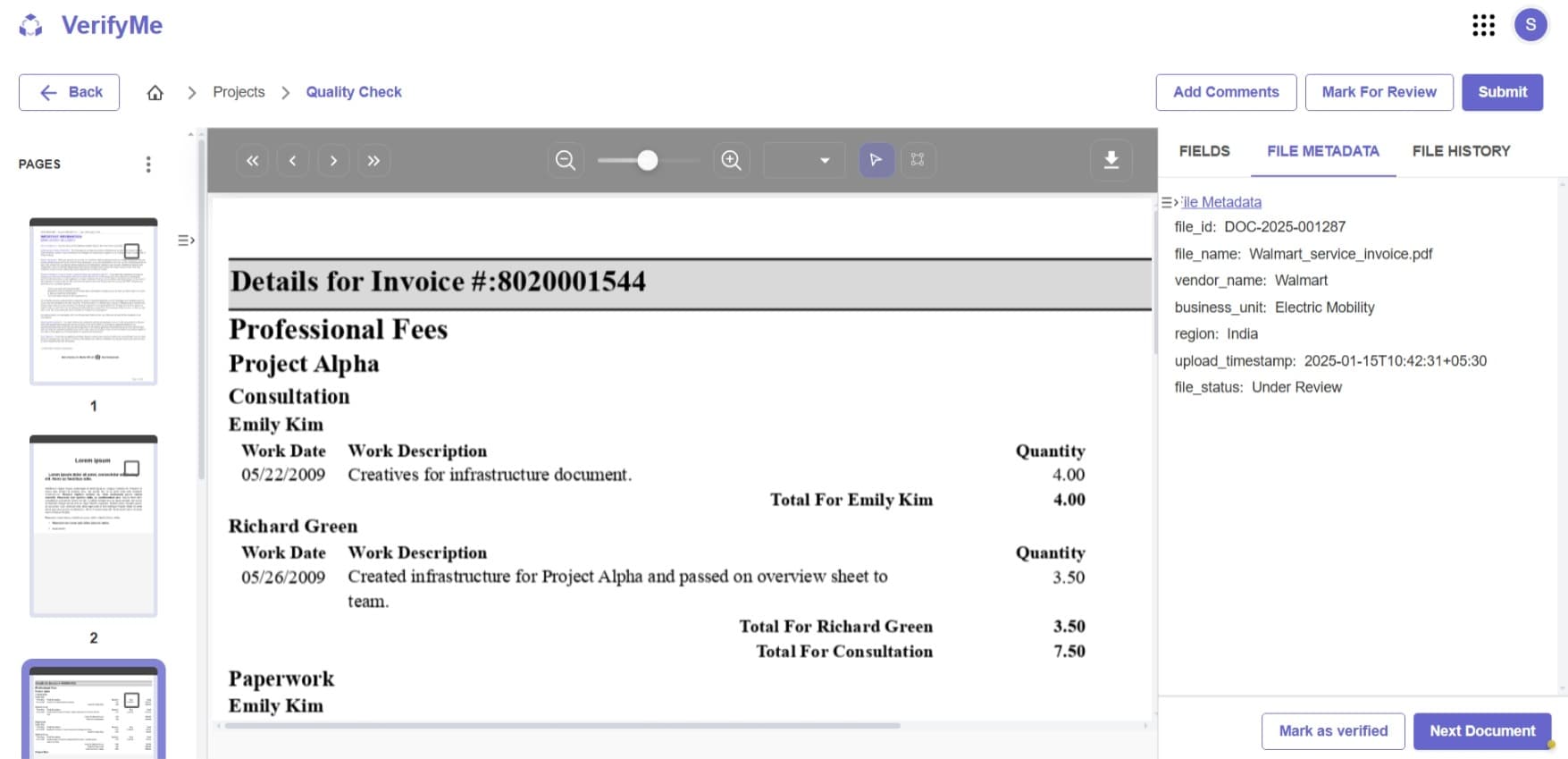
Typical Metadata Includes:
- File name
- File size
- Upload date and time
- File format (PDF, JPEG, PNG, etc.)
- Document ID
- Associated project
- Assigned user
- Upload source
- Processing timestamp
Purpose:
- Track document origin and handling
- Verify correct file assignment
- Reference for audit trails
- Troubleshooting and file management
Tab 3: FILE HISTORY
The File History tab provides a chronological record of all actions performed on the document.
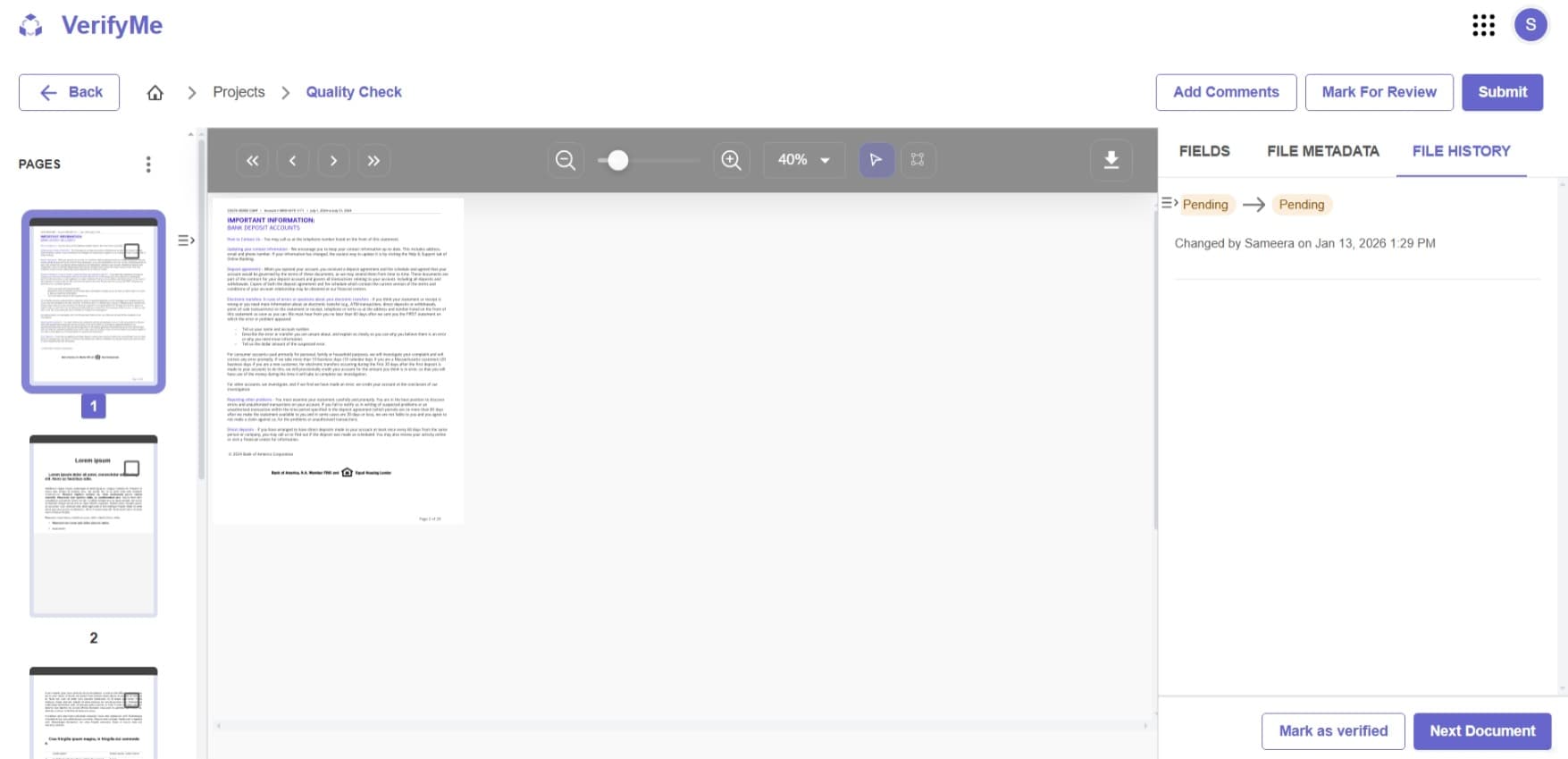
File History Status Message:
The screenshot shows: "No File History Available"
When available, File History typically tracks:
- When the file was uploaded
- When it was assigned to users
- Status changes (Pending → In Review → Completed)
- Edit timestamps
- User interactions
- Comments added
- Review flags
- Submission time
- Any modifications or corrections made
Purpose:
- Complete audit trail of document lifecycle
- Track who handled the document and when
- Identify bottlenecks or delays
- Accountability and transparency
- Quality assurance and compliance
File Inactivity Warning
If a file is opened and left unattended for a period of time, VerifyMe displays a File Inactivity Modal.
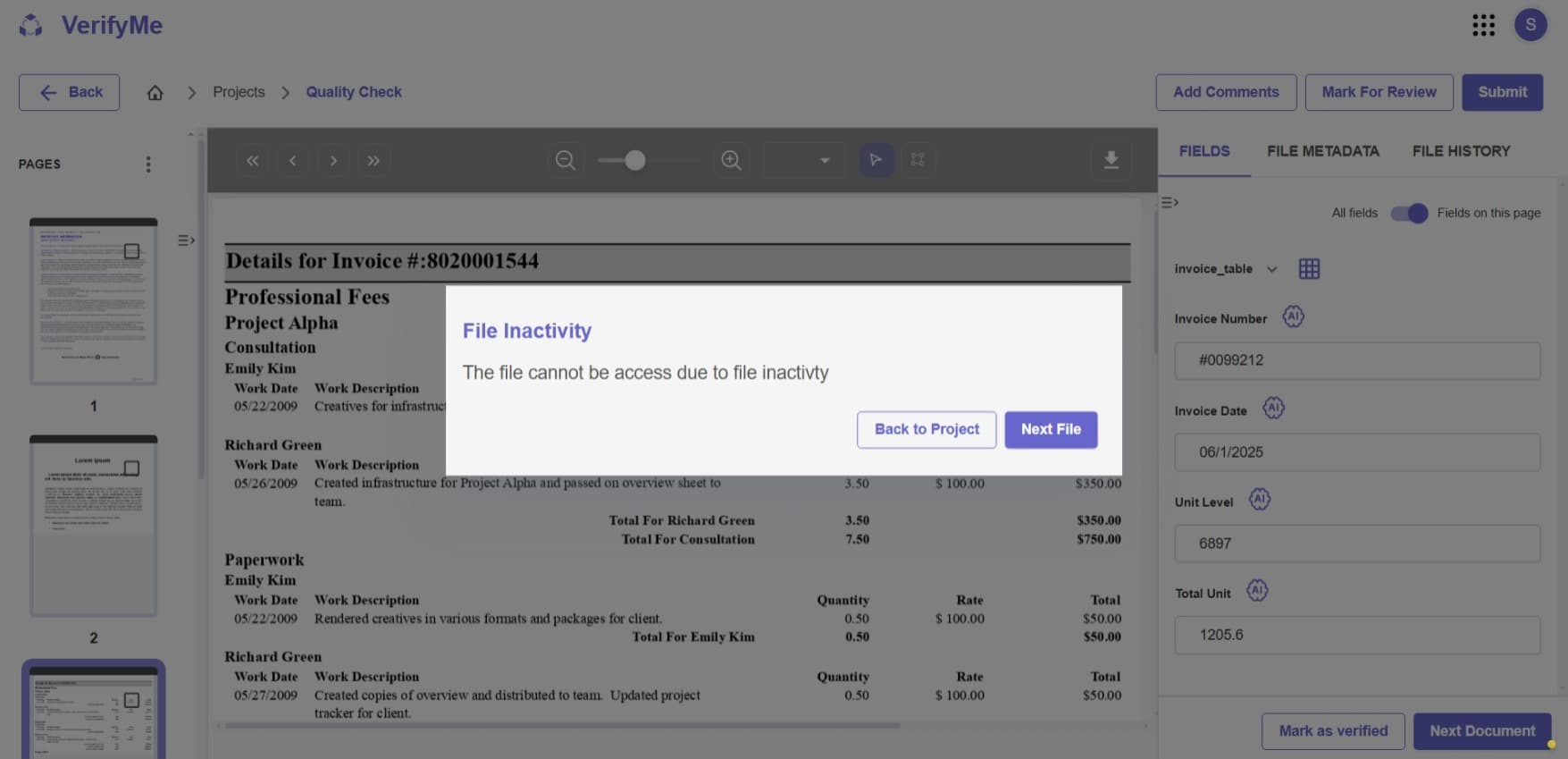
Inactivity Modal
Title: "File Inactivity"
Message: "The file cannot be access due to file inactivity"
Purpose:
- Prevents files from being locked indefinitely
- Ensures fair distribution of work
- Maintains workflow efficiency
- Releases files for other team members if needed
Available Actions
When the inactivity modal appears, you have two options:
1. Back to Project
- Returns you to the Project Dashboard
- Releases the file from your active session
- File becomes available for other users to pick up
- Use when you're done for the day or need to work on something else
2. Next File
- Releases the current file
- Automatically loads the next file in your queue.
Project Screen
The Project Screen is the central hub displaying a comprehensive table of all projects with real-time metrics including pending files, in review files, completed files, organizations, users.
For detailed information about the Project Screen and project management features, see the Project Documentation.