Analytics
Comprehensive insights into AI extraction performance, accuracy metrics, and processing trends for data-driven decision-making.
Overview
The Analytics Screen provides Organization Admins with comprehensive insights into AI extraction performance, accuracy metrics, and processing trends. This powerful dashboard enables data-driven decision-making by tracking how well the AI is performing across different dimensions: overall file accuracy, document type performance, and individual field accuracy over time.
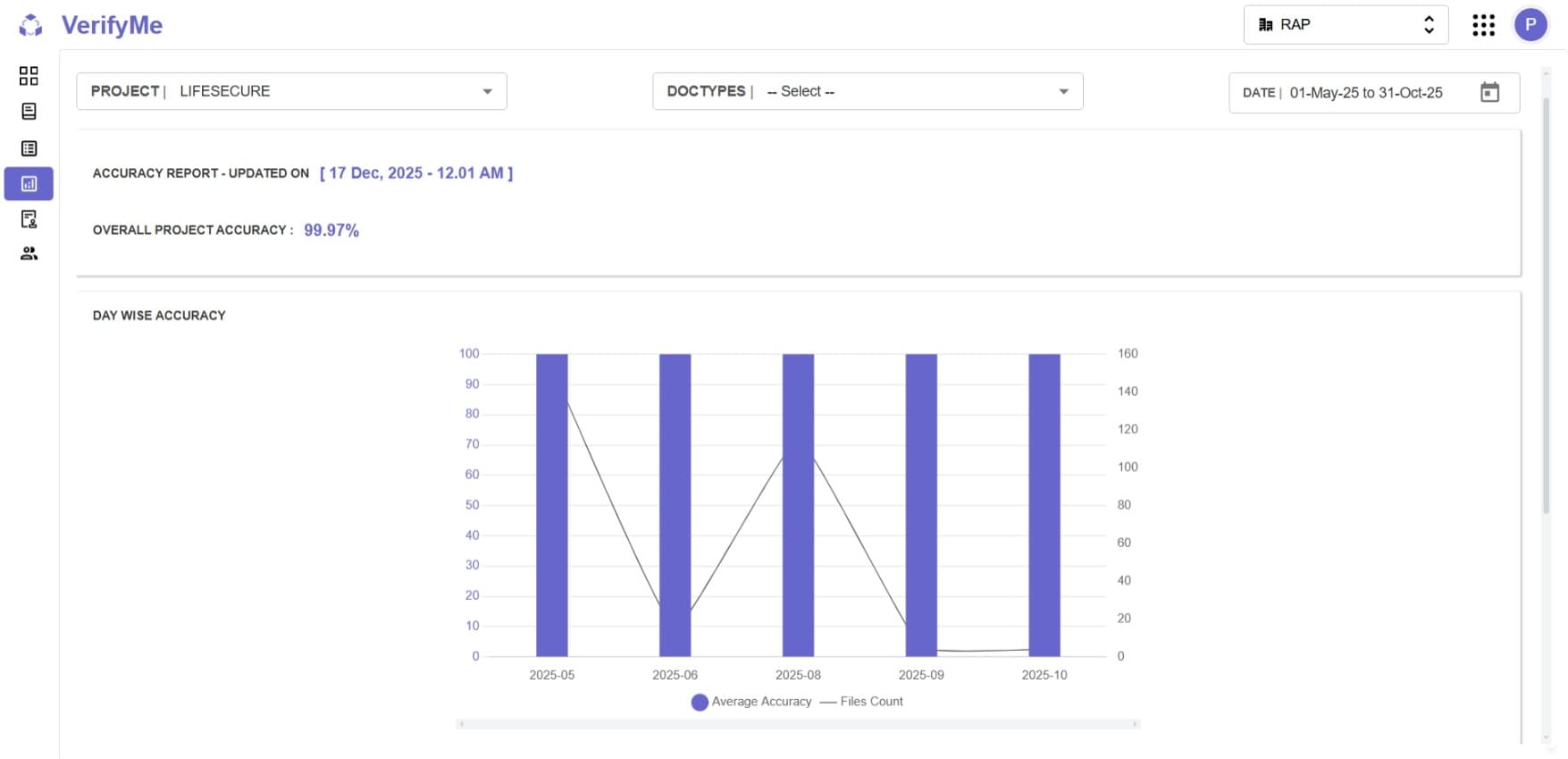
Access Level
Organization Admin only - Only Organization Admins have access to the Analytics Screen.
Accuracy Metrics Types
VerifyMe provides comprehensive accuracy metrics at multiple levels of granularity to give you complete visibility into AI performance.
1. File-Level Accuracy
What It Shows
The overall accuracy across all documents and all fields processed in your project, regardless of document type or specific field.
What It Means
Out of every 100 fields the AI extracted across all your documents, how many were correct without needing human editing?
Example
File Accuracy: 89%
This means 89 out of every 100 fields extracted by AI were accurate and didn't require corrections by QC team members.
Interpretation
- 85%+: Excellent performance - AI is highly reliable
- 70-85%: Good performance - AI is helpful but needs regular review
- 50-70%: Moderate performance - AI provides starting point
- Below 50%: Poor performance - may need AI retraining or configuration
Use Cases
- Quick Health Check: Instant overview of overall AI performance
- Project Comparison: Compare performance across different projects
- Benchmarking: Set organizational standards (e.g., "maintain >85% accuracy")
- Executive Reporting: High-level metric for stakeholders
- ROI Calculation: Measure automation effectiveness
2. Document Type Accuracy
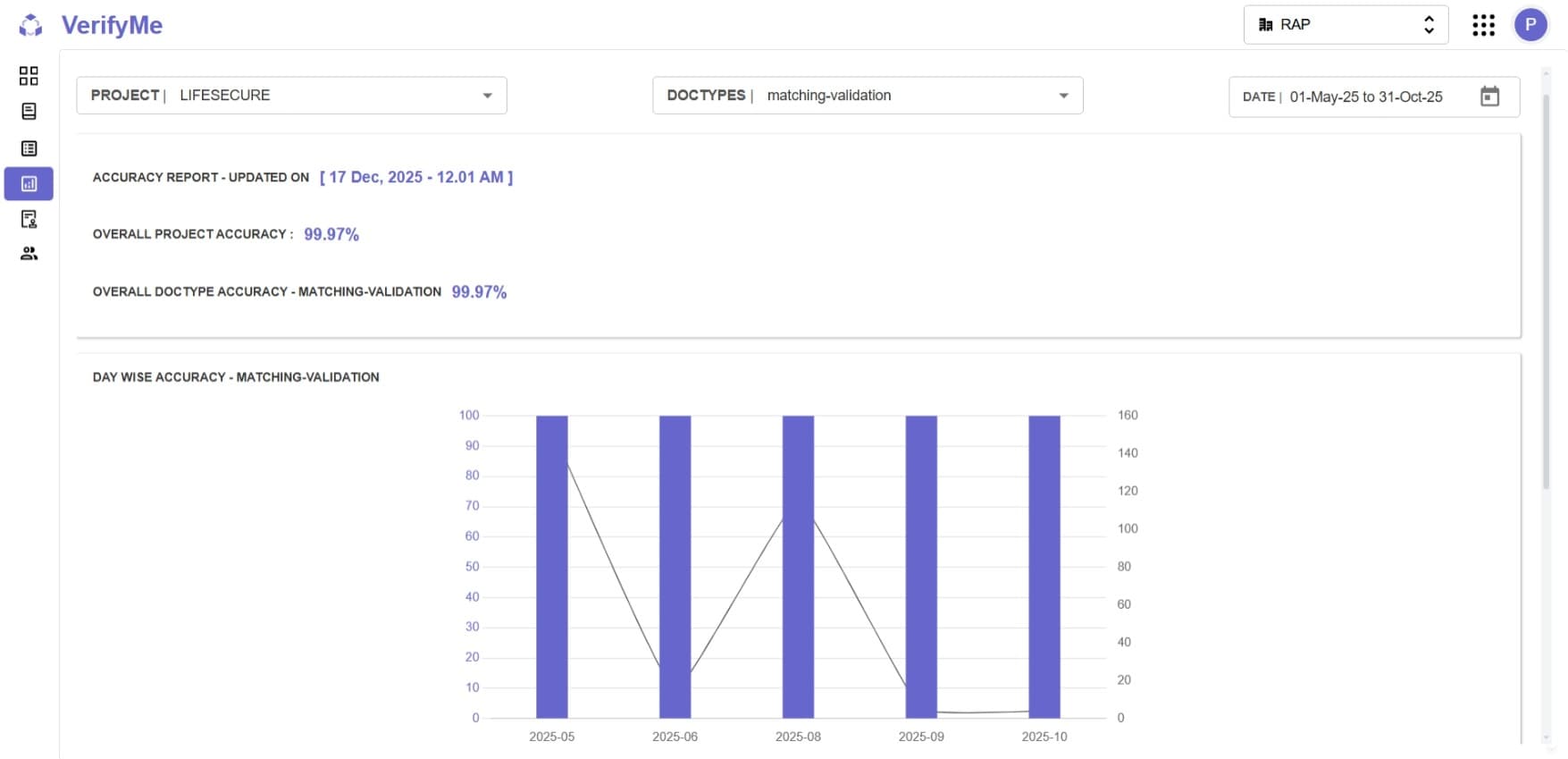
What It Shows
The accuracy for specific types of documents like invoices, receipts, purchase orders, or contracts.
What It Means
How well does the AI perform when processing this particular type of document?
Example
- Invoice Accuracy: 92%
- Receipt Accuracy: 78%
- Contract Accuracy: 85%
Why Different Accuracies?
Different document types have different accuracy levels because:
High Accuracy (90%+):
- Invoices might have standardized formats
- Consistent field locations
- Clear, printed text
- Structured layout
Medium Accuracy (75-90%):
- Contracts have complex legal text
- Variable layouts
- Multiple sections
- Context-dependent fields
Low Accuracy (Below 75%):
- Receipts can be messy or poorly scanned
- Handwritten elements
- Faded or damaged documents
- Non-standard formats
Use Cases
- Identify Problem Documents: Which document types need AI model improvement
- Prioritize Training: Focus training data collection for low-performing document types
- Set Thresholds: Apply different quality standards for different document types
- Resource Allocation: Assign more QC resources to low-accuracy document types
- Model Training: Target AI improvements for specific document types
How to View
- Use the Document Types filter to select specific type
- View accuracy metric for that type
- Compare across different document types
- Identify patterns and outliers
3. Field-Level Accuracy
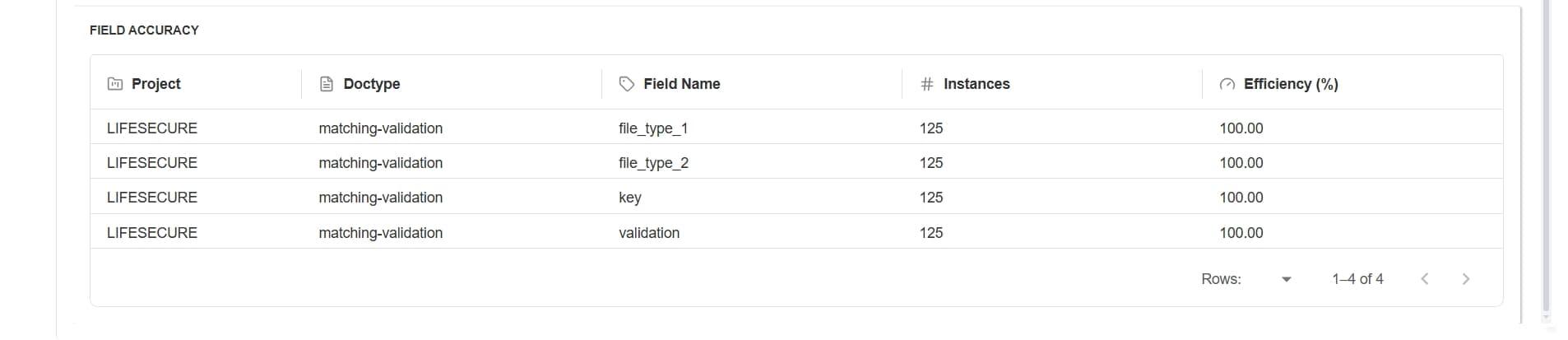
What It Shows
The accuracy for individual data fields within each document type.
Table Structure
The table contains five columns:
| Column | Description |
|---|---|
| Project | Identifies the project name |
| Doctype | Specifies the document type being validated |
| Field Name | Lists the individual fields being tracked |
| Instances | Shows the number of times for files submitted |
| Efficiency (%) | Displays the accuracy rate |
What It Means
For each specific piece of information (like invoice number, total amount, vendor name), how often does the AI get it right?
Why Different Fields Have Different Accuracy
High Accuracy Fields (90%+):
- Invoice Number: Simple, usually printed clearly in consistent location
- Date Fields: Standardized format, easy to recognize
- Clear Numeric Fields: Unambiguous numbers
Medium Accuracy Fields (75-90%):
- Total Amount: Clear numbers but sometimes multiple totals on page
- Vendor Name: Can be in different formats/locations on document
- Addresses: Multiple address blocks can be confusing
Low Accuracy Fields (Below 75%):
- Line Items: Complex tables with multiple rows and columns
- Tax Amount: Sometimes split across multiple lines or combined confusingly
- Notes/Comments: Unstructured text, variable content
- Handwritten Fields: Difficult to read and interpret
Use Cases
- Pinpoint Problems: Identify exactly which fields are problematic
- Focus QC Efforts: Concentrate quality control on low-accuracy fields
- Training Data: Determine which fields need more training examples
- Manual Review: Decide which fields should always require human review
- Field Configuration: Adjust field definitions or tags for better extraction
- AI Improvement: Target specific fields for model retraining
Day Wise Accuracy Chart
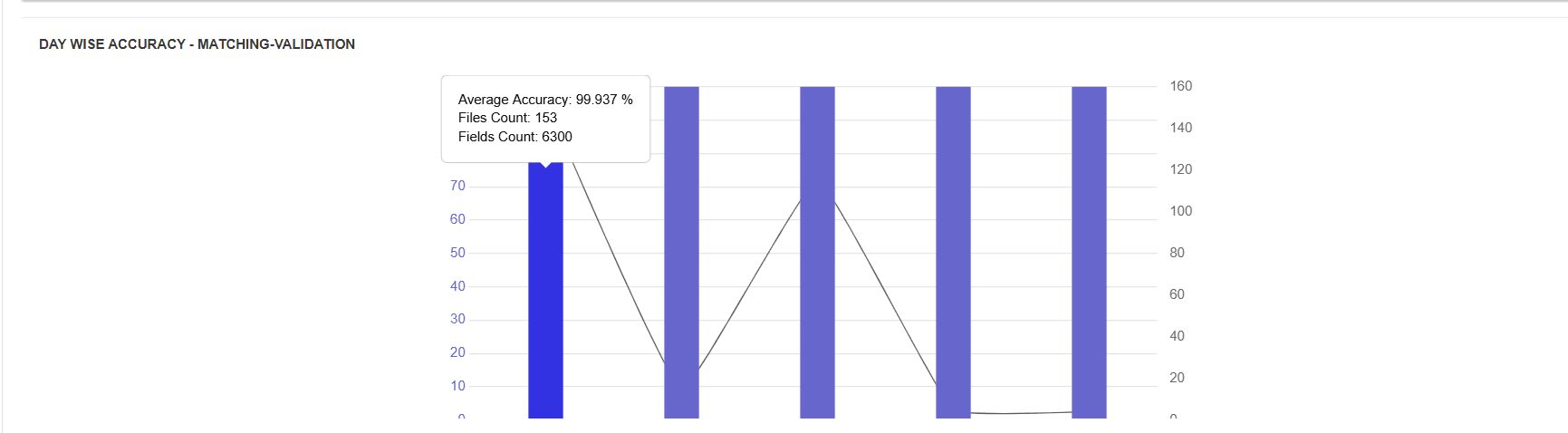
Chart Description
- Title: "DAY WISE ACCURACY"
- Type: Combined bar and line chart
- Purpose: Shows daily accuracy trends alongside file processing volume
Chart Elements
Left Y-Axis (0-100):
- Measures accuracy percentage
- Scale from 0% to 100%
- Primary metric for performance
Right Y-Axis (0-70):
- Measures file count
- Shows processing volume
- Context for accuracy metrics
X-Axis:
- Shows dates (e.g., "2026-01")
- Time-based progression
- Typically daily or weekly intervals
Bar (Purple):
- Represents "Average Accuracy"
- Height indicates accuracy percentage
- Color: Purple/Blue
- Visual representation of AI performance for that day
Line (Gray):
- Represents "Files Count"
- Shows number of files processed
- Provides volume context
Reading the Chart
Example from Screenshot:
- Date: 2026-01 (January 2026)
- Average Accuracy: ~90% (height of purple bar)
- Files Count: Not clearly visible but would show volume
Interpretation:
- High bar = High accuracy for that day
- Low bar = Lower accuracy, needs investigation
- Line shows if volume affects accuracy
- Patterns reveal trends over time
Use Cases
Daily Monitoring:
- Track accuracy day-by-day
- Identify daily patterns
- Spot anomalies quickly
Trend Analysis:
- See if accuracy is improving over time
- Detect degradation early
- Correlate with system changes
Volume Correlation:
- Understand if high volume affects accuracy
- Plan resource allocation
- Optimize processing schedules
Performance Validation:
- Verify AI improvements are working
- Monitor after system updates
- Track impact of new document sources
Access Control
| Feature | SuperAdmin | Organization Admin | QC Lead | QC Analyst |
|---|---|---|---|---|
| View Analytics Screen | ❌ | ✅ | ❌ | ❌ |
Important
Only Organization Admins have access to the Analytics Screen. This ensures that performance data and AI metrics are available to decision-makers who can act on the insights.