File Status
Managing and monitoring file review status in VerifyMe projects
File Status Views
The Project Screen provides different levels of file visibility based on user roles and file status.
Pending Files
- Visibility: Organization Admin CANNOT view pending files
- Displayed: Count only (number of pending files)
In Review Files
QC Lead can access a detailed Review Table for files currently being reviewed.
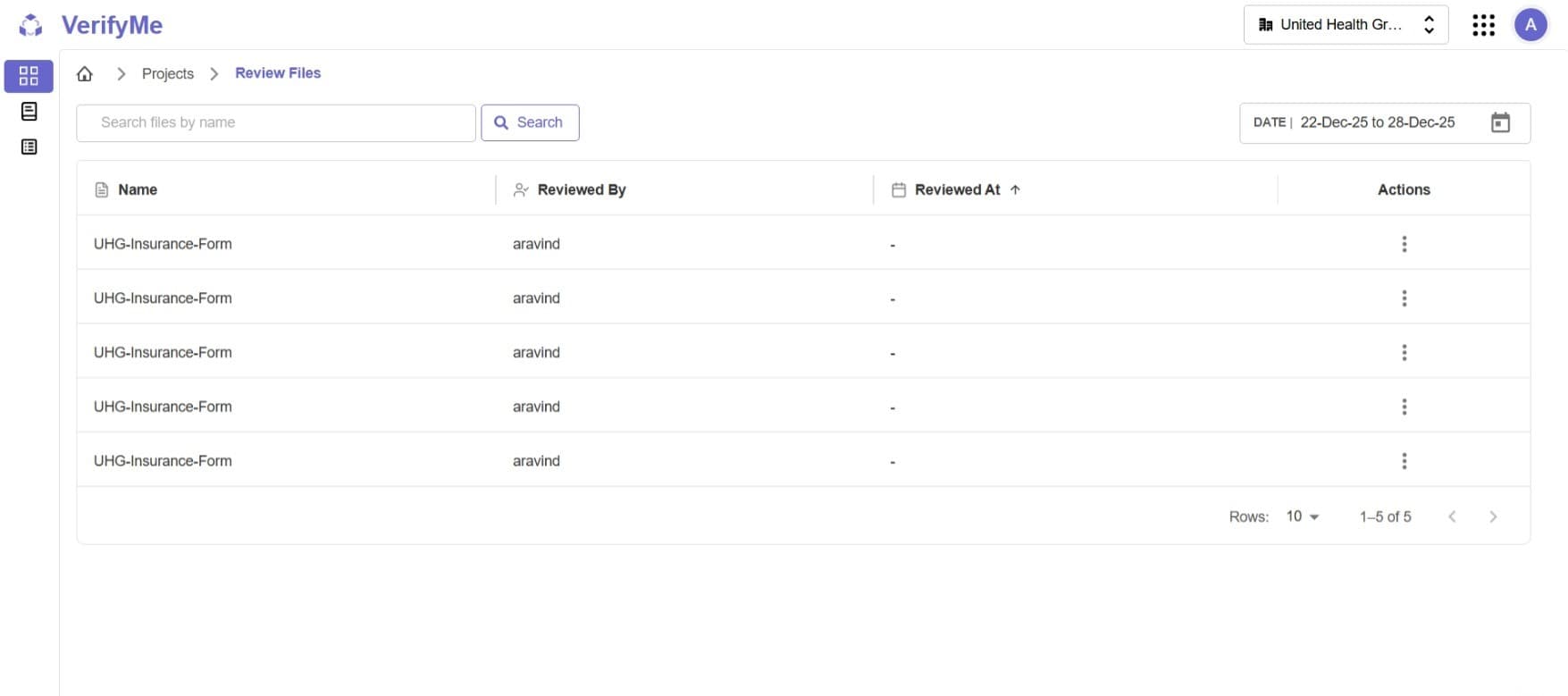
Review Table
The Review Table displays the following columns:
| Column | Description |
|---|---|
| File Name | Name of the file currently under review |
| Reviewed By | Username of the QC team member reviewing the file |
| Reviewed At | Date and time when the review session started or last updated |
| Actions | Available operations for the file |
Available Actions for In Review Files
1. Move to Pending Files
- Returns the file to the pending queue
2. View File
- Opens the file for inspection
- Allows QC Lead to review the document contents
How to Use
- Navigate to the In Review section of your project
- Locate the file in the Review Table
- Click the appropriate action button:
- Move to Pending: To reassign or restart the review process
- View File: To inspect the file and its current review status
Completed Files
The Completed Files section shows all files that have finished the verification process. Organization Admins and QC Leads have access to view and manage these files.
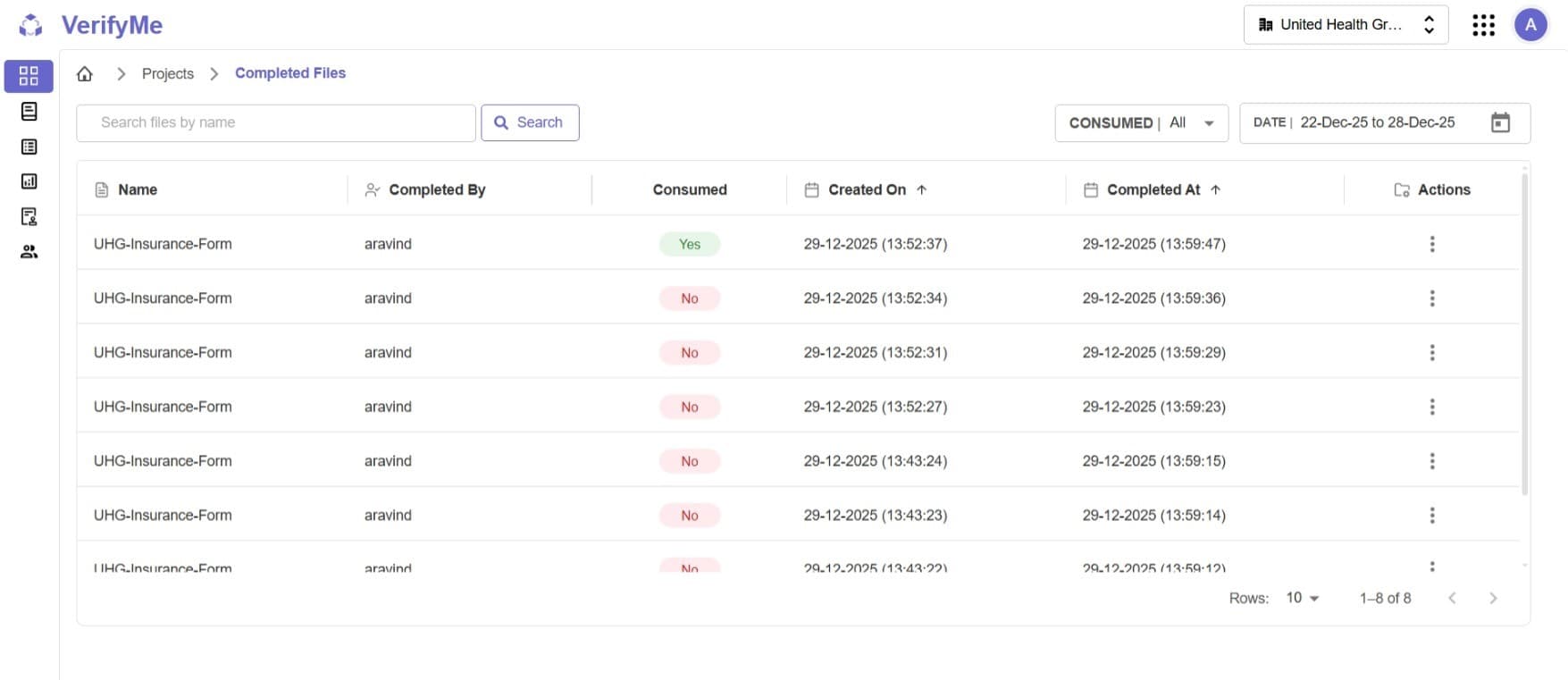
Completed Files Table
The Completed Files Table displays the following columns:
| Column | Description |
|---|---|
| Name | The file name (e.g., UHG-Insurance-Form) |
| Completed By | Username of the team member who completed the verification |
| Consumed | Status indicator showing "Yes" (green) or "No" (red) |
| Created On | Date and time when the file was uploaded to the system |
| Completed At | Date and time when the verification was completed |
| Actions | Available operations (View Consumed Status, View File) |
What Can Be Viewed
- Table listing all completed files
- File metadata and completion information
- Consumed status for each file
- Completion timestamps and user information
What Cannot Be Viewed
- Only metadata and status information (not detailed field values in the main table view)
Consumed Status Management
Consumed Status indicates whether a completed file's data has been used or exported by external systems.
Organization Admin Permissions
- ✅ View the consumed status of completed files
- ✅ Change the consumed status (mark as consumed or unconsumed)
How to Change Consumed Status
- Navigate to the Completed Files view
- Locate the file in the completed files table
- Click on the consumed status toggle/button
- Update the status as needed
Common Use Cases
- Mark files as "consumed" after data has been exported
- Track which files have been processed by downstream systems
- Manage file lifecycle and archival processes
Best Practices
File Tracking
- Regularly review file status distribution (Pending, In Review, Completed)
- Identify bottlenecks when files accumulate in one status
- Use the Review Table to monitor active review sessions
- Move files back to pending if reviews are stalled or need reassignment
- Update consumed status promptly to maintain accurate records
Review Management
- Monitor the "Reviewed By" column to track workload distribution
- Check "Reviewed At" timestamps to identify files that may be stuck
- Use "View File" to perform quality checks on ongoing reviews
- Use "Move to Pending" strategically to rebalance workload
Common Workflows
Managing In Review Files
- Click on the In Review count or section
- Review the Review Table to see active sessions
- Check "Reviewed At" timestamps for files that may need attention
- Use "View File" to inspect specific files
- Use "Move to Pending" to reassign files if needed
Managing Completed Work
- Access the Completed Files view
- Review the completed files table
- Update consumed status as files are processed
Access Summary
| Feature | Organization Admin | QC Lead | QC Analyst |
|---|---|---|---|
| View In Review Files (Review Table) | ❌ | ✅ | ❌ |
| Move File to Pending | ❌ | ✅ | ❌ |
| View File (In Review) | ❌ | ✅ | ❌ |
| View Completed Files | ✅ | ✅ | ❌ |
Quality Check Screen
The Quality Check Screen is the primary workspace for QC Leads and QC Analysts to verify documents, featuring a three-panel layout with page navigation (left), document viewer with zoom/annotation tools (center), and fields/metadata/history tabs (right).
Users can review LLM-extracted fields with bounding boxes, add comments, mark files for review, submit completed work, and are automatically prompted by an inactivity modal to either continue with the next file or return to the project dashboard to prevent workflow bottlenecks.
For detailed information on using the Quality Check Screen to review pending files, see the Quality Check Documentation.