Create with AI
Generate a draft agent workgroup from a goal (structure, tools, MCP, knowledge), then refine and publish.
Create with AI turns a written goal into a draft workgroup: it proposes single- or multi-agent layout, tools, MCP servers, and knowledge attachments so you do not have to assemble everything manually.
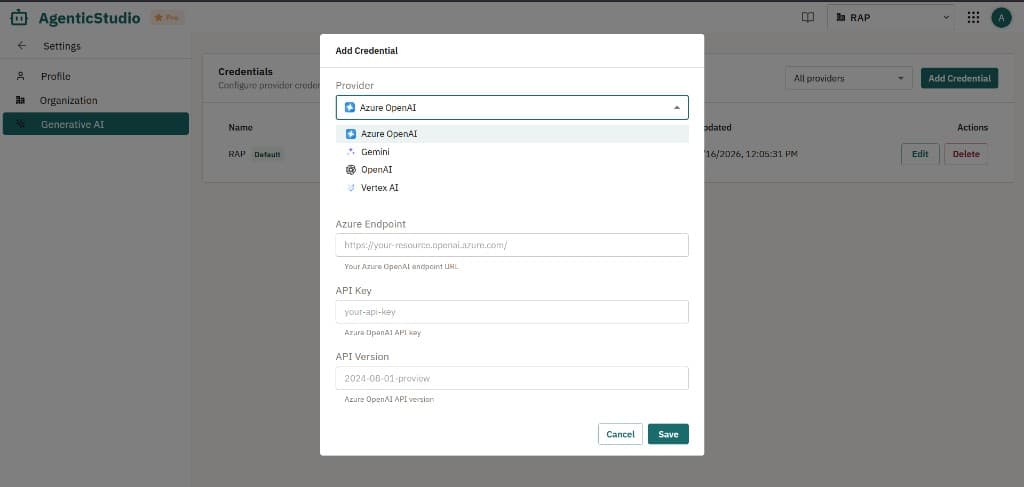
Generative AI credentials (required)
AgenticStudio generative AI features (including Create with AI) use organization credentials at Settings → Generative AI → Credentials. Add at least one credential and set a Default where the UI offers it. If nothing is configured, Create with AI shows a warning and Configure Credentials.
Supported providers:
- Azure OpenAI
- Gemini
- OpenAI
- Vertex AI
Use Add Credential, pick a provider, and complete the fields it asks for (for example endpoint, API key, and API version for Azure OpenAI). You can add multiple credentials and edit or delete them from the same screen.
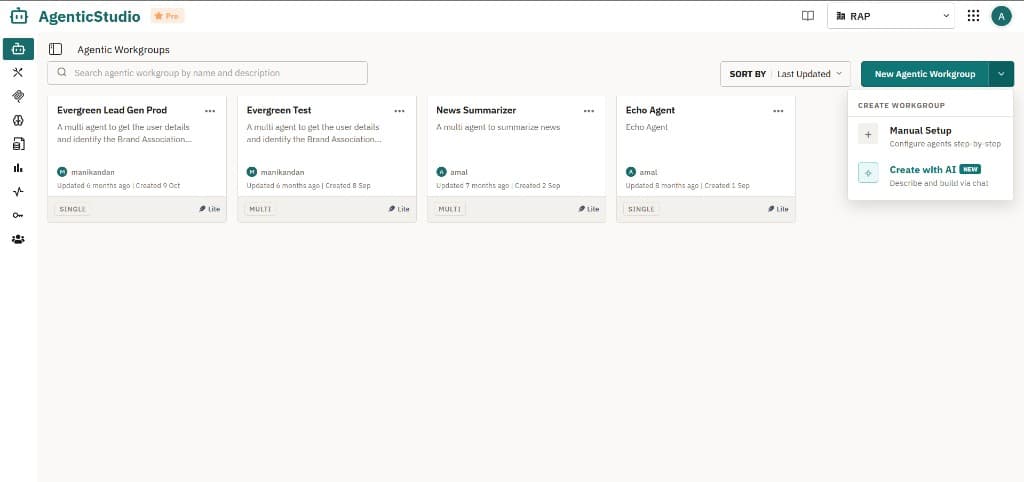
Open Create with AI
Go to Agentic Workgroups, click New Agentic Workgroup, then Create with AI (not Manual Setup).
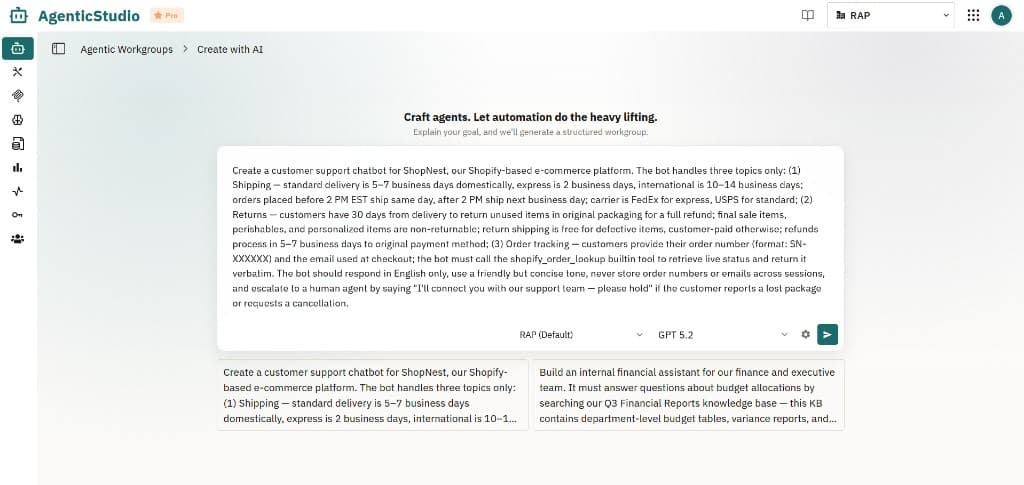
Describe your goal and generate
Enter what you want the workgroup to do. Choose the credential / model options shown at the bottom of the screen if needed, then Submit. While generation runs, you see reasoning or progress alongside a hierarchy preview.
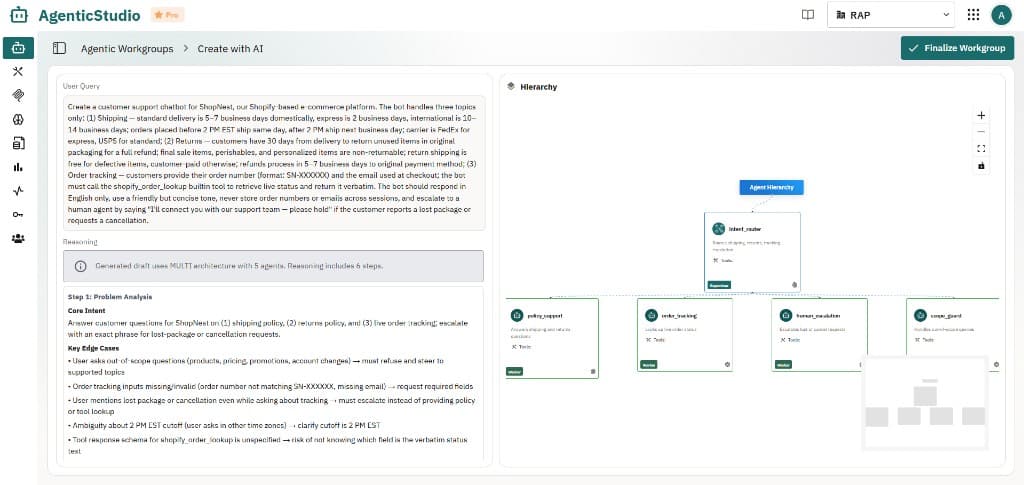
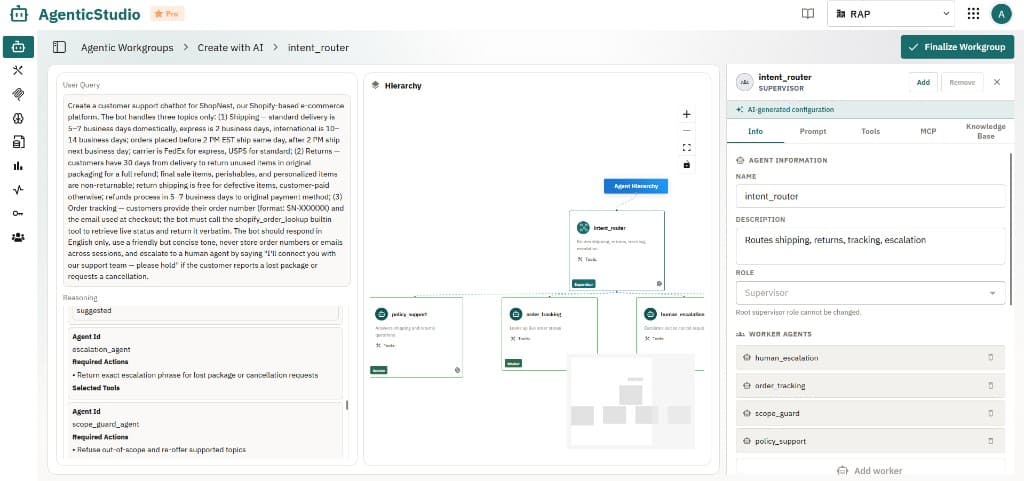
When generation finishes, your goal and reasoning stay on the left, and the agent hierarchy appears in the center (single supervisor and workers, or a simpler layout for single-agent drafts).
Click any agent in the hierarchy to open its configuration on the right: tabs for Info, Prompt, Tools, MCP, and Knowledge Base. Supervisors list worker agents you can remove or extend with Add Worker before you finalize.
Generation runs with safety guards so proposals stay realistic and appropriate. If something cannot work as written (missing tools, wrong MCP, and so on), the UI calls out what to add or change so the workgroup can function.
Finalize, then publish
When the structure and per-agent settings look right in the panels above:
- Adjust LLM settings, prompts, and LLM guards per agent; add or remove agents or workers as needed.
- Click Finalize Workgroup to create a draft workgroup on the dashboard.
- Open that workgroup and use Publish Current Draft when ready (see Versions).