Agent Configuration
Create and configure agents within workgroups with LLM settings, tools, and integrations.
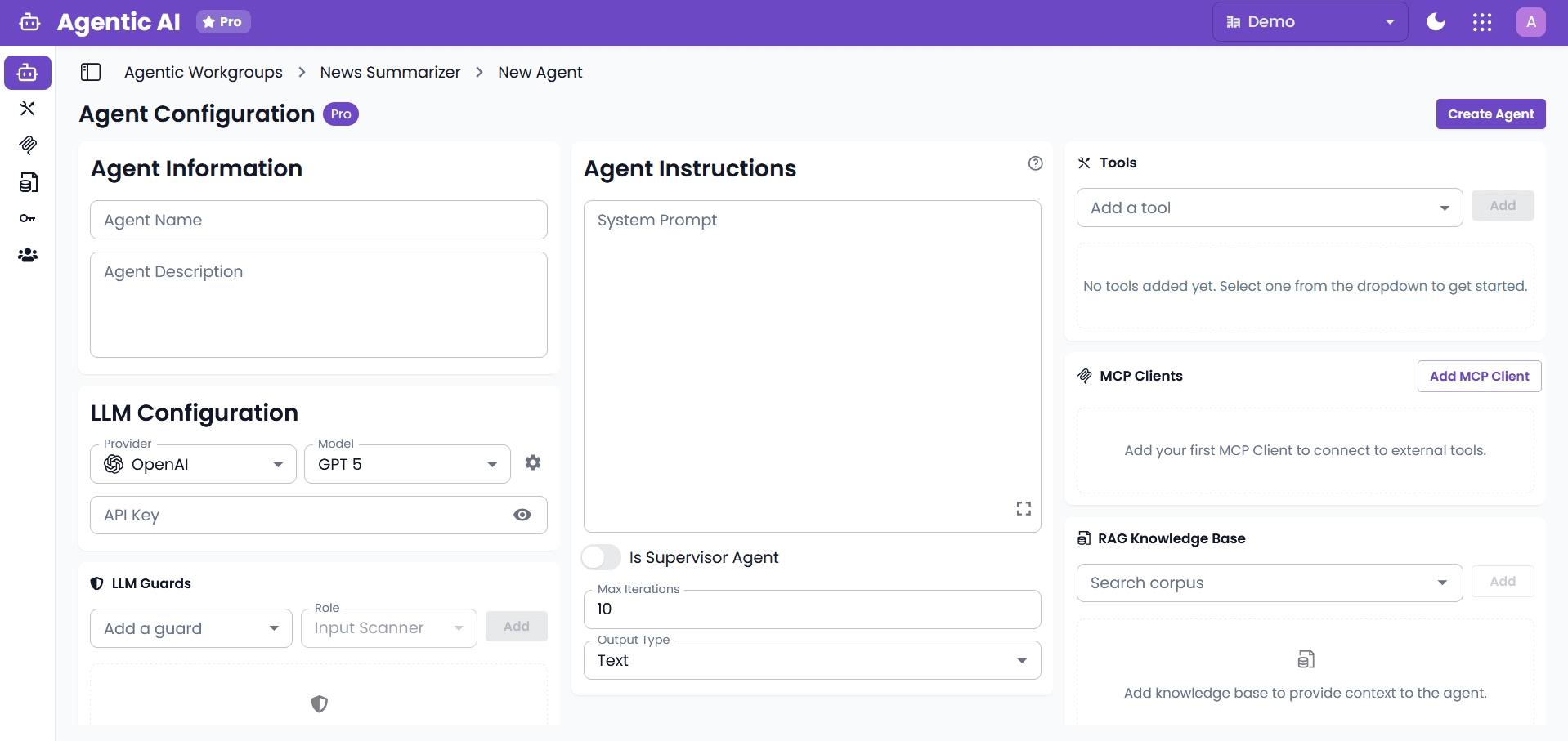
Workgroups can be created with Manual Setup or Create with AI; both end in the same configuration screens for agents after the workgroup exists.
Create Workgroup
A workgroup is the container that holds your agents.
- Navigate to the Main Dashboard and click Create Workgroup
- Enter Workgroup Name and Description
- Choose architecture:
- Single-Agent: Standalone agent for focused tasks
- Multi-Agent: Multiple agents working collaboratively (requires a supervisor agent)
- Click Create
Note: Workgroup architecture cannot be changed after creation. To switch types, create a new workgroup and migrate your agent configurations.
Agent Configuration
1. Agent Information
- Agent Name (required): Unique identifier. No special characters-use letters, numbers, spaces, and underscores only.
- Agent Description (required): Purpose and responsibilities of the agent.
2. LLM Configuration
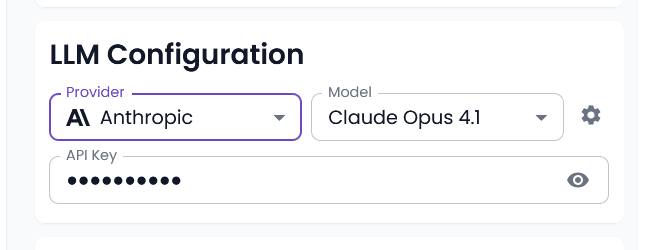
Provider Selection: Anthropic, OpenAI, Azure OpenAI, Google Vertex AI, Together AI
Model Selection: Choose from available models or select Dynamic Model to specify via {{variable_name}} format.
Dynamic Variables: Use {{variable_name}} format for runtime values:
{{api_key}}- API key{{model_name}}- Model name (required for Dynamic Model){{llmConfig}}- JSON object with LLM parameters
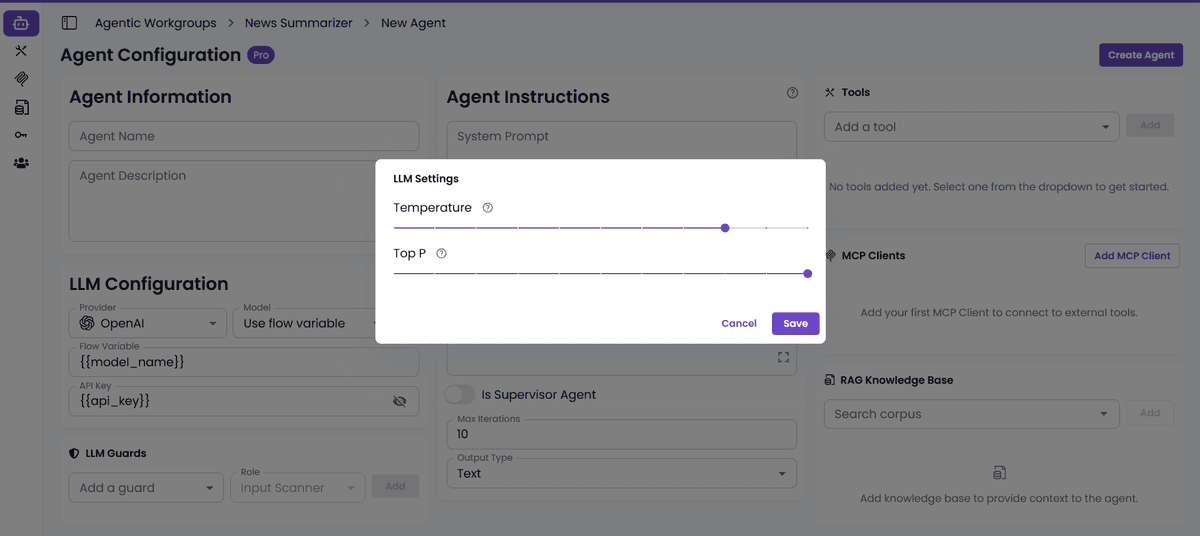
Advanced Settings (click gear icon):
| Setting | Description |
|---|---|
| Temperature | Response randomness (0+) |
| Top-P | Nucleus sampling (0-1) |
| Reasoning Effort | Model reasoning effort (0-1) |
| Verbosity | Response verbosity (0-1) |
| Reasoning Summary | Summary level (0-1) |
Leave blank to use model defaults.
Provider-Specific Fields:
- Google Vertex AI: Service Account Info (
{{service_account_credentials}}), Project, Location - Azure OpenAI: Azure Endpoint, API Version, Azure Deployment
3. LLM Guards
Security mechanisms for input/output validation:
| Guard | Purpose |
|---|---|
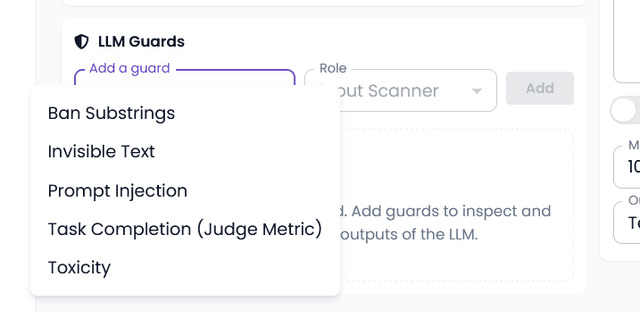
| Ban Substrings | Block specific text patterns |
| Toxicity | Detect harmful content |
| Prompt Injection | Detect malicious prompts |
| Invisible Text | Detect hidden characters |
| Task Completion | Verify task completion |
Guards can be configured as Input Scanner or Output Scanner.
4. Agent Instructions
- System Prompt (required): Instructions defining agent behavior. Supports dynamic variables with
{{variable_name}}format. - Is Supervisor Agent: Enable for multi-agent hierarchy coordination.
- Max Iterations: Limit execution cycles (default: 10).
- Output Type: Text or JSON.
5. Tools
Add tools for the agent to perform tasks. Select from available enterprise integrations.
See Tools Overview for the full list of 50+ available tools.
6. MCP Clients (Pro)
Add MCP clients to extend agent capabilities with custom integrations.
- Click Add MCP Client
- Select from configured MCP clients
- Choose which tools to include/exclude
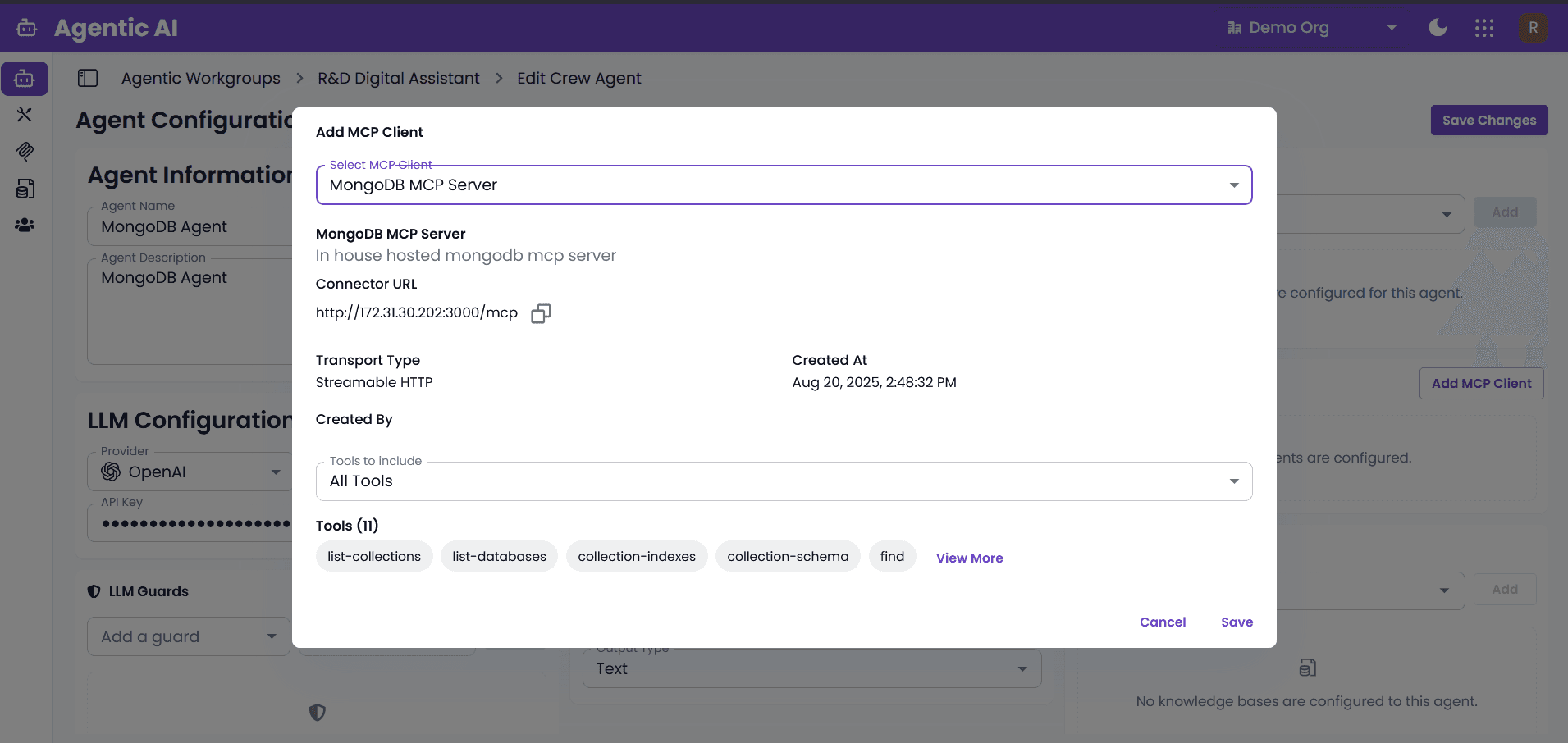
See MCP Clients for setup and configuration.
7. RAG Knowledge Base (Pro)
Connect knowledge bases for retrieval-augmented generation.
- Select RAG Knowledge Base from dropdown
- Select the knowledge base you want to attach
- Configure the retrieval settings that appear for that knowledge base
- Select the knowledge base you want to attach
- Configure the retrieval settings that appear for that knowledge base
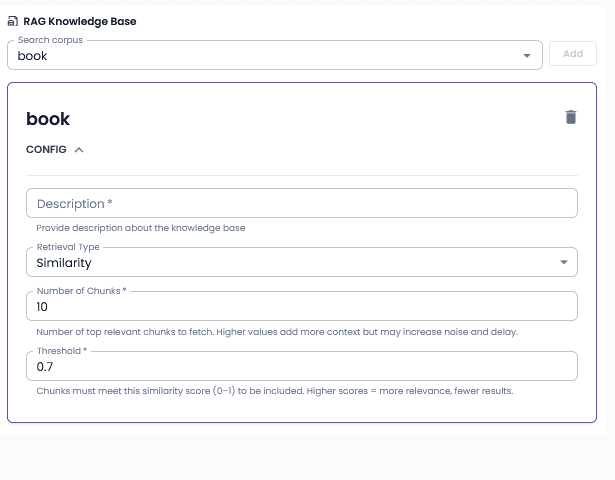
See Knowledge Base for managing document collections.
What you can configure
- Description: explains how the agent should use that knowledge base
- Retrieval Type:
Only text retrievalText and Image (use image results as metadata filter)- Graph-based collections are limited to text retrieval
- Chunks to Retrieve: how many text chunks are returned
- Output Format:
JSONorXMLfor text retrieval - HYDE Retrieval: optional query-expansion mode for text retrieval
- Image retrieval settings when image-assisted retrieval is selected:
- number of images to retrieve
- allowed image types
- allowed filter types
- Graph retrieval settings for graph-based collections:
- query mode
- top K
- chunk top K
- max entity, relation, and total token limits
- graph model and embedding credentials
Defaults used by the UI
- New knowledge bases start with text retrieval
- Standard knowledge bases default to
10chunks - Image-assisted retrieval defaults to
10images,page_and_figures, anddocument_name_and_page_number - Graph-based retrieval defaults to
hybridquery mode with rerank enabled
8. Memory in Agents (Pro)
Agent Memory is persistent information the agent can reuse across runs. It’s useful for things like user preferences, repeated instructions, and ongoing context that improves responses over time.
What happens when Memory is enabled
When your workgroup runs, the platform will (high level):
- Retrieve relevant saved memory items for the current user/request.
- Extract new memory items from the current user input.
- Store the newly extracted items back into the memory store.
- Inject a formatted “memory context” text into the agent’s System Prompt, so the agent can use it while generating the response.
What you configure
Memory is configured as a memory store with up to 3 memory types.
- Built-in presets currently include:
InstructionsPreferencesFeedbackCustom
- Each memory type includes:
namedescriptionsystem_promptapply_user_id_filter
- Memory prompts can use dynamic variables with
{{variable_name}}templates. - Read settings include:
top_kthreshold- optional reranking
Default read settings
top_k:5threshold:0.5- reranking: disabled by default
When user_id is required
If a memory type has Apply user ID filter enabled, the platform requires a user_id at runtime. If it’s missing, execution will fail before the agent runs (for example, provide it via {{msg.payload.user_id}}).
What the agent receives back
The memory system produces a formatted memory context as text, and that text is appended into the agent’s System Prompt before the agent generates its final response.
For observability, memory tracing data is also generated so you can see what was retrieved/stored.
Limitations
- Memory adds extra work to each agent run (retrieval + extraction + storage), so it can increase latency and usage cost.
- If memory type prompts are too broad (or too strict), extracted memories can be noisy (or sparse). Start simple and iterate.
- Retrieval quality depends on your read settings (how many items are returned and how strict the threshold is).
Best Practices
- Agent Names: Use descriptive names reflecting the agent's role
- System Prompts: Be specific, include examples, define expected output format
- Guards: Add appropriate input/output validation
- Iterations: Set reasonable limits to prevent infinite loops