Getting Started
Create and manage AI agent workgroups for single or multi-agent systems
Agentic Workgroups are containers for organizing AI agents. Each workgroup can contain single or multiple agents that work together to accomplish tasks.
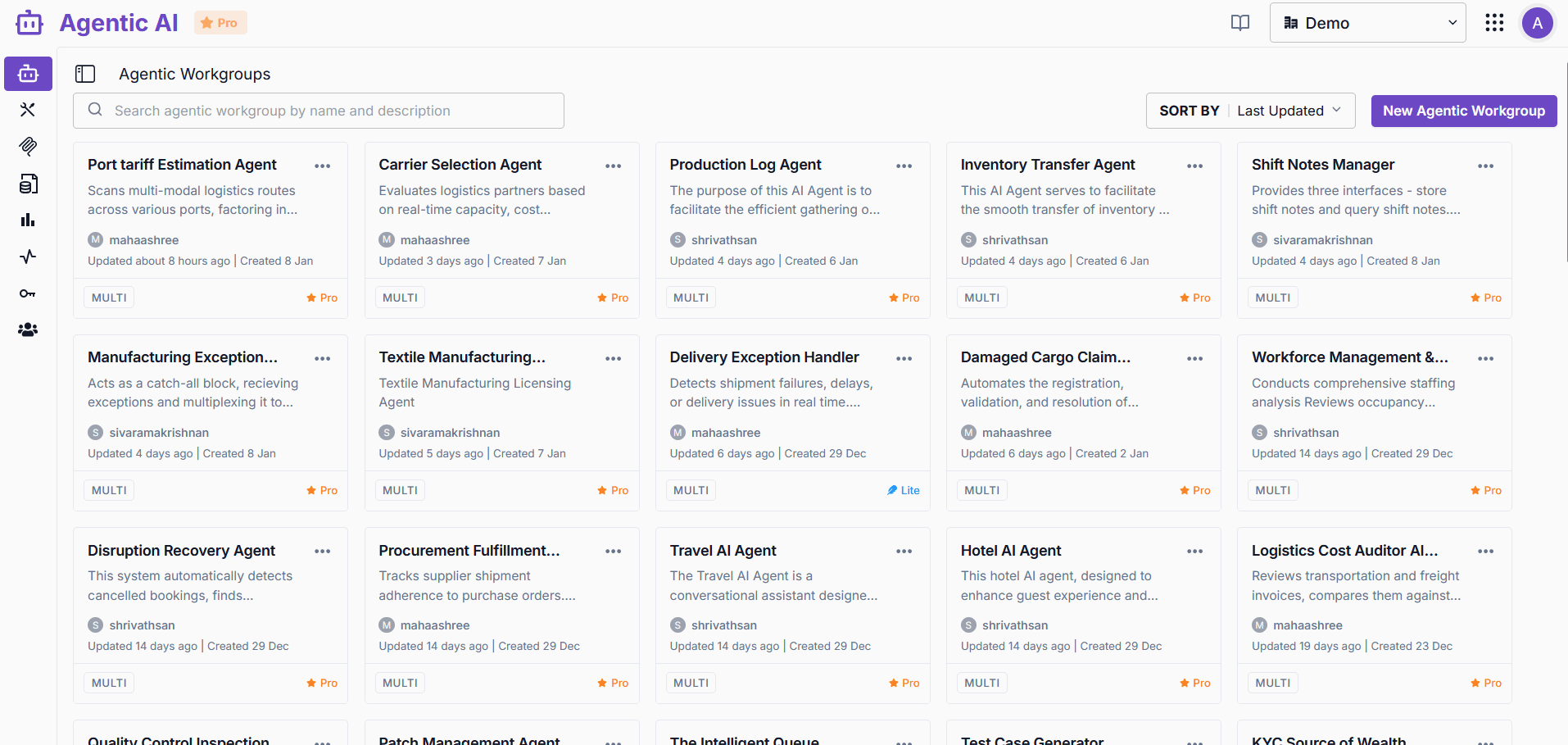
Workgroup Dashboard
Each workgroup card displays:
- Name and Description
- Author and timestamps (Updated / Created)
- Type: Single or Multi-agent
- Mode: Lite or Pro
Use the search bar to filter by name or description. Sort by Last Updated or other criteria.
Create Workgroup
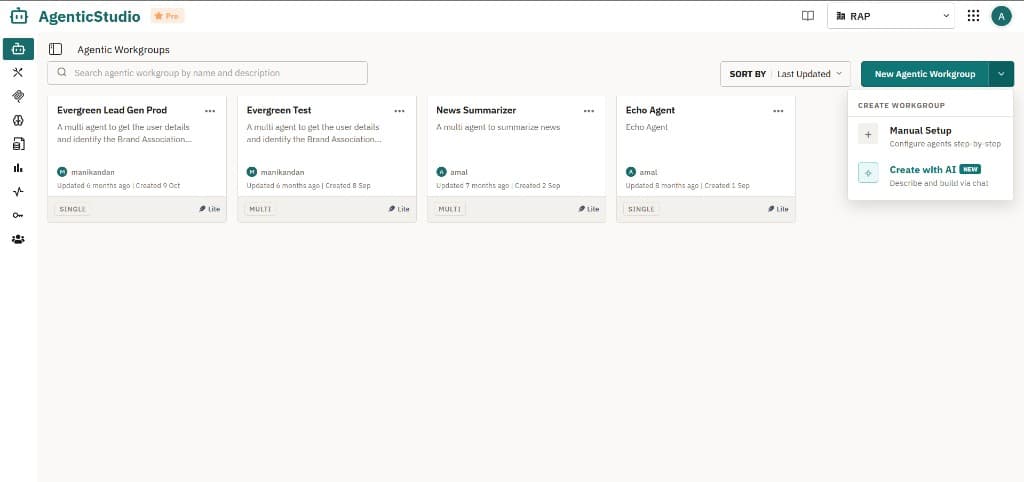
Click New Agentic Workgroup. You can start in either of two ways:
- Manual Setup - Opens the creation dialog below. Configure name, description, type, and mode step by step.
- Create with AI - Describe your goal and let the product propose structure, tools, MCP, and knowledge. See Create with AI.
Manual Setup dialog
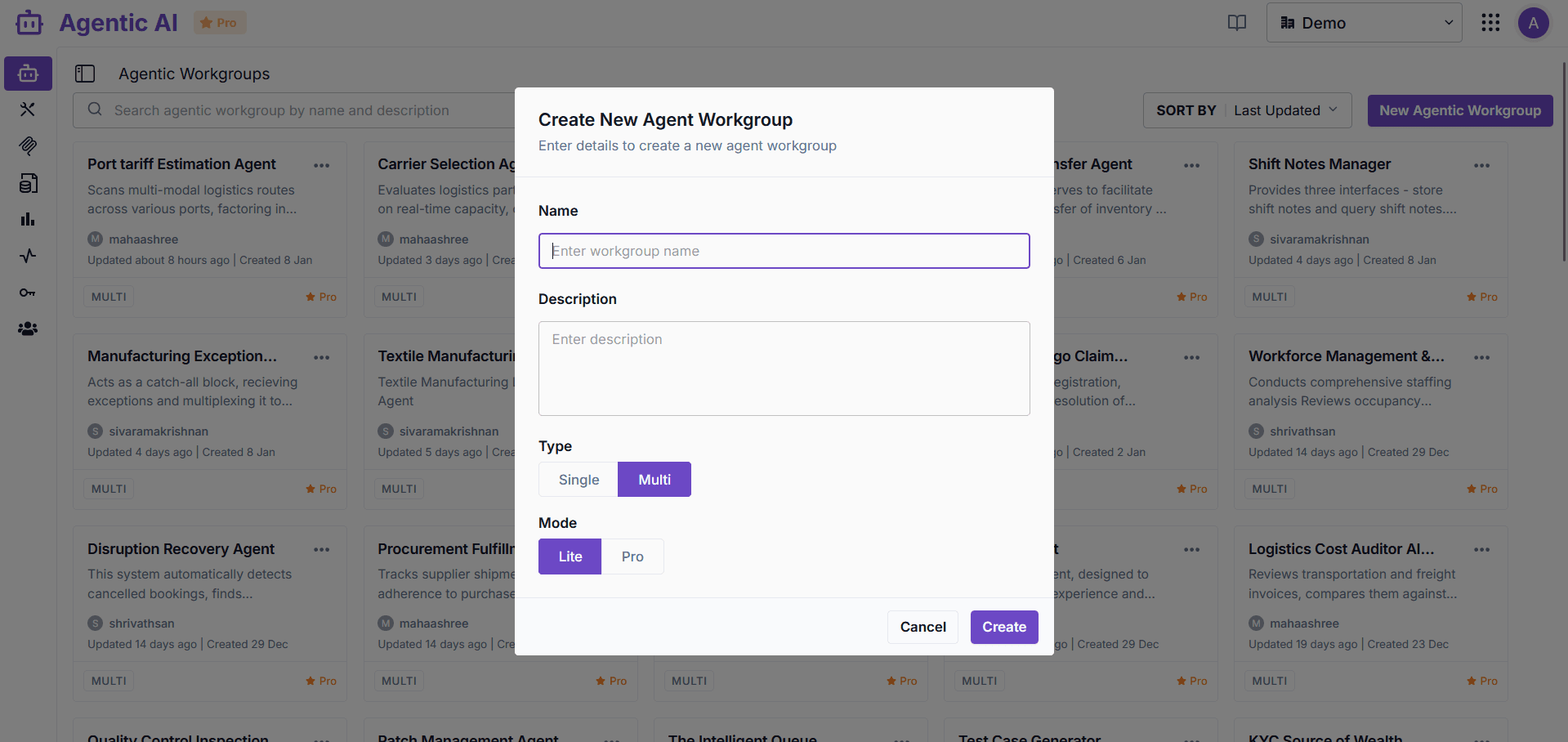
| Field | Description |
|---|---|
| Name | Unique workgroup identifier |
| Description | Purpose and objectives |
| Type | Single (one agent) or Multi (multiple agents) |
| Mode | Lite (standard features) or Pro (advanced features) |
Note: Workgroup type cannot be changed after creation.
Manage Workgroups
Click the menu icon (⋯) on any workgroup card to access options.
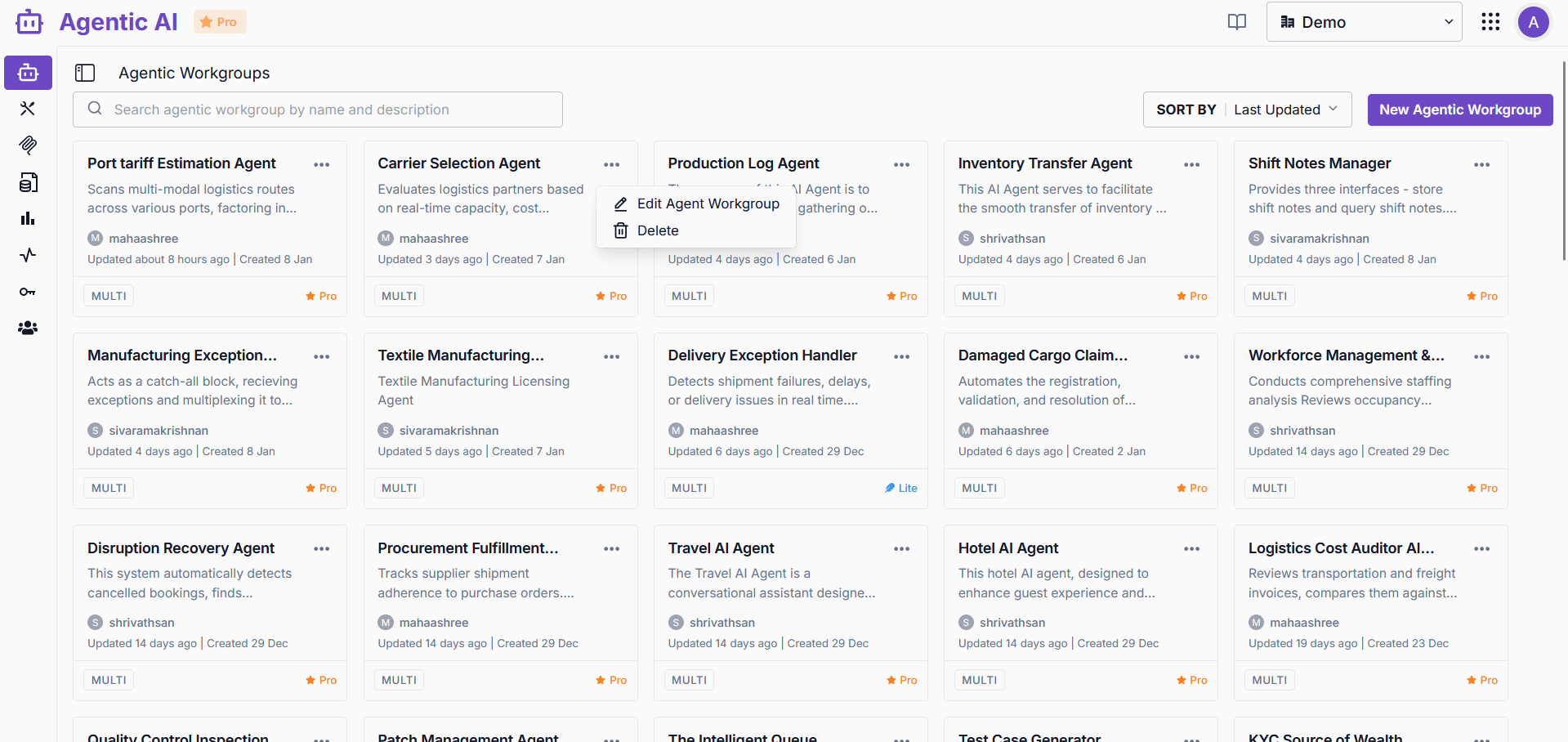
- Edit Agent Workgroup: Update name and description
- Delete: Remove the workgroup
Edit Workgroup
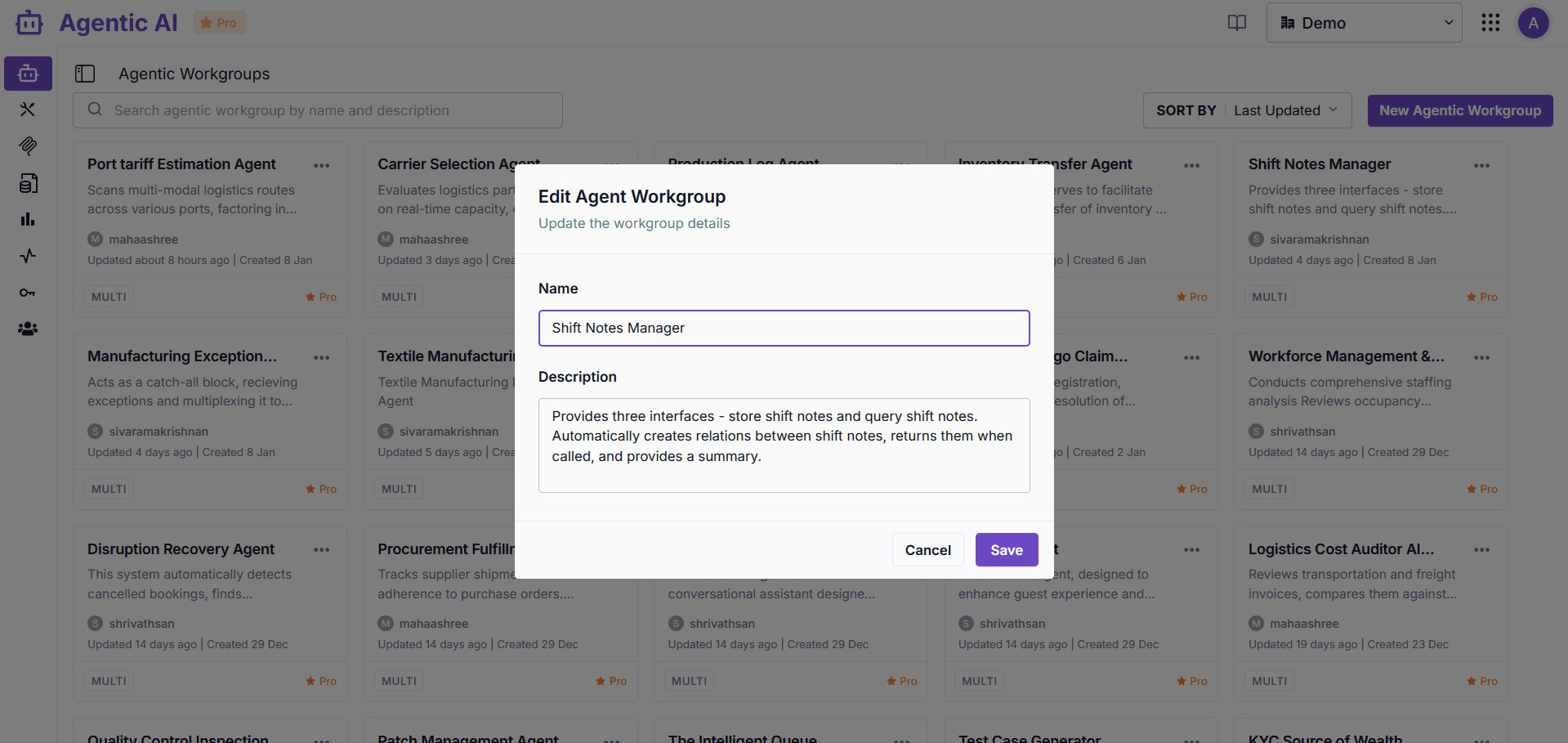
Modify the workgroup name and description, then click Save.
Multi-Agent Visualization
For multi-agent workgroups, the hierarchy view displays agent relationships:
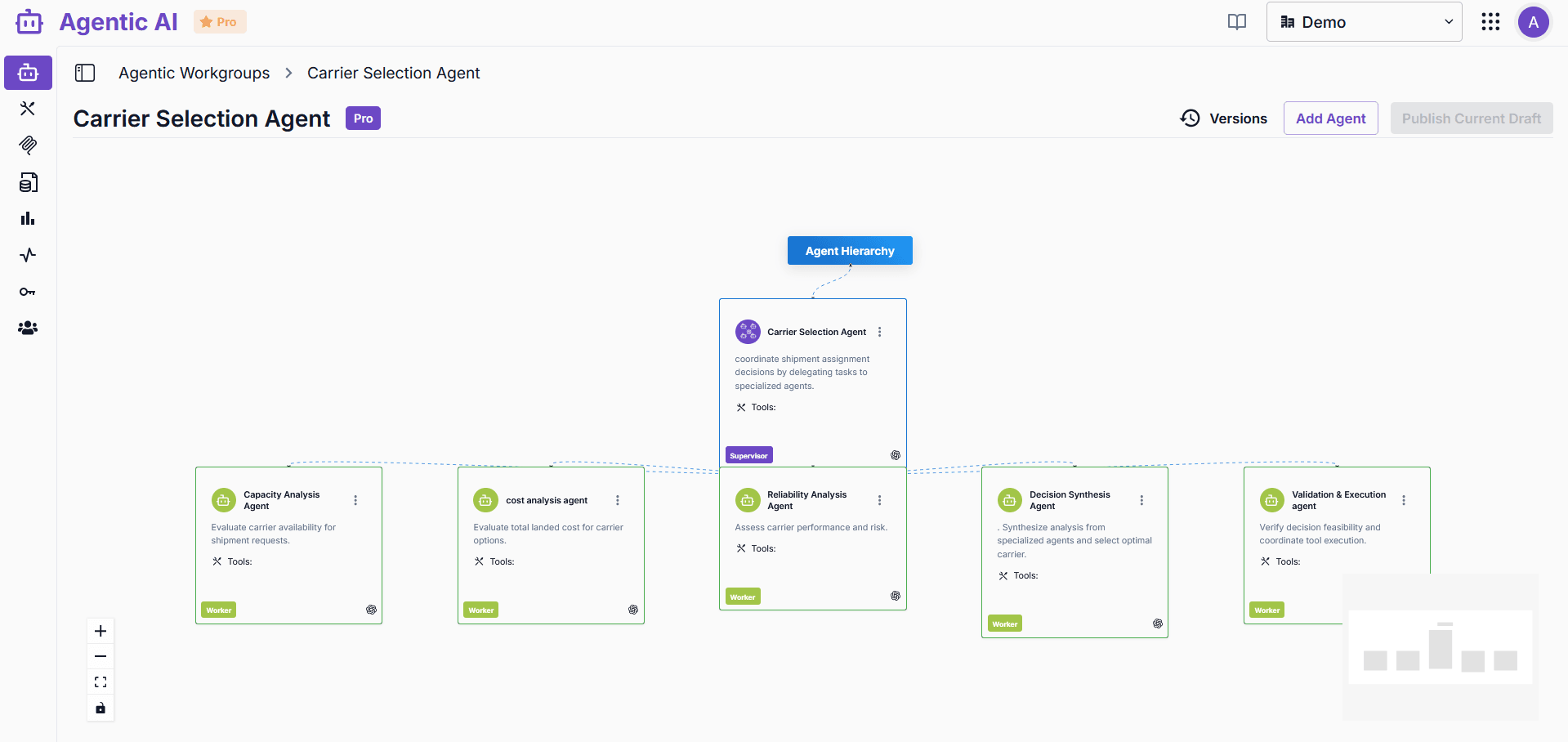
- Supervisor (top): Coordinates and delegates tasks to worker agents
- Workers (bottom): Specialized agents that execute specific tasks
Use Add Agent to add new agents, Versions to view history, and Publish Current Draft to deploy changes.
Next Steps
Configure your agents using Agent Configuration.