MCP Clients
Manage Model Context Protocol servers for advanced AI model integrations and context sharing across external systems
Pro Feature: MCP (Model Context Protocol) clients are available only in Pro version.
The Model Context Protocol (MCP) allows you to connect external tools and services using a standardized protocol, enabling you to integrate APIs and services directly into your workflows. With MCP, you can extend your agents' capabilities by adding custom integrations that work seamlessly with your agents and workflows.
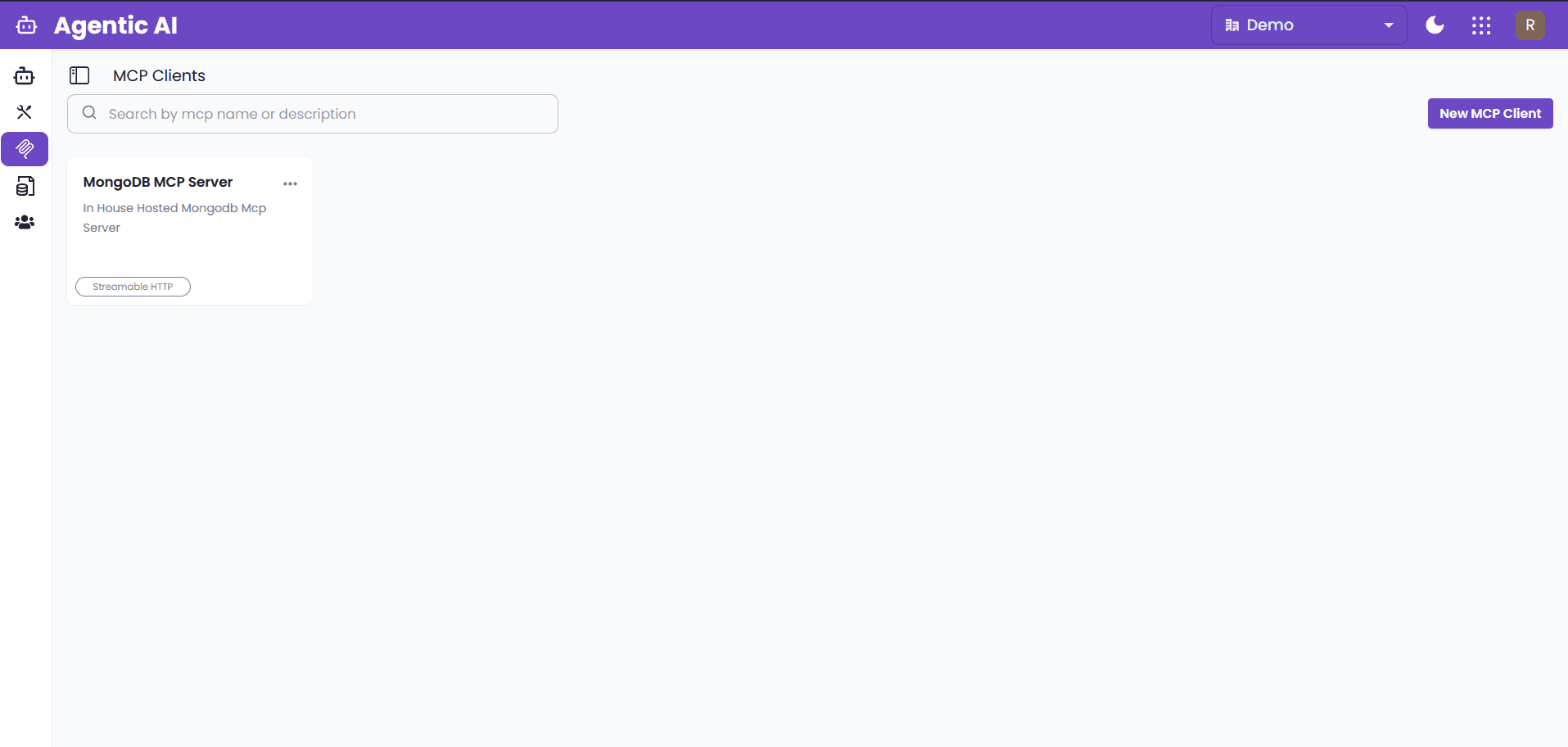
What is MCP?
MCP is an open standard that enables AI assistants to securely connect to external data sources and tools. It provides a standardized way to:
- Connect to databases, APIs, and file systems
- Access real-time data from external services
- Execute custom tools and scripts
- Maintain secure, controlled access to external resources
Configuring MCP Servers
MCP servers provide collections of tools that your agents can use. Configure them in MCP clients:
- Navigate to MCP in sidebar
- Click New MCP Client
- Enter the server configuration details
- Click Test Connection to verify the platform can connect to the MCP server
- Save the configuration
Once MCP servers are configured, go to the agent workgroup where you want to use the MCP server.
Using MCP Clients in Agent Configuration
When configuring an agent and selecting an MCP client, you can choose which tools to expose to the AI Agent:
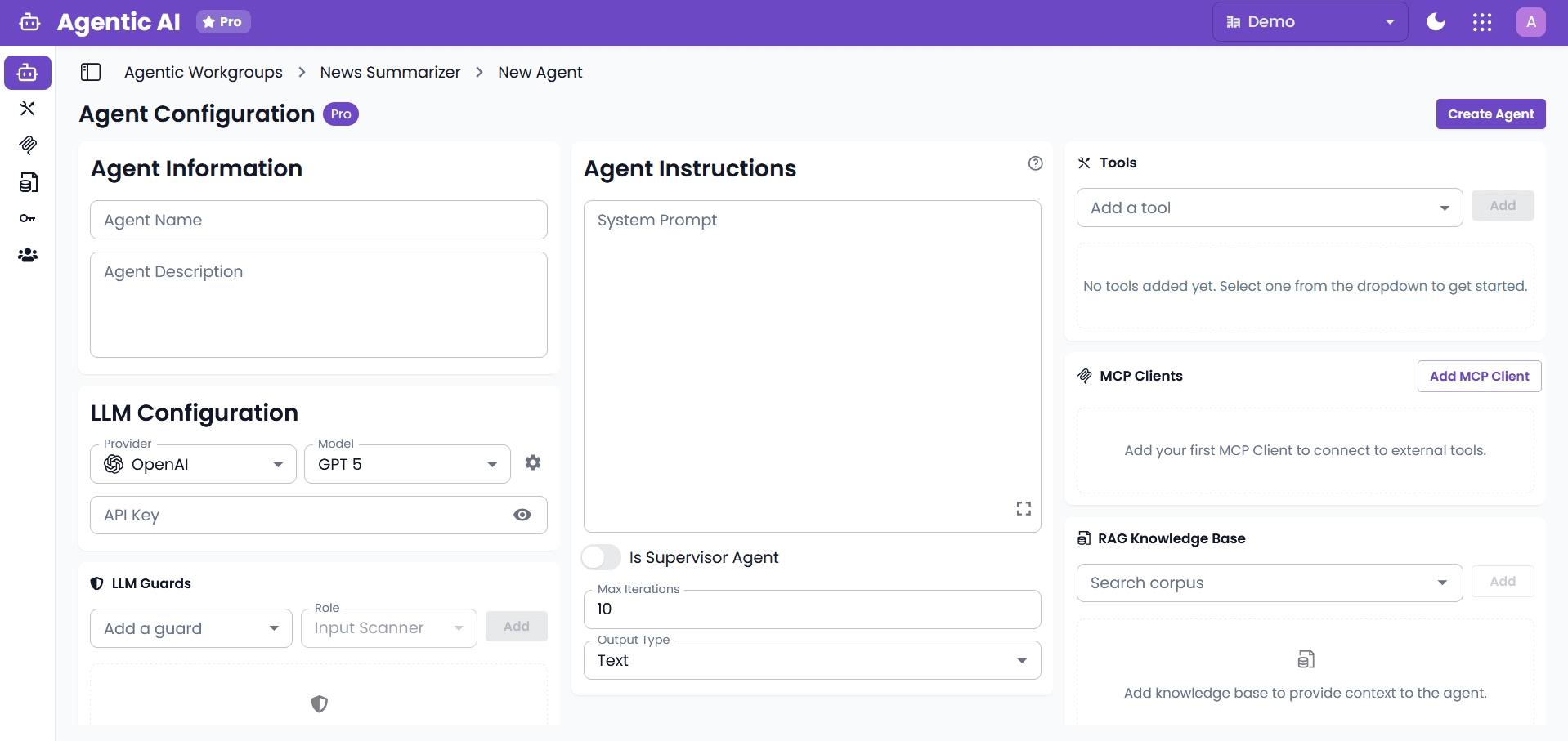
Tools to Include
Choose which tools you want to expose to the AI Agent:
- All: Expose all the tools given by the MCP server.
- Selected: Activates a Tools to Include parameter where you can select the tools you want to expose to the AI Agent.
- All Except: Activates a Tools to Exclude parameter where you can select the tools you want to avoid sharing with the AI Agent. The AI Agent will have access to all MCP server's tools that aren't selected.
Common Use Cases
Database Integration
Connect to databases to query, insert, or update data within your workflows.
API Integrations
Access external APIs and web services that don't have built-in integrations.
File System Access
Read, write, and manipulate files on local or remote file systems.
Custom Business Logic
Execute custom scripts or tools specific to your organization's needs.
Real-time Data Access
Fetch live data from external systems during workflow execution.
Security Considerations
Ensure proper authentication and access controls are configured for your MCP servers to maintain secure connections.
Troubleshooting
Tool Execution Failures
- Verify tool parameters are correctly formatted
- Check MCP server logs for error messages
- Ensure required authentication is configured