
Agent Configuration
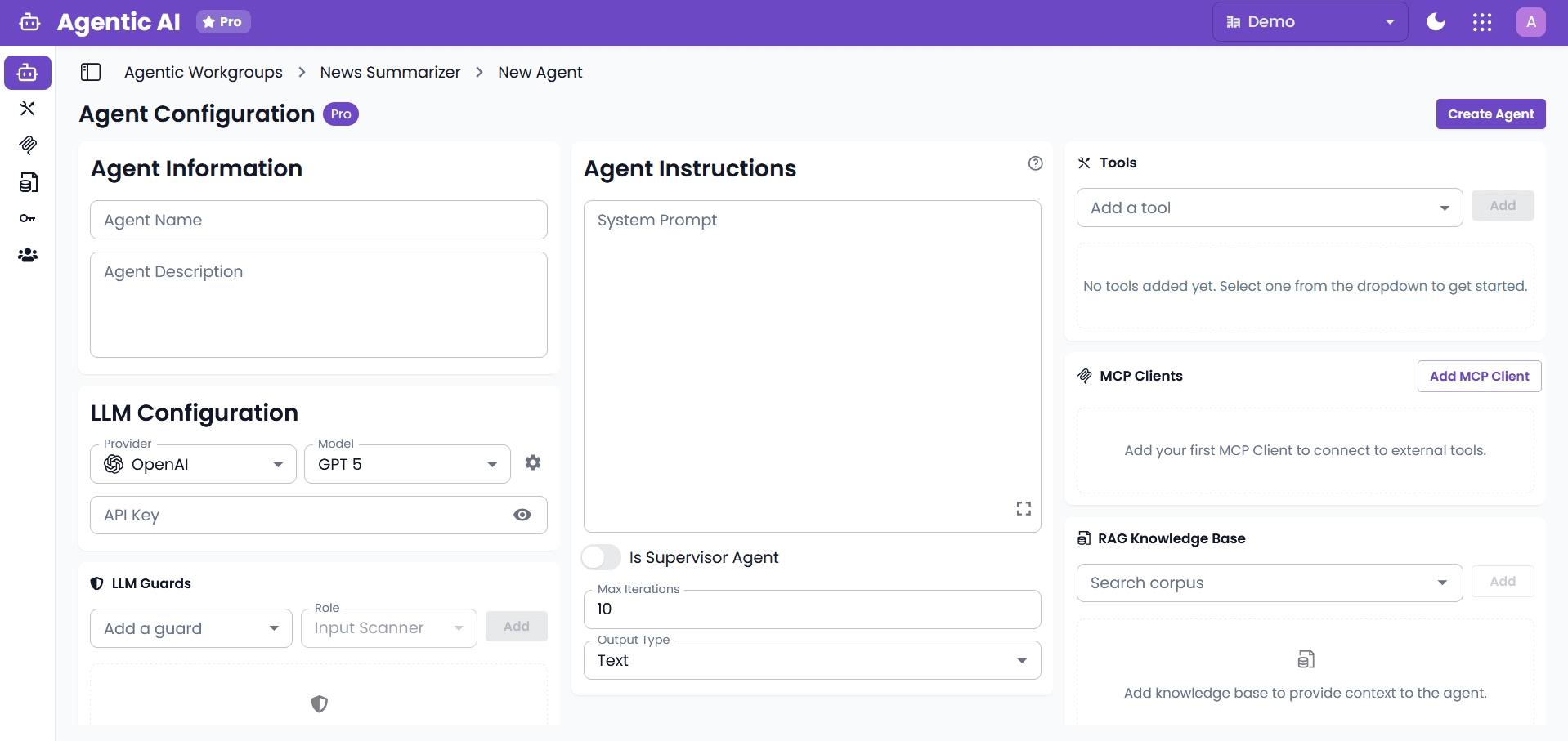
Comprehensive interface for creating and configuring individual agents within an agentic workgroup, including all necessary settings for agent behavior, LLM configuration, tools, and integrations.
Create Workgroup
Before configuring individual agents, you must first create a workgroup. A workgroup is the container that holds your agents and defines the collaborative structure for your agentic system.
Steps to Create a Workgroup
-
Navigate to the Main Dashboard
- Access the Agentic AI platform
- Click on the "Create Workgroup" button or navigate to the workgroups section
-
Enter Workgroup Details
- Workgroup Name: Provide a unique, descriptive name for your workgroup
- Workgroup Description: Describe the purpose and objectives of this workgroup
- Define what tasks or problems this workgroup will solve
-
Choose Workgroup Architecture
- Single-Agent System: Select this if you need a standalone agent for focused tasks
- Multi-Agent Workgroup: Select this if you need multiple specialized agents working collaboratively
- For multi-agent workgroups, remember that you'll need to designate one agent as the supervisor
- Important: Once a workgroup is created as single-agent or multi-agent, it cannot be transformed to the other type. Choose carefully based on your requirements.
-
Save and Continue
- Click "Create" to create the workgroup
- You'll be redirected to the workgroup detail page where you can start adding and configuring agents
Best Practices for Workgroup Creation
- Clear Purpose: Define a clear objective for your workgroup before creating it
- Naming Convention: Use descriptive names that reflect the workgroup's function (e.g., "Customer Support Workflow", "Data Analysis Team")
- Start Simple: Begin with a single-agent system if you're new to the platform, then evolve to multi-agent as needed
- Plan Hierarchy: For multi-agent workgroups, plan which agent will serve as the supervisor before adding agents
- Choose Architecture Wisely: Since single-agent workgroups cannot be converted to multi-agent (and vice versa), carefully consider your needs upfront
Converting Between Workgroup Types
A workgroup created as a single-agent system cannot be transformed into a multi-agent workgroup, and vice versa. The architecture type is fixed at creation time.
If you need to change the workgroup type:
- Create a new workgroup with the desired architecture (single-agent or multi-agent)
- Copy the existing agent configurations from your current workgroup
- Paste and configure the agents in the new workgroup
- Test the new workgroup thoroughly
- Migrate your integrations to use the new workgroup
- Delete the old workgroup once migration is complete, or leave it as is if you need to maintain it for reference
This approach allows you to preserve your agent configurations while switching to the appropriate workgroup architecture for your evolving needs.
Once your workgroup is created, you can proceed to configure individual agents within it using the agent configuration interface described below.
Agent Configuration
After creating your workgroup, you can add and configure individual agents. The agent configuration interface provides comprehensive settings for defining agent behavior, capabilities, and integrations.
1. Agent Information
Basic agent identification and description:
-
Agent Name
- The unique name that identifies the agent within the workgroup. This is a required field and should be concise and descriptive.
- Important: Agent names cannot contain special characters. Use only letters, numbers, spaces, and underscores.
-
Agent Description
- A detailed explanation of the agent's purpose, responsibilities, or intended behavior. This is required to provide context for the agent's role within the workgroup.
2. LLM Configuration
Core language model settings for configuring the agent's language model provider and parameters:
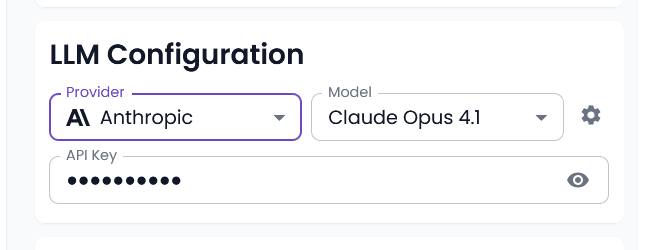
- Provider Selection
- Dropdown/combobox for LLM provider selection
- Available providers:
- Anthropic: Claude models and variants
- OpenAI: GPT models and variants
- Azure OpenAI: Azure-hosted OpenAI models
- Google Vertex AI: Gemini and PaLM models (requires service account credentials)
- Together AI: Open-source and specialized models
- Icon button (gear) for advanced configuration settings
-
Model Selection
- Dynamic dropdown populated based on selected provider
- Lists top models available for the chosen provider
- Dynamic Model Option: If desired model not in list
- Select "Dynamic Model" option from the model dropdown
- Enables the Model Name field for custom model specification
- Model Name field is required and must use the
{{variable_name}}format (e.g.,{{model_name}}) - The variable will be populated in the agent workgroup block during flow execution
-
Dynamic Variables Support
- API Key: Use
{{api_key}}format for secure key management - Model Name: When using Dynamic Model, must use
{{variable_name}}format (e.g.,{{model_name}})- Required field when Dynamic Model is selected
- Placeholder:
{{model_name}} - Only accepts values in
{{variable_name}}format
- LLM Config Parameters: Advanced configuration override using flow variables
- Use
{{variable_name}}format (e.g.,{{llmConfig}}) - Placeholder:
{{llmConfig}} - Only accepts values in
{{variable_name}}format - Pass a JSON object containing LLM-specific parameters at runtime
- Example:
{"max_tokens": 1000, "frequency_penalty": 0.5}
- Use
- Variables: All dynamic variables are populated in agent workgroup block configuration
- Runtime Configuration: Values passed during flow execution
- API Key: Use
-
Advanced Settings
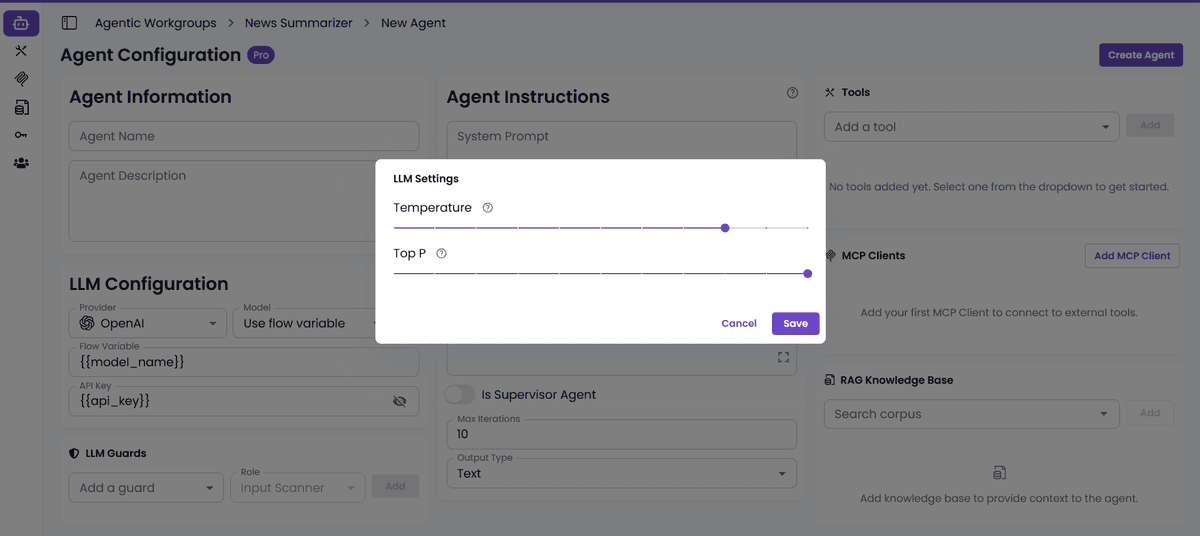
- Click gear icon to open advanced configuration dialog
- Temperature and Top P are not supported by all models, so they are not shown in the dropdown
- Reasoning Effort, Verbosity, and Reasoning Summary are supported by all models, so they are shown in the dropdown
- Temperature: Controls response randomness and creativity
- Range: 0 or greater
- Leave blank for automatic selection (uses model default)
- Top-P: Controls nucleus sampling for response diversity
- Range: 0 to 1
- Leave blank for automatic selection (uses model default)
- Reasoning Effort: Controls the effort of the model to reason
- Range: 0 to 1
- Leave blank for automatic selection (uses model default)
- Verbosity: Controls the verbosity of the model's response
- Range: 0 to 1
- Leave blank for automatic selection (uses model default)
- Reasoning Summary: Controls the summary of the model's response
- Range: 0 to 1
- Leave blank for automatic selection (uses model default)
- Note: Empty temperature and top_p values will not be sent to the backend, allowing the model to use its default settings
-
Provider-Specific Configuration
-
Google Vertex AI Requirements:
- Service Account Info: Required field for Google Vertex AI
- Must be provided as a flow variable in
{{variable_name}}format - Example:
{{service_account_credentials}} - Contains the JSON credentials for the service account
- Placeholder:
{{service_account_credentials}}
- Must be provided as a flow variable in
- Project: Google Cloud project ID
- Location: Google Cloud region for model deployment
- Service Account Info: Required field for Google Vertex AI
-
Azure OpenAI Requirements:
- Azure Endpoint: Azure OpenAI endpoint URL
- API Version: Azure OpenAI API version
- Azure Deployment: Deployment name in Azure
-
All provider-specific fields support dynamic variables using
{{variable_name}}format
-
3. LLM Guards
Security and control mechanisms:
-
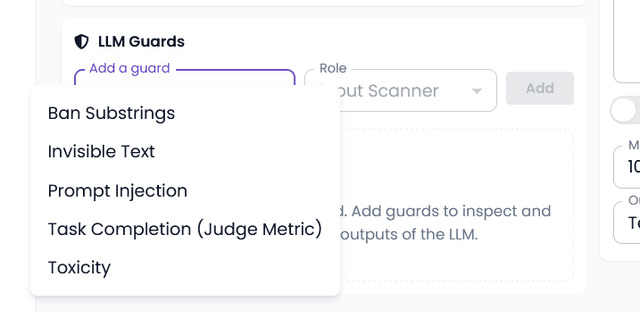
Add a Guard
- Dropdown for guard type selection
- Role configuration (e.g., "Input Scanner" or "Output Scanner")
- Add button (disabled until guard is selected)
-
Guards List
- Ban Substrings: Ensures that specific undesired substrings never make it into your prompts.
- Toxicity: Detects harmful or offensive content
- Prompt Injection: Detects malicious or harmful prompts
- Invisible Text: Detects invisible text in the input or output
- Task Completion: Ensures that the agent completes the task as expected
-
Guard Types:
- Input Scanner: Validates inputs passed to the LLM
- Output Scanner: Validates outputs from the LLM
-
Enable or disable guard that is already added
4. Agent Instructions
Core agent behavior configuration:
-
System Prompt (Required)
- Large text area for system instructions
- Expandable text field with resize capability
- Dynamic variable support: Use
{{variable_name}}format - Help text: "To use dynamic variables in prompt, use the format
{{variable_name}}." - Examples of dynamic variables:
{{user_name}}- Current user's name{{current_date}}- Current date{{context_data}}- Contextual information{{task_parameters}}- Task-specific parameters
-
Is Supervisor Agent
- Checkbox for supervisor role designation
- Enables hierarchical agent management
-
Max Iterations
- Numeric input (default: 10)
- Controls maximum execution iterations
- Prevents infinite loops
-
Output Type
- Dropdown selection (default: "Text")
- Configurable output formats (Text, JSON)
5. Tools
- Add tools for agent to use to perform tasks
External tool integrations:
-
Add a Tool
- Dropdown for tool selection
- Add button (disabled until tool is selected)
-
Available Tools: Various enterprise tools and integrations
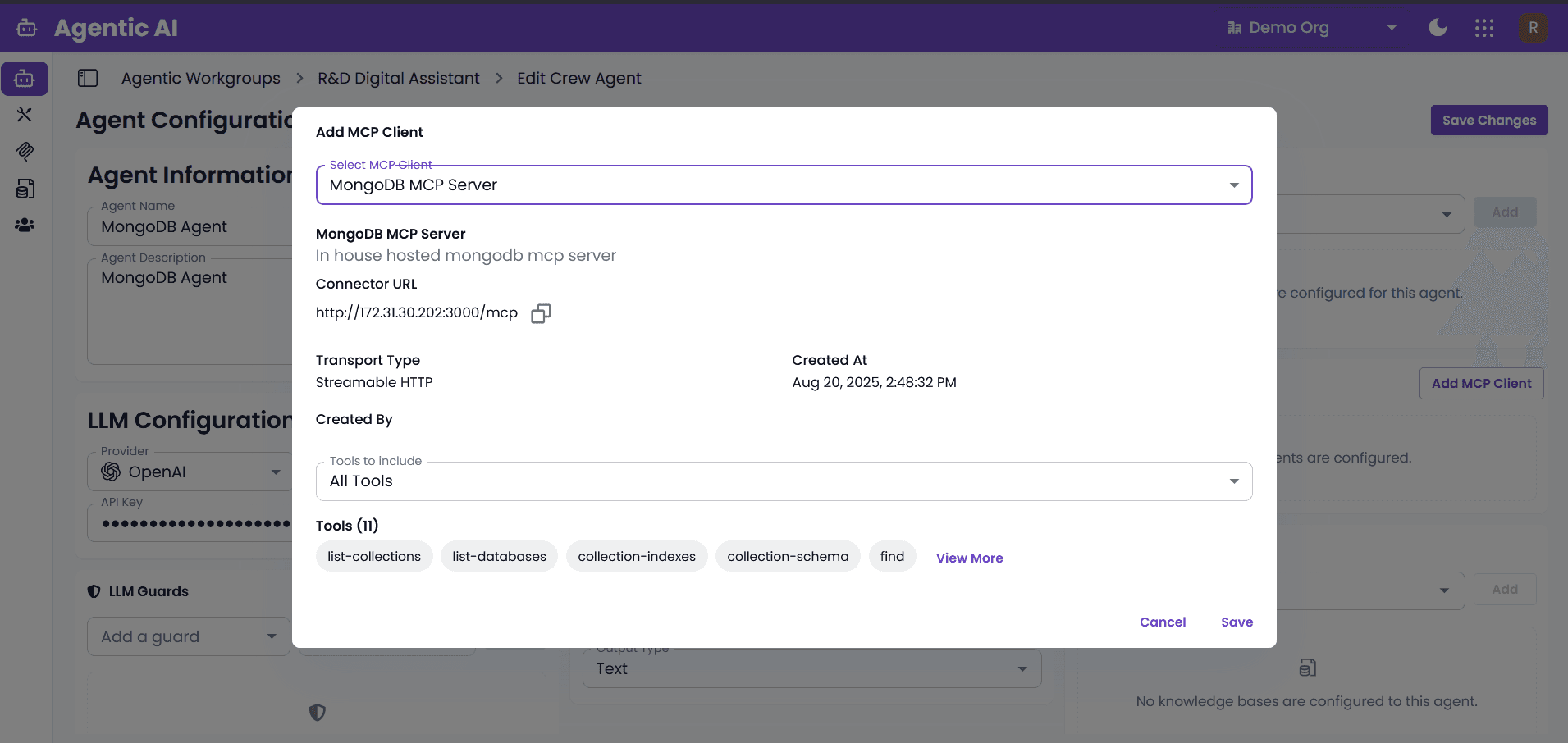
6. MCP Clients (Pro Feature Only)
Model Context Protocol integrations:
- Click on "Add MCP Client" button to add a new MCP client
- Select the MCP client from the dropdown
- Click on "Add" button to add the MCP client
- Once the MCP client is select by default all tools are added to the agent but you can select the tools that you want to add or exclude tools that you don't want to add to agent
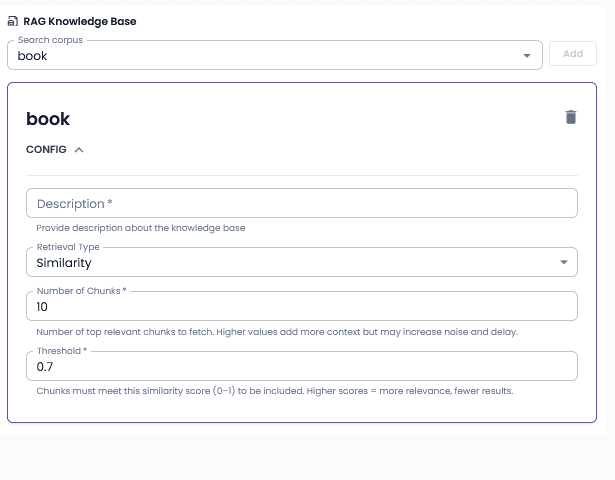
7. RAG Knowledge Base (Pro Feature Only)
- From the dropdown select "RAG Knowledge Base"
- Click on "Add" button to add the RAG knowledge base
- Once it is added you can give description of the knowledge base
- You can also select the retrieval type from the dropdown
- You can also select the threshold from the dropdown
- You can also select the number of chunks from the dropdown
- Now it is added the agent will have the ability to retrieve information from the knowledge base
Agent Naming
- Use descriptive, clear names and avoid using special characters
- Follow consistent naming conventions
- Include role or function in name
System Prompts
- Clarity: Be specific and clear in instructions
- Dynamic Variables: Use
{{variable_name}}format for flexibility - Examples: Include examples and context for better understanding
- Output Format: Define expected output format clearly
- Variable Usage: Leverage dynamic variables for reusable configurations
- Context: Provide sufficient context for the agent's role and tasks
Tool Selection
- Choose tools relevant to agent's role
- Consider tool compatibility
- Test tool integrations
Security Configuration
- Add appropriate LLM guards
- Configure input/output validation
- Set reasonable iteration limits
Advanced Features
Dynamic Variables
-
Format: Use
{{variable_name}}format in system prompts -
Purpose: Enables flexible, reusable configurations
-
Runtime Substitution: Supports runtime variable substitution
-
Examples:
- System Prompts:
{{user_name}}- Current user's name{{current_date}}- Current date{{context_data}}- Contextual information{{task_parameters}}- Task-specific parameters
- LLM Configuration:
{{model_name}}- Dynamic model selection{{llmConfig}}- Advanced LLM parameters as JSON object{{api_key}}- Secure API key management{{service_account_credentials}}- Google Vertex AI credentials
- Tool Parameters:
{{api_endpoint}}- External API endpoints{{database_connection}}- Database connection strings{{file_path}}- File paths and locations
- System Prompts:
-
Validation:
- Model Name field (for Dynamic Model) requires
{{variable_name}}format - LLM Config Parameters field requires
{{variable_name}}format - Provider-specific fields (e.g., Service Account Info) require
{{variable_name}}format - Validation errors appear if format requirements are not met
- Model Name field (for Dynamic Model) requires
-
Help Text:
- System Prompts: "To use dynamic variables in prompt, use the format
{{variable_name}}." - Model Name: "Model name flow variable"
- LLM Config Parameters: "LLM Config Parameters flow variable"
- System Prompts: "To use dynamic variables in prompt, use the format
Supervisor Agents
- Enable hierarchical agent management
- Coordinate multiple agents
- Manage agent workflows
RAG Integration
- Connect to knowledge bases
- Provide contextual information
- Enhance agent capabilities
Next Steps
After creating an agent:
- Test Configuration: Validate agent behavior
- Add More Agents: Create additional agents for the workgroup
- Configure Relationships: Set up agent interactions
- Deploy: Publish the workgroup when ready
Getting Started
A powerful platform for building and managing AI agent workgroups. Create sophisticated multi-agent workflows that handle complex tasks through collaboration between specialized AI agents, with access to 50+ enterprise tools, MCP integration, and knowledge base capabilities.
API Keys Management
Secure management of API keys for RAPBot agents and external service integrations within the Agentic AI platform