Blocks & Flow Editor
Studio Interface
Layout of the Bot Studio flow editor — palette, canvas, and sidebar
The flow editor is where you build automation tasks. It is divided into four main areas: the block palette on the left, the workspace canvas in the center, the configuration panel when editing a block, and the info sidebar on the right.
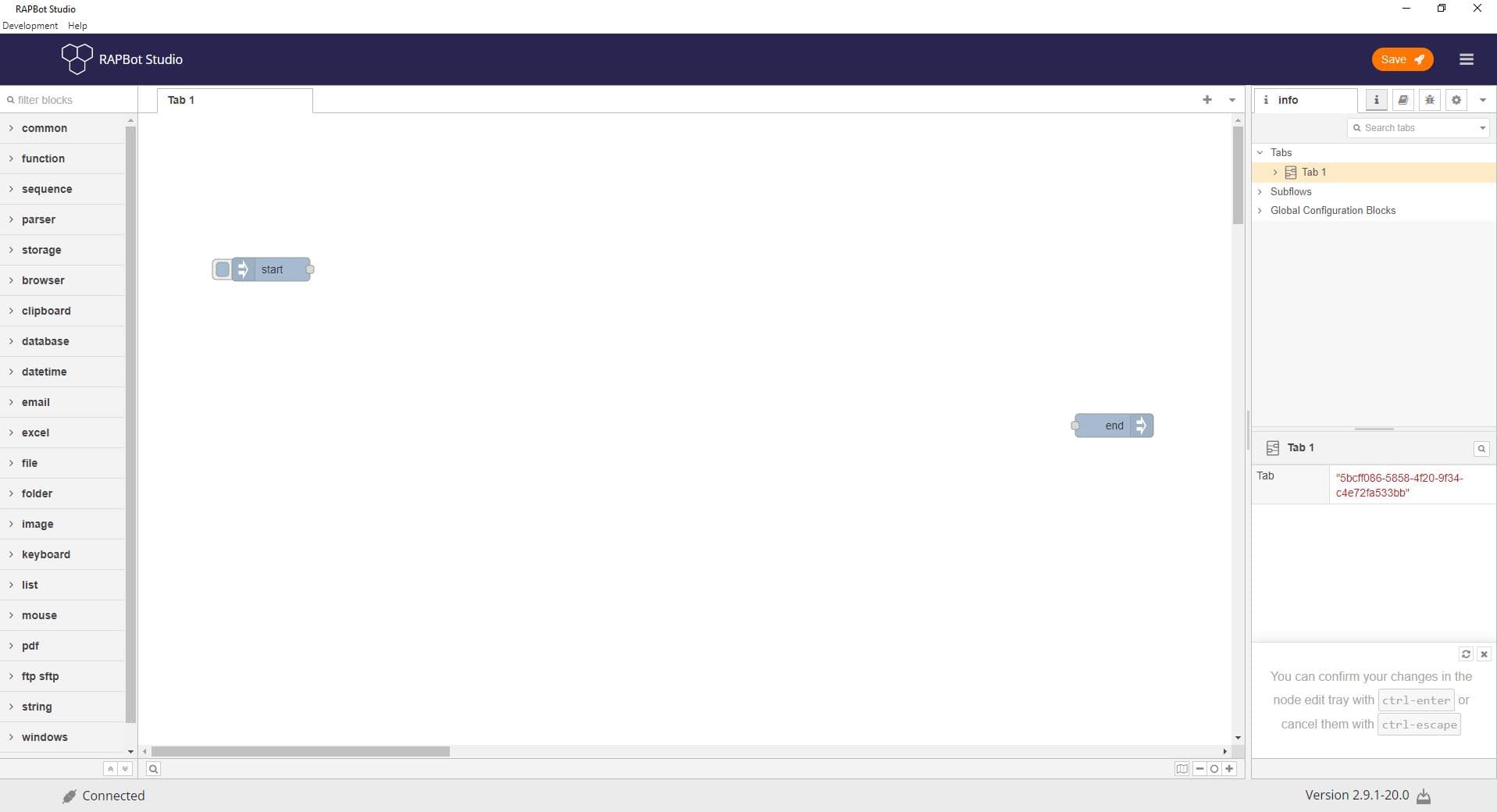
Left Panel — Block Palette
| Element | Description |
|---|---|
| Filter blocks | Search box to find blocks by name |
| Category list | Collapsible categories: common, function, browser, excel, windows, database, and more |
| Blocks | Drag blocks from the palette onto the canvas |
Center — Workspace Canvas
| Element | Description |
|---|---|
| Flow tabs | Tab bar at the top (e.g. Tab 1); click + to add tabs |
| Canvas | Grid area where blocks are placed and wired together |
| Zoom controls | Bottom-right controls for zoom in, zoom out, fit, and 1:1 scale |
| start / end blocks | Default blocks on every new flow |
Right Panel — Sidebar
The right sidebar has multiple tabs:
| Tab | Icon | Description |
|---|---|---|
| Info | ℹ️ | Flow structure, selected block details, tab properties |
| Debug | 🐛 | Runtime message output for troubleshooting |
| Help | ? | Context help for the selected block |
| Settings | ⚙️ | Global configuration blocks |
The Info tab shows:
- Tabs — List of flow tabs (e.g. Tab 1)
- Subflows — Reusable subflow definitions
- Global Configuration Blocks — Shared configuration nodes
Top Toolbar
| Element | Description |
|---|---|
| Save | Save the current task (orange button) |
| Menu (☰) | Additional editor options |
Editing Blocks
Double-click a block on the canvas to open the Edit panel. Confirm changes with Ctrl+Enter or cancel with Ctrl+Escape.
Status Bar
| Element | Description |
|---|---|
| Connected | Orchestrator connection status |
| Version | Studio application version |