
Frequently Asked Questions
Common questions and answers about RAPFlow
Frequently Asked Questions
Flow Editor Issues
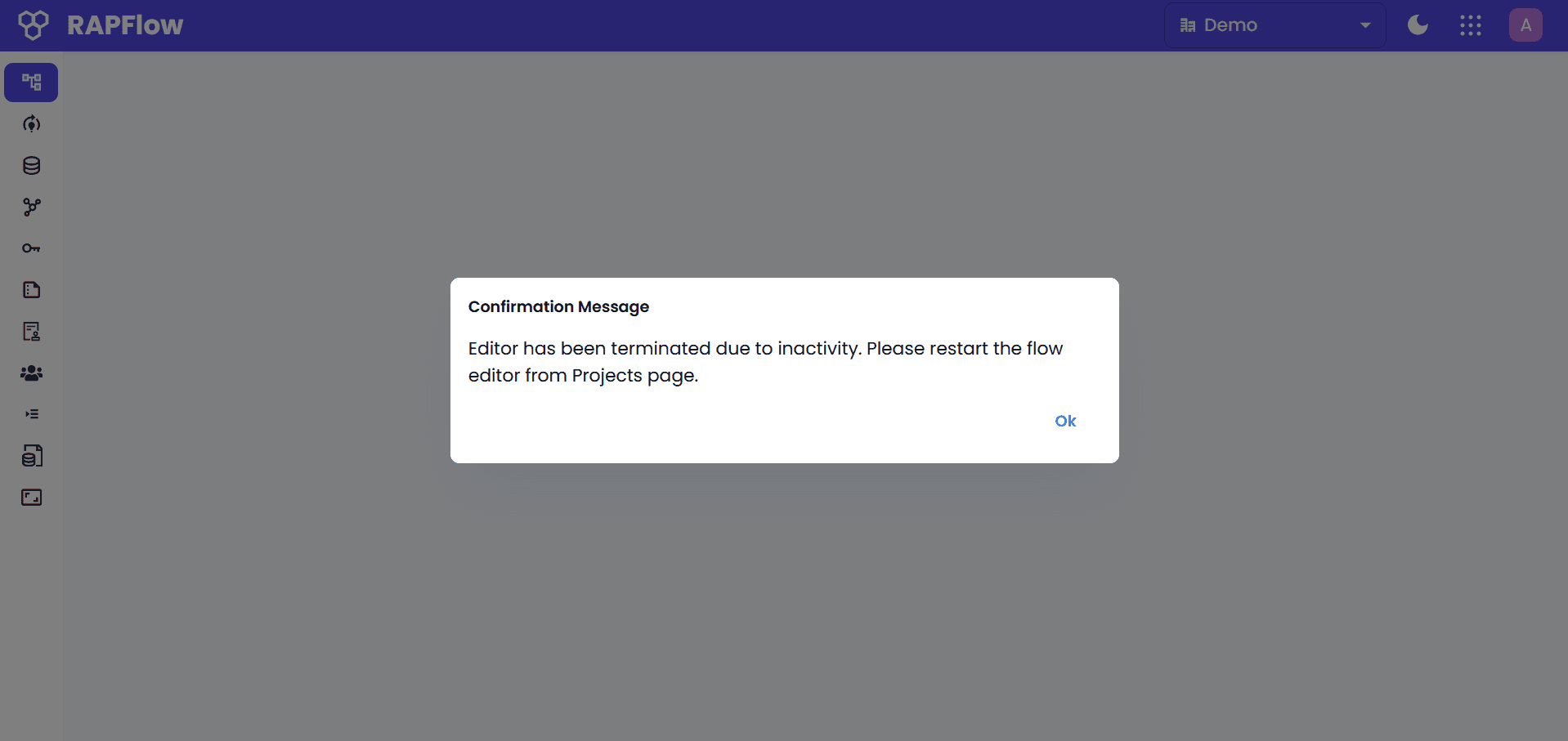
What does "editor has been terminated due to inactivity. Please restart the flow editor from Projects Page" mean?
This message appears when the Flow Editor has been inactive for a period of time and has been automatically terminated to free up system resources. This is a normal behavior to ensure optimal performance.
To restart the Flow Editor:
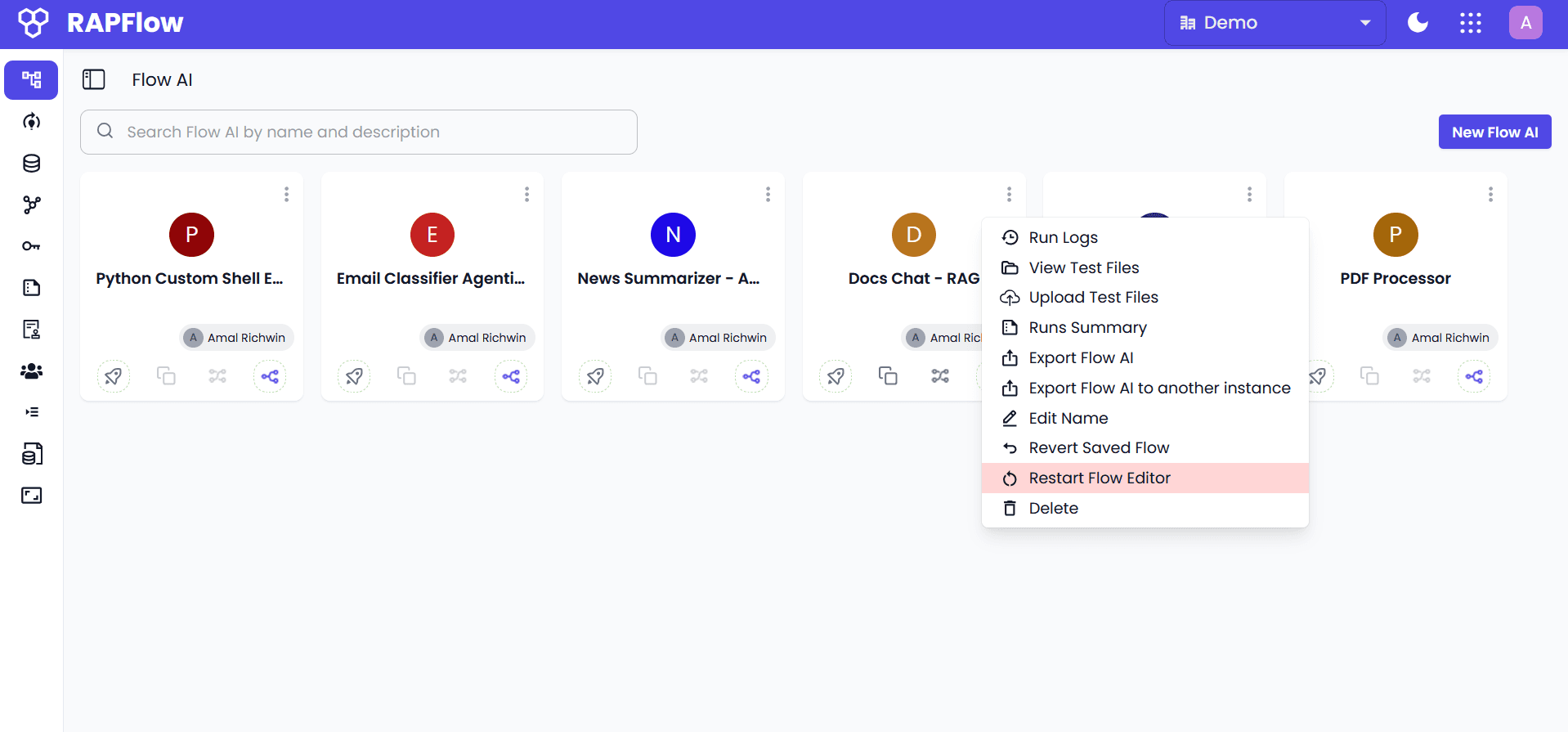
- Click OK on the termination message - this will take you to the Flow AI screen
- Find your project in the Flow AI screen
- Click the hamburger icon (⋮) on the project that had the terminated editor
- Select "Restart Flow Editor" from the menu
The Flow Editor will restart and you can continue working on your flows. Your work is automatically saved, so you won't lose any progress.
Getting Started
How do I create my first flow?
- Navigate to your project in RAPFlow
- Click "Open Flow Editor" to access the visual workflow builder
- Drag blocks from the palette onto the canvas
- Connect blocks by dragging from output ports to input ports
- Configure each block's properties in the sidebar
- Save your flow and deploy it from the Flow AI screen
For detailed instructions, see our Building Flows guide.
What blocks are available in RAPFlow?
RAPFlow includes a comprehensive set of blocks for:
- Document Processing: OCR, PDF processing, text extraction
- AI/ML: LLM queries, image classification, object detection
- Data Processing: Transform, validate, filter data
- Integration: HTTP requests, database connections, file operations
- Flow Control: Switch, delay, batch processing
Check the Blocks Reference for complete documentation.
Flow Building
How do I handle errors in my flows?
Use the following strategies for error handling:
- Catch blocks: Handle specific error conditions
- Switch blocks: Route messages based on success/failure status
- Debug blocks: Monitor message flow and troubleshoot issues
- Try-catch patterns: Implement fallback logic for critical processes
Can I reuse flows across different projects?
Yes! You can:
- Export flows: Save flows as JSON files
- Import flows: Load previously saved flows
- Share flows: Copy flow configurations between projects
- Template flows: Create reusable flow templates
API Integration
How do I call my deployed flows via API?
- Generate an API key in the API Keys section
- Deploy your flow from the Flow AI screen
- Copy the consumer API endpoint
- Make HTTP requests with your API key in the headers
See the Building Flows guide for complete API examples in Python, JavaScript, and cURL.
What is the polling mechanism for API results?
When you call a flow via API:
- The initial request returns a
resultUrl - Poll this URL to check the execution status
- Continue polling until status is
completedorfailed - Retrieve the final results from the response
Troubleshooting
My flow is not executing properly. What should I check?
- Verify block connections: Ensure all blocks are properly wired
- Check block configuration: Review required parameters in each block
- Use debug blocks: Monitor message flow and data structure
- Check logs: Review execution logs for error messages
- Test incrementally: Build and test flows step by step
How do I optimize flow performance?
- Minimize data transformations: Reduce unnecessary processing steps
- Use batch processing: Handle large datasets efficiently
- Optimize block order: Arrange blocks for optimal execution flow
- Monitor resource usage: Check system performance during execution
Need More Help?
- Documentation: Browse our comprehensive guides and references
- Support: Contact our support team for technical assistance
- Community: Join our user community for tips and best practices
For detailed information, visit the Building Flows guide or explore the Blocks Reference for component documentation.